
Using a Custom Function to Draw on Bars with Winning vs. Losing Exits Due to Money Management Functions (Point-and-Click NinjaTrader® Strategy)

Original Trading Strategy
Peer Reviews, Modifications & Responses
Thanks for Sharing!
Trading Strategy Summary
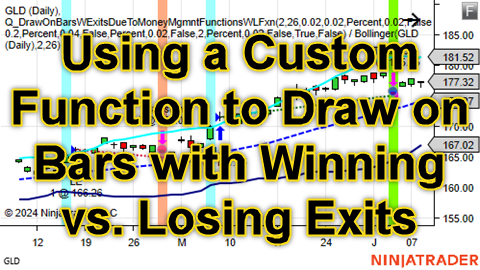
This strategy is like the strategy built into Quagensia N Edition called “Draw on Bars with Exits Due to Money Management Functions (Set Stop Loss, Set Trailing Stop, Set Parabolic Trailing Stop, and Set Profit Target)” except that it draws on the bars of exits due to protective stops in different colors based on whether or not the last trade was a winner.
There are three Color input parameters in this strategy to allow the user to change the colors of the background, candle outline, and dot on bars of exits due to protective stops where the last trade was a winner and three Color input parameters to do the same but for bars of exits due to protective stops where the last trade was not a winner.
In addition to the strategy logic techniques demonstrated by the strategy upon which this strategy is based, the following other strategy logic techniques are demonstrated:
- Using Color internal variables that allow a strategy’s logic to calculate a color, set the Color internal variable’s value to the calculated color, then use the Color internal variable at locations in a strategy’s logic where a color can go. The strategy upon which this one is based demonstrated the use of Color input parameters passed from the NinjaTrader® user interface and this strategy demonstrates Color input parameters as well. The values of input parameters cannot be changed by a strategy, however, which is why we had to use internal variables in this strategy so that we could set their values to calculated color values from within this strategy.
- How to use a custom Quagensia N Edition Function in a strategy. While there are over 2000 functions in Quagensia N Edition, including many very flexible, configurable functions in the “More Expressions > Orders, Fills, and Positions > Position Info > Trade Metrics” folder that allow you to determine aggregate performance metrics for a strategy, at the time this strategy was made there was not a “Last Trade Percent Profit” function built into Quagensia N Edition so a custom Quagensia N Edition Function had to be created to do the calculation and return the percent profit of the last trade if at least one trade has occurred. If no trades have occurred, the value that is returned as the result is the value to which the function’s “Value to Return If No Trades” input parameter is set. This strategy is not meant to be a tutorial on how to create a custom Quagensia N Edition Function, but rather is intended to give new users a basic awareness that if Quagensia N Edition is missing a particular function it is possible to create a custom function and use it in the same way one would use any of the over 2000 built-in functions as long as the custom function is placed in the “My Algos” folder of a subfolder of it.
WARNING: This strategy uses a custom Quagensia N Edition Function made by the end user. Any custom Quagensia N Edition Functions made by the end user must be placed in the “My Algos” folder to be used in a Quagensia N Edition Strategy. The custom function used by this strategy is called “Last Trade Percent Profit (This Custom Function Must Be In Your ‘My Algos’ Folder)” and is in the zip file together with this strategy. If you do not put this custom Quagensia N Edition Function into your “My Algos” folder this strategy will not work.
WARNING: Note that the custom function used by this strategy returns the percent profit of the last trade. For this simple strategy, the “last trade” should be the trade that exited due to the protective stop used by the strategy since 1) this function is only used if an exit due to a protective stop occurred on the current bar, 2) the logic of this strategy only executes on bar closes, not on each tick or price change, due to its Strategy Details section’s “Calculate” drop-down list’s value being set to “On Bar Close”, and 3) this strategy has very simple entry and exit logic and neither scales into positions nor scales out of positions. However, if this strategy scaled in and out of positions rather than entering only a single position or if this strategy’s “Calculate” drop-down list value is changed to something different than “On Bar Close”, many exits could have occurred on the exit bar of the protective stop, and those exits could be exits due to profit targets, exit market orders submitted if certain conditions are True in the When Bar Update section, or another kind of exit. Therefore it is possible in those more complex scenarios that the custom function will return a positive value for the percent profit of the last trade that is for a different trade than the protective stop. But for this strategy, this function should return the percent profit specifically for the exit due to the protective stop on the bar that is drawn upon with different colors to indicate if the trade exited by the protective stop was a winner or not.
To learn about the strategy upon which this one is based, open the “Draw on Bars with Exits Due to Money Management Functions (Set Stop Loss, Set Trailing Stop, Set Parabolic Trailing Stop, and Set Profit Target)” strategy from the “Algos from Quagensia > Strategies > Strategies for New Users” folder of the Algo Explorer on the right side of Quagensia N Edition’s main window or visit the strategy’s home page at https://www.quagensia.com/trading-idea/draw-on-bars-with-exits-due-to-money-management-functions-n
Here is the “Description & Notes” field’s text of the strategy upon which this one is based (at the time this strategy was published) for convenience:
This trend following strategy goes long when the close price crosses above the upper band of a Bollinger Bands® indicator while the close price is going up and exits when the close price crosses below the lower band of a Bollinger Bands® indicator.
Note that this strategy is not meant to perform well. Rather it is meant to demonstrate how to draw on bars with exits due to money management functions. This strategy may perform better if it exits when the close price crosses below the middle line rather than the lower band, but we chose to use the lower band for the exits of this particular strategy to allow for more stop losses, trailing stops, parabolic trailing stops, and profit targets to exit positions so users would see more examples of drawings on bars with exits due to money management functions.
The strategy also exits its long position via one of three possible types of protective stops (a stop loss, trailing stop, or parabolic trailing stop) as determined by the value to which the “Stop Type (1=Stop Loss, 2=Trailing Stop, 3=Parabolic Trailing Stop)” input parameter is set if this strategy’s “Use A Protective Stop of Any Type?” input parameter is set to True due to its check box being checked in the NinjaTrader® user interface.
The strategy also exits its long position via a profit target if this strategy’s “Use Profit Target?” input parameter is set to True due to its check box being checked in the NinjaTrader® user interface.
If a position is exited due to a protective stop, a translucent (i.e. semi-transparent) dot whose color is set by the input parameter named “Color of Dot on High of Protective Stop Exit Bar” is drawn on the high of the bar, the bar’s “candle outline color” is set by the input parameter named “Candle Outline Color of Protective Stop Exit Bar”, and the background color of all chart panels is set by the input parameter named “Background Color of Protective Stop Exit Bar”. Note that if the “Calculate” drop-down list in the “Strategy Details” section below is set to a value other than “On Bar Close”, then the translucent dot will be drawn at the high of the bar on the tick or price change upon which it was determined that a protective stop exit occurred, which will not necessarily be the high of the bar on the close of the bar.
If a position is exited due to a profit target, a translucent dot whose color is set by the input parameter named “Color of Dot on High of Profit Target Exit Bar” is drawn on the high of the bar, the bar’s “candle outline color” is set by the input parameter named “Candle Outline Color of Profit Target Exit Bar”, and the background color of all chart panels is set by the input parameter named “Background Color of Profit Target Exit Bar”. Note that if the “Calculate” drop-down list in the “Strategy Details” section below is set to a value other than “On Bar Close”, then the translucent dot will be drawn at the high of the bar on the tick or price change upon which it was determined that a profit target exit occurred, which will not necessarily be the high of the bar on the close of the bar.
The logic that determines if a bar is a stop loss, trailing stop, parabolic trailing stop, or profit target exit bar is based on the assumption that the signal names of the exit orders for these four types of money management stops are always “Stop loss”, “Trail stop”, “Parabolic stop”, and “Profit target” respectively, as is stated on the official NinjaTrader® help pages for the “SetStopLoss()” method (a “method” is also commonly referred to as a “function”) at https://ninjatrader.com/support/helpGuides/nt8/setstoploss.htm, “SetTrailStop()” method at https://ninjatrader.com/support/helpGuides/nt8/settrailstop.htm, “SetParabolicStop()” method at https://ninjatrader.com/support/helpGuides/nt8/setparabolicstop.htm and “SetProfitTarget()” method (a “method” is also commonly referred to as a “function”) at https://ninjatrader.com/support/helpGuides/nt8/setprofittarget.htm. These four official NinjaTrader® help pages seem to suggest that the four signal names are always as previously mentioned regardless of the language settings of a given NinjaTrader® installation, and a quick test of this strategy on a NinjaTrader® installation with the language set to “French” appeared to work correctly, but this assumption was not tested on NinjaTrader® installations with language settings other than English or French.
This strategy demonstrates how to use “Color” input parameters so you can change colors used by a strategy from a color picker in the NinjaTrader® user interface. Note that if you need to calculate a color on each bar close, price change, or tick and the color could be one of many colors, such as a gradient from red to yellow to green through all the colors in between, instead of using a Color input parameter you can use a Color internal variable and set it to your calculated color on each bar close, price change, or tick by putting your color calculation logic in the “When Bar Updates” section. Then, you can use the Color internal variable with the calculated color anywhere in the “When Bar Updates” section where you would normally see a color picker by clicking the gear icon next to the color picker and selecting your Color internal variable from the “Input Parameters and Internal Variables > Internal Variables” context menu subfolder instead of selecting a Color input parameter from the “Input Parameters and Internal Variables > Input Parameters” context menu subfolder as was done to build this strategy.
This strategy also demonstrates how to use “List of Choices” input parameters so you can change the values of drop-down lists used by a strategy from a drop-down list in the NinjaTrader® user interface. An example of a drop-down list used by this strategy is the one that lets you set the “Trailing Stop Calculation Mode” to a value such as “Percent” or “Ticks” from a drop-down list in the NinjaTrader® user interface. Note that if you need to calculate the value of a drop-down list on each bar close, price change, or tick, instead of using a “List of Choices” input parameter you can use a “List of Choices” internal variable and set it to your calculated drop-down list value on each bar close, price change, or tick by putting the logic that determines the selection for the drop-down list in the “When Bar Updates” section. Then, you can use the “List of Choices” internal variable with the calculated drop-down list selection anywhere in the “When Bar Updates” section where you would normally see a “List of Choices” drop-down list by clicking the gear icon next to the “List of Choices” drop-down list and selecting your “List of Choices” internal variable from the “Input Parameters and Internal Variables > Internal Variables” context menu subfolder instead of selecting a “List of Choices” input parameter from the “Input Parameters and Internal Variables > Input Parameters” context menu subfolder as was done to build this strategy.
This strategy also demonstrates how to group input parameters together under separate headings in the NinjaTrader® user interface by using the same value in the “Category” field of each related input parameter that should go under a specific heading. The “Category” field of a Quagensia N Edition Strategy’s input parameter is hidden by default but can be shown and filled out by clicking the “Advanced Fields” link of the input parameter. This link was already clicked for all of the input parameters of this strategy which is why the “Category” fields of all the input parameters of this strategy are visible.
This strategy also demonstrates how to create translucent colors using the “Create a Partially or Fully Transparent Color” function.
Copyright © 2024 Quagensia, Inc. All rights reserved.
How to Get the Quagensia Strategies
The downloadable zip file linked to below contains Quagensia N Edition (for NinjaTrader®) files and/or auxiliary files that were created by us at Quagensia, Inc.:
Click the link above to download the zip file and unzip it. If this zip file contains point-and-click Quagensia Trading Strategy files for your edition of the Quagensia Desktop Application, put the point-and-click Quagensia Trading Strategy files into your “My Algos” folder as described in the video Downloading & Importing Third-Party Strategies into Quagensia N Edition (for NinjaTrader®) or Downloading & Importing Third-Party Strategies into Quagensia T Edition (for TradeStation®).
Customize Quagensia Strategies with Your Own Ideas
Tweaking Quagensia Trading Strategies using point-and-click with the Quagensia Desktop Application is easy for non-programmers. If you get stuck you can usually find the answer you need in our online help documentation or you can ask a question in our friendly Discord community.
If you don’t want to tweak a Quagensia Trading Strategy with point-and-click to add your own proprietary trading logic, you can still download a Quagensia Trading Strategy file, open it up in the Quagensia Desktop Application, and generate its code, then backtest and optimize the trading strategy on different instruments, different bar periods (weekly bars, daily bars, hourly bars, 15-minute bars, etc.), or different bar types (time-based bars, volume-based bars, tick-based bars, etc.), and use different start and end dates.
Some tweaks you can make to the Quagensia Trading Strategies you download include:
Modify the entry & exit logic.
- Add more conditions, remove conditions, or change them by choosing from among a very large number of components, including many exotic indicators.
- Add or modify stop losses, trailing stops, and profit targets. Make them tighter, less tight, or based on an entirely different calculation.
- Add or modify time stops. For example, exit after a certain number of bars either unconditionally or only if the post-entry price action did or did not exhibit certain characteristics.
Enhance the output of the strategy to go beyond simply placing orders.
- Draw lines, shapes, and text on the chart. For instance, you can mark times or prices where each entry or exit condition of a multi-condition entry or exit was true, even if all the necessary entry or exit conditions were not true at the same time so an entry or exit did not occur.
- Write information to NinjaTrader®’s NinjaScript® Output window or TradeStation®’s EasyLanguage® Print Log window.
- Write information to a file. You can even output a report that can be opened in Microsoft Excel or consumed by another application that reads comma-delimited, semicolon-delimited, or otherwise character-delimited tabular data files.
Thanks for Sharing!










