Current Version: 26.3.31.0 – March 3, 2026
Quagensia T Edition’s copy-and-paste and multi-select functionality has been greatly enhanced with many new powerful options that will save a lot of time for both new and advanced users.
You can now select multiple adjacent conditions in a set of conditions and cut or copy them as a group, then paste them at any valid location before or after another condition, left parenthesis, or right parenthesis, or on top of another multi-selected list of adjacent conditions in the same set of conditions or any other set of conditions in the same strategy or in a different strategy where the specific logic in the conditions is valid.
You can now select multiple adjacent numerical expressions in a “Basic Arithmetic” expression and cut or copy them as a group, then paste them at any valid location before or after another numerical expression, left parenthesis, or right parenthesis, or on top of another multi-selected list of adjacent numerical expressions in the same Basic Arithmetic expression or any other Basic Arithmetic expression in the same strategy or in a different strategy where the specific logic in the numerical expressions is valid.
You can now select multiple adjacent pieces of text in a “Text Added Together” expression and cut or copy them as a group, then paste them at any valid location before or after another piece of text, or on top of another multi-selected list of adjacent pieces of text in the same Text Added Together expression or any other Text Added Together expression in the same strategy or in a different strategy where the specific logic in the individual “piece of text” expressions is valid.
One major time saving technique that uses the new multi-selection and copy-and-paste features described above is to move multiple adjacent conditions, numerical expressions, or pieces of text to an arbitrary location in a very large Set of Conditions, Basic Arithmetic expression, or Text Added Together expression by first cutting a multi-selected list of items, then clicking on an arbitrary item at another location in the very large Set of Conditions, Basic Arithmetic expression, or Text Added Together expression, and choosing to paste the previously cut items either above or below the destination location clicked.
Everything described above for multi-selected conditions, numerical expressions, and pieces of text can be done for:
- A single condition in a Set of Conditions
- A Boolean (True or False) expression that is not part of a Set of Conditions
- A single numerical expression in a Basic Arithmetic expression
- A numerical expression that is not part of a Basic Arithmetic expression
- A single piece of text in a Text Added Together expression
- A single piece of text that is not part of a Text Added Together expression
You can now multi-select multiple adjacent conditions in a Set of Conditions or multi-select multiple adjacent numerical expressions in a Basic Arithmetic expression and add parentheses around the entire selected list of conditions or numerical expressions.
Miscellaneous Improvements
You can now click on a function usage and select the “Find Function Usages” context menu item from the context menu that appears to find all the usages of that function in your strategy. The function usages are loaded into the list of results in the Search Results Tab in the pane on the bottom of Quagensia T Edition’s user interface. You can click on one of the search result rows in the list to automatically scroll to that usage of that function in your strategy.
You can now click on a usage of an input parameter or internal variable and select either the “Find Usages” or “Find Usages & Scroll to Definition” context menu item from the context menu that appears to find all the usages of that input parameter or internal variable in your strategy. The usages of that input parameter or internal variable are loaded into the list of results in the Search Results Tab in the pane on the bottom of Quagensia T Edition’s user interface. You can click on one of the search result rows in the list to automatically scroll to that usage of that input parameter or internal variable in your strategy.
You can now click on the gear icon on the left side of an input parameter’s or internal variable’s row in the Input Parameters or Internal Variables section’s grid and select the “Find Usages” context menu item from the context menu that appears to find all the usages of that input parameter or internal variable in your strategy. The usages of that input parameter or internal variable are loaded into the list of results in the Search Results Tab in the pane on the bottom of Quagensia T Edition’s user interface. You can click on one of the search result rows in the list to automatically scroll to that usage of that input parameter or internal variable in your strategy.
Version 26.2.160.0 – February 16, 2026
There are five new drop-down lists on the right side of the main toolbar on the top of Quagensia T Edition’s main window that allow you to instantly scroll to any “Comment in Code”, Section, Internal Variable definition or usage of it, Input Parameter definition or usage of it, and any usage of a no-code Function in the algo in the selected tab.
There are two parts to this new feature: the five new “Scroll to” drop-down lists, and the new “Search Results” tab at the bottom of Quagensia® T Edition’s main window.
The “Scroll To” Drop-Down Lists
There are five “Scroll to” drop-down lists on the right side of the main toolbar which is located at the top of Quagensia T Edition’s user interface.
These drop-down lists, and the effect of selecting one of the items in these lists, are as follows:
- “Comment” drop-down list: Select a “Comment in Code” in this drop-down list to automatically scroll to that Comment in Code.
- “Section” drop-down list: Select a Section in this drop-down list to automatically scroll to that Section.
- “Input Parameter” drop-down list: Select an Input Parameter in this drop-down list to automatically scroll to that Input Parameter’s definition in the Input Parameters Grid, and to load all of the usages of that Input Parameter in the currently selected algo into the list of results in the Search Results Tab in the pane on the bottom of Quagensia T Edition’s user interface. You can click on one of the search result rows in the list to automatically scroll to that usage of that Input Parameter in the algo.
- “Internal Variable” drop-down list: Select an Internal Variable in this drop-down list to automatically scroll to that Internal Variable’s definition in the Input Parameters Grid, and to load all of the usages of that Internal Variable in the currently selected algo into the list of results in the Search Results Tab in the pane on the bottom of Quagensia T Edition’s user interface. You can click on one of the search result rows in the list to automatically scroll to that usage of that Internal Variable in the algo.
- “Function” drop-down list: Select a Function in this drop-down list to automatically scroll to the first usage of that Function, and to load all of the usages of that Function in the currently selected algo into the list of results in the Search Results Tab in the pane on the bottom of Quagensia T Edition’s user interface. You can click on one of the search result rows in the list to automatically scroll to that usage of that Function in the algo.
The Search Results Tab
The Search Results Tab is located in the pane on the bottom of Quagensia T Edition’s user interface, on the tab labeled “Search Results”.
The grid in the Search Results Tab displays three kinds of information in its rows, as described in the previous section on this page:
- All the usages of a specific Input Parameter when the user selects an Input Parameter from the “Scroll to Input Parameter” drop-down list, plus an additional item for the Input Parameter’s definition in the Input Parameters grid.
- All the usages of a specific Internal Variable when the user selects an Internal Variable from the “Scroll to Internal Variable” drop-down list, plus an additional item for the Internal Variable’s definition in the Internal Variables grid.
- All the usages of a specific Function when the user selects a Function from the “Scroll to Function” drop-down list.
You can click on one of the search result rows in the list in the Search Results Tab to automatically scroll to that usage or the definition of that Input Parameter or Internal Variable, or that usage of that Function in your algo.
When you right click on the Search Results Tab’s grid, a context menu will appear that will allow you to copy items to the clipboard, export items to a CSV file, and open the folder where the exported items’ CSV files are stored.
Miscellaneous
The Option Window’s “Advanced” tab has two new fields:
- Max Characters to Display in “Comment in Code” in “Collapsed Mode” (4 to 1000)
- Abbreviate or Hide Words & Phrases so the User Interface Requires Less Width (in Pixels)
You can learn more about these two new settings by reading the tooltips that appear when you place your mouse pointer on the labels to the left of the editable fields for these two settings on the Option Window’s “Advanced” tab.
Version 26.1.310.0 – January 31, 2026
The options in the “Start Page” tab that all new users see when they open Quagensia T Edition for the first time and the options in the main menu of Quagensia T Edition have been improved.
A new link, Request a Demo, links to a web page that helps new users request a demo of Quagensia T Edition from a Quagensia T Edition expert to help them get their most pressing questions answered and to build a strategy over Google Meet or another video conferencing application.
A new link, Consultants and Tutors, links to a web page that helps users find third-party consultants who can help them build part or all of their no-code Quagensia T Edition Strategy or find a tutor who can teach them how to use Quagensia T Edition.
The Start Page section named “Quagensia.com Content” was renamed to “What’s New from Quagensia”.
The following links were removed due to the value provided to users not being worth the space they took up on the “Start Page” tab and in the main menu, either because there were already other links that were as good or better for doing the same thing, or because, in the case of the Quagensia T Edition Facebook Group, it was simply not used enough by our users due to our users’ clear preferences for asking questions and discussing topics in the official Quagensia Discord Community instead.
- Help & Support >> Quagensia Support Center
- Help & Support >> Quagensia T Edition Facebook Group
- Help & Support >> Send Email to Support
- Help & Support >> Report a Bug
- What’s New from Quagensia >> Quagensia Portal
- Quagensia Portal >> Quagensia-Enhanced News & Analysis Websites
- Download and Purchase Subscription >> Check for Quagensia T Edition Updates
All references to “Twitter” have been replaced with “X”. You can subscribe to the official Quagensia X feed here: Quagensia (@quagensia) / X
Moved the links to the official Quagensia LinkedIn profile to be above links to the official Quagensia Facebook page because the official Quagensia LinkedIn page gets significantly more traffic and interest than the official Quagensia Facebook page.
Version 26.1.230.0 – January 24, 2026
The Quagensia T Edition free trial is now full-featured by default without the need to request a “VIP free trial” from us.
Previously, the “anonymous free trial”, which was the free trial version of Quagensia T Edition that traders could download and try without contacting us and waiting for us to manually set them up with a “VIP free trial”, was highly feature-restricted.
It was impossible for traders to get a good feeling for how powerful Quagensia T Edition was from this highly restricted “demoware” version.
We did provide a free trial version, called the “VIP free trial”, which was almost the same as the paid version, and this “VIP free trial version” was powerful enough for traders to see how powerful Quagensia T Edition was so that they could make a fully informed purchasing decision.
The problem was that to get access to the VIP free trial version, the process was too slow and required too much work for both traders and Quagensia staff. In prior versions of Quagensia T Edition, the highly imperfect process for a trader to gain full access to the VIP free trial version was:
- The trader emailed us at sales [at] quagensia.com to request an actual 2-week license key for the “VIP free trial version” of Quagensia T Edition.
- The trader then had to wait until we sent them a VIP free trial license key.
- Quagensia staff had to enter a VIP free license key into our license database and email the trader back with the VIP free trial license key. This was a time-consuming process that Quagensia staff had to do for every single trader who wanted to use the “VIP free trial”.
- The trader needed to spend more time entering the VIP free trial license key into the Quagensia T Edition application.
The Quagensia T Edition free trial no longer has any restrictions other than that free trial users cannot open, customize, and learn from paid-only strategies and functions such as those that are built into Quagensia T Edition and those that come from third parties and that were marked as “paid-only”.
Miscellaneous Changes
Some of the dialog boxes that requested input from users had their default button changed from “Yes” or “OK” to “No” or “Cancel” to protect users from accidentally agreeing to do an operation, like deleting a Quagensia T Edition Strategy or Function, merely by pressing the “Enter” key on their keyboard. Users now need to explicitly tab to the “Yes” or “OK” button with their keyboard and press the “Enter” key, or explicitly agree to the operation in another way, to agree to do such operations.
Version 25.12.200.0 – December 22, 2025
It is now easier in Quagensia T Edition to load numbers, dates, and times from plain text files and other sources of numbers, dates, and times that are formatted as text into a Quagensia T Edition Strategy.
Converting Text Into Numbers, Dates, and Times Without Code
The no-code functions that make it possible to convert text (such as might be stored in a plain text file) into numbers, dates, and times that can be used as numbers, dates, and times in Quagensia T Edition Strategies are now located in the “More Expressions >> Convert Text to Non-Text” folder of the context menu that opens when you click on a location in a Quagensia T Edition Strategy where numbers, dates, and times are allowed.
The following two new no-code functions were added to subfolders of the “More Expressions >> Convert Text to Non-Text” context menu folder:
- Convert Text to Whole Number (Text Must Use “.” As The Decimal Separator and No Thousands Separators)
- Convert Text to Whole Number (Huge) (Text Must Use “.” As The Decimal Separator and No Thousands Separators) (See Warning in Description for Numbers > 4.5 Quadrillion or < -4.5 Quadrillion)
Note that the pre-existing no-code functions that made it possible to convert text into dates and times that were previously in subfolders in the “More Expressions >> Dates and Times” folder have been moved into subfolders of the “More Expressions >> Convert Text To Non-Text” folder. Note also that the pre-existing no-code functions that made it possible to convert text into numbers have been moved into the “More Expressions >> Convert Text To Non-Text” folder as well, so now all such functions are all in the same folder.
Converting Numbers, Dates, and Times Into Text Without Code
The no-code functions that make it possible to convert numbers, dates, and times into text are now located in the “More Expressions >> Convert Non-Text To Text” folder of the context menu that opens when you click on a location in a Quagensia T Edition Strategy where Text is allowed.
Note that the pre-existing no-code functions that made it possible to convert dates and times into text that were previously in subfolders in the “More Expressions >> Dates and Times” folder have been moved into subfolders of the “More Expressions >> Convert Non-Text To Text” folder. Note also that the pre-existing no-code functions that made it possible to convert numbers into text have been moved into the “More Expressions >> Convert Non-Text To Text” folder as well, so now all such functions are all in the same folder.
Version 25.11.240.0 – November 24, 2025
It is now possible to copy one or more input parameters or internal variables from one Quagensia T Edition Strategy or Quagensia T Edition Function and paste the copied input parameters or internal variables into another Quagensia T Edition Strategy or Quagensia T Edition Function directly from the Input Parameters and Internal Variables sections of Quagensia T Edition Strategies and Quagensia T Edition Functions.
In previous versions, the only way to copy input parameters or internal variables between strategies or functions was to copy them indirectly by copying and pasting other logic, such as the logic in the “When Bar Updates” section, that uses the input parameters or internal variables between two strategies or functions.
It is now possible to copy and paste input parameters and internal variables between strategies and functions directly from the Input Parameters and Internal Variables sections of two different strategies or functions even if the input parameters or internal variables are not used in any other trading logic in other sections such as the “When Bar Updates” section.
Copied and pasted input parameters and internal variables are now pasted to the bottom of the lists of input parameters and internal variables in the Quagensia T Edition Algo in which they are pasted.
In prior versions of Quagensia T Edition, input parameters and internal variables were pasted at or near the tops of the lists of input parameters and internal variables, but users generally prefer that newly pasted input parameters and internal variables appear at or near the bottom of the lists of input parameters and internal variables.
If one or more actions are on the clipboard, it is now possible to remove them from the clipboard by selecting the “Clear Clipboard (For Speed)” context menu item.
Clearing the contents of the clipboard of a very large number of actions can speed up the time it takes for the context menu to open when clicking on a location where one or more actions are allowed.
This is only necessary if there are so many actions on the clipboard that the context menu opens with a noticeable delay due to the way that Quagensia T Edition validates all the actions on the clipboard every time that a context menu is opened at a location where actions are allowed in order to be able to inform the user that the actions either are or are not valid at the location clicked.
Version 25.11.110.0 – November 11, 2025
New features have been added to the Input Parameters and Internal Variables sections of Quagensia T Edition and their user interfaces have been improved.
It is now possible to move a single input parameter or internal variable or multiple selected input parameters or internal variables between any two other input parameters or internal variables.
It is now possible to move multiple selected input parameters or internal variables to the top or bottom of all other input parameters or internal variables at the same time.
It is now possible to delete multiple selected input parameters or internal variables at the same time.
It is now possible to hide or show the optional fields of multiple selected input parameters or internal variables at the same time.
It is now possible to hide or show the required fields of a single input parameter or internal variable or multiple selected input parameters or internal variables. Required fields include the plot styling fields beneath the normal grid row of input parameters or internal variables whose “Plot This” check box is checked as well as certain fields that are required to be filled out for input parameters and internal variables of Type “Read-Only Time Series”, “Editable Time Series”, “Array”, and “List”. This makes it possible to greatly decrease the overall height in pixels of the grids in the Input Parameters and Internal Variables sections. If an input parameter or internal variable has required fields, a toggleable green up/down arrow is displayed directly to the right of the aforementioned gear icon that when clicked hides or shows the required fields.
A context menu now opens when the new gear icon on the left of all rows in the Input Parameters and Internal Variables sections’ grids is clicked. It has all the features that used to be available via little icons to the right of the grid such as the “Delete Item” icon and the four different “Move Item” icons, all the new features described above, and a new context-sensitive help context menu that includes a link to the most appropriate help page for the “Type” of the input parameter or internal variable. The five aforementioned icons that used to be on the right side of each grid row have been removed, and the link that used to read either “Advanced Fields” or “Hide Advanced Fields” has been removed. The toggleable “Advanced Fields”/”Hide Advanced Fields” link button has been replaced both by a context menu item as well as by a little blue or yellow up or down triangle icon on the left of each grid row. The little triangle icon is yellow only if one or more of the “Optional Fields” (which is the new name for the “Advanced Fields”) have non-default data and the “Optional Fields” are currently hidden. This new design of the Input Parameters and Internal Variables sections’ grids allows the grids to be less wide and also allows the user to more easily see which row they are making changes to since the icons that execute actions on the input parameter or internal variable represented by the grid row are now on the left side, much closer to the “Name” field.
Version 25.10.60.0 – October 6, 2025
Three Small Improvements to the Quagensia T Edition User Interface
All drop-down lists now can be used with only a keyboard. In previous versions, the user had to left mouse click on some of the drop-down lists to open them. Now, all drop-down lists can be opened by pressing any arrow key.
Using the up and down arrow keys to navigate up and down through context menu items now intentionally skips the horizontal separators in the context menu. In prior versions, the user had to waste a key press to change the selected context menu item if two context menu items where above and below a horizontal separator.
The background color and border color of buttons that are pressed in dark mode are now more distinct from the default background color and border color of buttons.
Version 25.9.220.0 – September 10, 2025
Quagensia T Edition’s dark mode themes now have dark scroll bars as well. Previously, the scroll bars’ colors were lighter gray, and some of the colors were even as light as in the light mode themes.
You can now use the middle mouse wheel to scroll up and down through all the strategies and functions in the Algo Explorer on the lefthand side of the main window of Quagensia T Edition, and you can use the middle mouse wheel to scroll up and down through an algo’s Algo Workspace without scrolling being interrupted when the mouse pointer is over the Input Parameters section or the Internal Variables section.
Version 25.9.100.0 – September 10, 2025
Quagensia T Edition’s themes feature, which includes the recently added “dark mode”, has been greatly enhanced.
Users can now change the background color and text color of both “Dark Mode” and “Light Mode”, and these colors need not be grayscale. For instance, a user could set a base theme of Dark Mode, a background color of navy blue, and a text color of light orange.
Miscellaneous Changes
In previous versions, pressing the F1 key with one’s mouse pointer over most areas of a Quagensia T Edition Strategy’s or Quagensia T Edition Function’s algo workspace opened the context-sensitive help page most relevant to that specific location in the strategy or function in the user’s default web browser. In this version, the areas of an algo workspace that didn’t respond to pressing the F1 key now do respond by sending the user to the most relevant help page.
Quagensia T Edition’s splash screen that is displayed while the application is loaded is now intentionally set to have a white background, black text, and a black logo even in dark mode for aesthetic reasons.
The “Reset Font Settings” toolbar button is no longer visible on Quagensia T Edition’s toolbar when users choose a font size or font family other than the default. It is still present in the main menu’s “File” menu. It was deemed unnecessary and distracting as a toolbar button.
The Code Generation Tab’s “Version of TradeStation® In Which This Code Will Be Used” drop-down list now has options for TradeStation® 10.0 Update 88 and TradeStation® 10.0 Update 89. Most users should not change the default value of this drop-down list from “The Newest Version”, but users that use an older version of TradeStation® 10.0, or any version of TradeStation® 9.5, should change this drop-down list’s value to the version of TradeStation® that they are using.
Version 25.8.290.0 – August 29, 2025
The theme (i.e. “light mode” or one of the “dark mode” options), font sizes, and font family of Quagensia T Edition’s “message boxes”, or “popup windows”, now match the those of the rest of the application’s user interface.
The version of Quagensia T Edition launched four days ago introduced “dark mode” options that the user can set from Quagensia T Edition’s Options window. Most of Quagensia T Edition’s user interface in that version appeared in dark mode if the application’s theme was set to one of the dark mode options, but the smaller “message boxes” , or “popup windows”, that display buttons such as “OK”, “OK” and “Cancel”, “Yes” and “No”, or “Yes”, “No”, and “Cancel” still appeared in the same basic style that those message boxes appeared in “light mode”. Plus, the font size and font family of those message boxes came from Microsoft Windows’ default options rather than being based on the font size and font family selections in Quagensia T Edition’s Options window.
This version of Quagensia T Edition improves on the dark mode themes released in the previous version in that these message boxes now use the dark mode options set in Quagensia T Edition’s Options window if one of the dark mode options is selected, and these message boxes use light mode colors instead of the default colors from Microsoft Windows if “Light Mode” is selected. Also, these message boxes now use the font sizes and font family used by other parts of Quagensia T Edition’s user interface rather than using the default font settings that come from Microsoft Windows.
Version 25.8.251.0 – August 25, 2025
Quagensia T Edition now has a dark mode.
Prior to this version, Quagensia T Edition had a light mode but not a dark mode. Quagensia T Edition now has a dark mode with a black background and multiple choices for how bright or dim you prefer the text. You can change Quagensia T Edition’s color scheme by opening the “Options” window and selecting its “Colors & Fonts” tab, then selecting either “Light Mode” or one of the “Dark Mode” options.
Note that even if you set your preferred theme to one of the “Dark Mode” options, the appearance of some parts of the Quagensia T Edition user interface will still appear in Light Mode. For example, the color picker, print dialog, and all message boxes like those that open when you generate the code for a strategy will not have a dark background and light text.
The new default color scheme for Quagensia T Edition is now “Dark Mode (100% Black Background, 80% White Text)” instead of “Light Mode”.
Miscellaneous Changes
Fixed Bug: If a user had a font installed that causes a runtime error to occur when it is attempted to be measured, the user would be unable to open the “Options” window. This has now been fixed.
Fixed Bug: The “Report a Bug” links in Quagensia T Edition were attempting to open the old and now non-existent Quagensia forums in a new browser window. Now, clicking the “Report a Bug” links will open the “Contact Us” page on the Quagensia website.
Version 25.7.180.0 – July 18, 2025
You can now convert a pre-existing EasyLanguage® strategy into a no-code Quagensia T Edition Strategy with a mix of no-code trading logic and raw EasyLanguage® code, regardless of how complex the EasyLanguage® strategy is and regardless of how many thousands of lines of EasyLanguage® code it has.
The “Other Locations in the Strategy Code File to Paste EasyLanguage® Code” section offers all possible locations in your EasyLanguage® strategy’s outputted code file, other than the locations represented in the sections above the “Other Locations in the Strategy Code File to Paste EasyLanguage® Code” section, where you can copy and paste code from an EasyLanguage® strategy into “Raw Code Output (Single or Multiple Statements)” Action text boxes in your no-code Quagensia® T Edition Strategy.
Doing this will enable you do the following powerful things:
- Convert a pre-existing EasyLanguage® strategy into a no-code Quagensia T Edition Strategy that includes some copied and pasted EasyLanguage® code from the EasyLanguage® strategy but in which you can quickly and easily add no-code trading logic using point-and-click in Quagensia T Edition.
- Copy and paste EasyLanguage® code fragments from 1) ChatGPT or Claude code output, 2) the official TradeStation® support forum or another reputable source of EasyLanguage® code online, or 3) an EasyLanguage® strategy in your possession to solve a specific problem or add trading logic to your otherwise no-code Quagensia T Edition Strategy using the EasyLanguage® code you already have in your possession.
Practical examples of when you might benefit from doing one of the two things above include:
- There may not be a no-code function in Quagensia T Edition that does something that the EasyLanguage® code in your possession does. For instance, maybe you have a large amount of complex code that uses webhooks, accesses and even updates a live database using a database technology like Microsoft SQL Server, SQLite, or MySQL, you have EasyLanguage® code that integrates an EasyLanguage® strategy directly with Microsoft Excel, MATLAB, or R, or does any other highly complex task and you want to simply copy and paste this code into your Quagensia T Edition Strategy in a way that outputs the EasyLanguage® code to the right location in the EasyLanguage® strategy outputted by Quagensia T Edition.
- You have already working EasyLanguage® code that you neither want to spend the time required nor take the risks of mistakes in re-creating the EasyLanguage® logic using the no-code functions and features of Quagensia T Edition.
- You have an entire EasyLanguage® strategy that already works perfectly and you want to get it into a Quagensia T Edition Strategy as quickly as possible, without having to re-create any of its logic using the no-code functions and features of Quagensia T Edition so that you can then add entirely new no-code logic to your original EasyLanguage® strategy without needing any programming knowledge.
There are 9 separate subsections in the “Other Locations in the Strategy Code File to Paste EasyLanguage® Code” section in which you can paste raw EasyLanguage® code. What follows is an example of one of them, specifically the “Bottom of File” section and how to use it, but the information in the section below applies to the other 8 sections as well.
You can learn more about this feature on the How to Paste EasyLanguage® Code into Your Quagensia T Edition Strategy help page.
Miscellaneous Changes
The Code Generation Tab’s “Version of TradeStation® In Which This Code Will Be Used” drop-down list now has options for TradeStation® 10.0 Update 85, TradeStation® 10.0 Update 86, and TradeStation® 10.0 Update 87. Most users should not change the default value of this drop-down list from “The Newest Version”, but users that use an older version of TradeStation® 10.0, or any version of TradeStation® 9.5, should change this drop-down list’s value to the version of TradeStation® that they are using.
Renamed the “List of Choices” data type named “Trade Direction” to “Market Position (Trade Direction) (Long, Short, or Flat)”.
Version 25.3.212.0 – March 25, 2025
Miscellaneous Changes
The third-party licensing component used by Quagensia® T Edition was updated to the newest version.
When the user clicks a link to hide an onboarding card, a confirmation dialog box is no longer displayed that says that the onboarding card was hidden.
The Code Generation Tab’s “Version of TradeStation® In Which This Code Will Be Used” drop-down list now has options for TradeStation® 10.0 Update 83 and TradeStation® 10.0 Update 84. Most users should not change the default value of this drop-down list from “The Newest Version”, but users that use an older version of TradeStation® 10.0, or any version of TradeStation® 9.5, should change this drop-down list’s value to the version of TradeStation® that they are using.
Version 24.10.310.0 – November 1, 2024
Strategy Templates
Before this version of Quagensia T Edition, brand new users had only two options when creating their first Quagensia T Edition Strategy; they either 1) had to start off by creating a strategy completely from scratch, or 2) they had to start off with a copy of a built-in Quagensia T Edition Strategy with lots of logic in it and then delete a lot of logic to create a basic starter strategy template where they could simply add entry and exit filters. Both of these options take too much time and effort, especially for new users who don’t yet know how to build trading logic in a Quagensia T Edition Strategy.
This was not a problem for users who had been using Quagensia T Edition for a while, because they could create a new strategy by simply making a copy of one of the strategies that they previously built that had the custom trading logic that was closest to the strategy that they wanted to build.
This version of Quagensia T Edition has built-in “strategy templates”, which make creating a basic long or short strategy with custom entry and exit conditions very quick and easy, even for new users.
Eight strategy templates are included in this version of Quagensia T Edition:
- Long Strategy Template (Free – 3 Params, Stop Loss & Profit Target)
- Long Strategy Template (Free – 3 Params, Trailing Stop & Profit Target)
- Long Strategy Template (Paid – Many Params, Flexible Money Mgmnt, Order Qty, and Plot Opacity) (TradeStation® 10.0+)
- Long Strategy Template (Paid – Many Params, Flexible Money Mgmnt, Order Qty, and Plot Transparency) (TradeStation® 9.5 Only)
- Short Strategy Template (Free – 3 Params, Stop Loss & Profit Target)
- Short Strategy Template (Free – 3 Params, Trailing Stop & Profit Target)
- Short Strategy Template (Paid – Many Params, Flexible Money Mgmnt, Order Qty, and Plot Opacity) (TradeStation® 10.0+)
- Short Strategy Template (Paid – Many Params, Flexible Money Mgmnt, Order Qty, and Plot Transparency) (TradeStation® 9.5 Only)
These strategy templates are located in the “Algos from Quagensia >> Strategies >> Strategy Templates (Click & Copy to Start Fast)” folder of the Algo Explorer on the left side of Quagensia T Edition’s main window.
To create a Quagensia T Edition Strategy based on one of these strategy templates, click on it in the Algo Explorer and select “Create New Strategy from Copy of This Strategy” from the context menu that appears. Then, when a copy of that strategy template opens in a new tab in Quagensia T Edition, scroll down to the strategy’s “When Bar Updates” section and customize its entry and exit criteria without code by simply clicking choices on a screen as you would verbally describe your trading ideas. It’s as easy as that. Once you save your customized strategy to your “My Algos” folder, you have successfully created your own strategy with custom entry and exit criteria from a strategy template in much less time and with much less effort than either 1) creating a strategy from scratch or 2) starting from a copy of one of the other built-in Quagensia T Edition Strategies that are not intended to be strategy templates and then deleting all of the trading logic you don’t need.
Miscellaneous Changes
Free trial users are now allowed to use up to 12 actions in the When Bar Updates section of a Quagensia T Edition Strategy. This limit was increased from 10 in prior versions.
The Code Generation Tab’s “Version of TradeStation® In Which This Code Will Be Used” drop-down list now has an option for TradeStation® 10.0 Update 82. Most users should not change the default value of this drop-down list from “The Newest Version”, but users that use an older version of TradeStation® 10.0, or any version of TradeStation® 9.5, should change this drop-down list’s value to the version of TradeStation® that they are using.
Some of the text in the user interface was updated.
Version 24.10.152.0 – October 15, 2024
Very Large Monitor Support Part 2 of 2
In the last version of Quagensia T Edition, multiple major improvements were made to the way that Quagensia T Edition works on very large monitors, or more technically, on very high-resolution displays. Please see the release notes for Quagensia T Edition version 24.10.80.0, which was released on October 8, 2024, for the full list of these improvements.
In this version of Quagensia T Edition, we finished part 2 of 2 of the list of improvements that will ensure that Quagensia T Edition works well on both very large monitors as well as on various multi-monitor setups, including horizontal arrays of monitors in a single row, vertical arrays of monitors in a single column, and more complex multi-monitor setups with multiple rows and multiple columns of monitors.
The most noticeable improvement in this release of Quagensia T Edition is that the color picker and other smaller miscellaneous dialog boxes now open centered with respect to Quagensia T Edition’s main window instead of being centered with respect to a very large monitor’s screen unless it is calculated that this would cause another more serious problem such as opening completely off the screen.
Version 24.10.80.0 – October 8, 2024
Very Large Monitor Support
Multiple major improvements were made to the way that Quagensia T Edition works on very large monitors, or more technically, on very high-resolution displays.
First off, when Quagensia T Edition is opened for the first time on a machine it no longer opens as a maximized window that takes up the entire very large monitor’s screen.
Second, if Quagensia T Edition is closed when its main application window is not maximized, then when it is opened again it will open as not maximized as well. Only if Quagensia T Edition is closed when its main application window is maximized will it open as maximized.
Third, the Quagensia T Edition search window and other windows that in prior versions opened almost as large as the entire monitor’s screen on a large screen monitor now open no larger than the dimensions of Quagensia T Edition’s main window.
Fourth, the Quagensia T Edition search window and other windows that in prior versions opened almost as large as the entire monitor’s screen on a large screen monitor open centered with respect to Quagensia T Edition’s main window unless it is calculated that this would cause another more serious problem such as opening completely off the screen. Note that some smaller windows such as the color picker, “Save As” dialog boxes, and other smaller miscellaneous dialog boxes still open centered with respect to a very large monitor’s screen instead of being centered with respect to Quagensia T Edition’s main window, but at least these smaller windows do not take over almost the entire screen of a very large monitor.
Miscellaneous Changes
The dialog boxes that open when a paid license holder is about to take an action that would convert a Quagensia T Edition Strategy or Function to being paid-only content exclusively for paid license holders now have a default button of “No” instead of “Yes”, so if the paid license holder presses the Enter key the action will be cancelled and the Quagensia T Edition Strategy or Function will not be converted to being paid-only content exclusively for paid license holders.
The Code Generation Tab’s “Version of TradeStation® In Which This Code Will Be Used” drop-down list now has an option for TradeStation® 10.0 Update 81. Most users should not change the default value of this drop-down list from “The Newest Version”, but users that use an older version of TradeStation® 10.0, or any version of TradeStation® 9.5, should change this drop-down list’s value to the version of TradeStation® that they are using.
Version 24.9.171.0 – September 24, 2024
Miscellaneous Changes
Fixed Bug: Validation errors that inform the user that a numeric value is below the minimum allowable value or above the maximum allowable value allowed in an input parameter of a Quagensia T Edition Function that accepts either “Decimal Number” or “Decimal Number (Poorer Precision)” values now include the part of the decimal-valued minimum or maximum value after the decimal point.
Validation errors that inform the user that a numeric value is below the minimum allowable value or above the maximum allowable value allowed in an input parameter of a Quagensia T Edition Function that accepts either a “Whole Number” value or a value of one of the advanced whole number data types such as “Whole Number (Huge)” no longer display thousands separators since users are not allowed to enter thousands separators when they enter numbers in numeric text boxes in Quagensia T Edition.
There is a new “List of Choices” data type that is built into Quagensia T Edition called “Font Family Built Into Microsoft Windows” that contains a list of all the fonts on your machine. The code output generated when a drop-down list of this type is text that is the name of the font, like “Arial” or “Verdana”.
The Code Generation Tab’s “Version of TradeStation® In Which This Code Will Be Used” drop-down list now has options for TradeStation® 10.0 Update 79 and TradeStation® 10.0 Update 80. Most users should not change the default value of this drop-down list from “The Newest Version”, but users that use an older version of TradeStation® 10.0, or any version of TradeStation® 9.5, should change this drop-down list’s value to the version of TradeStation® that they are using.
Version 24.6.111.0 – June 12, 2024
It is now much faster to generate code for *enormous* no-code strategy files.
This version of Quagensia T Edition generates code for extremely large Quagensia T Edition Strategies much more quickly than previous versions did.
In our tests, we were able to generate a code file with over 100,000 lines in under a minute.
Code generation was already fast for the largest, most complex strategies built into Quagensia T Edition, but we wanted to make it fast enough for much larger strategies that generate a much larger amount of code.
One of the largest and most complex strategies (if not the most complex strategy) built into Quagensia T Edition is called “Best Day of Week to Trade (Uses 2-Dimensional Array and Microsoft Excel)” and can be found in the Algo Explorer on the left side of the application’s main window in its “Algos from Quagensia > Strategies > Strategies for Advanced Users” folder. Previous versions of Quagensia T Edition were able to generate its code file, which has over 1,100 lines, in under a second, and the current version does as well.
The code generation speed improvements in this version are hard to notice when generating code for strategies like “Best Day of Week to Trade (Uses 2-Dimensional Array and Microsoft Excel)” and simpler strategies.
But what if a user creates a Quagensia T Edition Strategy that is much larger and more complex than this one such that the TradeStation® EasyLanguage® code file that Quagensia T Edition generates for it is over 100,000 lines?
To test this, we first had to create a Quagensia T Edition Strategy whose generated code file would have over 100,000 lines. To do this we made a copy of the built-in “Best Day of Week to Trade (Uses 2-Dimensional Array and Microsoft Excel)” strategy, then copied and pasted all of the actions in our new strategy’s “When Bar Updates” section to the bottom of its “When Bar Updates” section, and repeated this process multiple times, each time doubling the number of actions in our strategy’s “When Bar Updates” section until it had 256 times the number of actions in its “When Bar Updates” section as in the original “Best Day of Week to Trade (Uses 2-Dimensional Array and Microsoft Excel)” strategy’s “When Bar Updates” section.
We attempted to generate this enormous strategy’s code in the previous version and we gave up waiting after 30 minutes. We made some speed enhancements to the Quagensia code generation engine for this version and were able to generate this strategy’s code in under a minute. The generated code file had over 101,000 lines and was over 6,000 KB on disk so at this point we believe it is fair to say that Quagensia T Edition can generate the code for very large and complex Quagensia T Edition Strategies in a reasonable amount of time.
Miscellaneous Changes
The Code Generation Tab’s “Version of TradeStation® In Which This Code Will Be Used” drop-down list now has an option for TradeStation® 10.0 Update 78. Most users should not change the default value of this drop-down list from “The Newest Version”, but users that use an older version of TradeStation® 10.0, or any version of TradeStation® 9.5, should change this drop-down list’s value to the version of TradeStation® that they are using.
Version 24.6.60.0 – June 6, 2024
You can now copy your algo’s saved file to the clipboard directly from within the Quagensia T Edition user interface instead of having to do it from File Explorer (formerly known as Windows Explorer).
Once you do this, you can paste this file from the clipboard into a folder in File Explorer, into a message in the Quagensia Discord community, or anywhere else you can paste a file, by pressing Control-V or by clicking a button or selecting a menu item in the user interface of the application into which you would like to paste the algo’s saved file.
You can do this for the algo in the selected tab by taking one of the following actions:
- By clicking the “Copy Algo’s Saved File to Clipboard” button in the main toolbar.
- By selecting the “Copy Algo’s Saved File to Clipboard” menu item in the main menu’s “File” or “Algo Actions” menu.
- By selecting the “Copy This Algo’s Saved File From Disk to the Clipboard” context menu item in the context menu that appears when you click on the gear icon in the tab header of the selected tab.
- By selecting the “Copy This Algo’s Saved File From Disk to the Clipboard” context menu item in the context menu that appears when you click on the algo in the Algo Explorer on the left side of the application’s main window.
- By pressing Control-B.
The “Export Algo as Image” and “Open Folder That Algo’s File is In” features are now accessible from more places in the user interface.
These two features can now be used from buttons in the main toolbar, menu items in the “File” and “Algo Actions” menus of the main menu, and the context menu that appears when clicking the gear icon of the selected tab.
Furthermore, you can press Control-E to “Export Algo as Image” or Control-Shift-O to “Open Folder That Algo’s File is In” for the algo in the selected tab.
Together with the new “Copy Algo’s Saved File to Clipboard” feature, these features make it easier to share your algo files and screenshots of them with others.
You can now re-render the user interface of the algo in the selected tab directly within the Quagensia T Edition user interface without having to close and reopen the algo’s tab or close and reopen Quagensia T Edition.
You only need to use this feature if you see an obvious visual glitch in the way that an algo is rendered on the screen, just as you would press the “Reload” icon in a web browser if you see a visual glitch in the way that a complex web page is rendered in the web browser.
Doing this will neither re-load the algo from disk nor save it to disk, and you are extremely unlikely to lose any unsaved changes to the algo by doing this and waiting patiently for the algo’s user interface to be re-rendered. Doing this simply re-renders the algo’s user interface in order to fix visual glitches in the way the algo looks in the user interface.
You may never experience a visual glitch in the way that an algo is rendered on your screen so you may never need to use this feature.
The probability of you experiencing a visual glitch in the way that an algo is rendered on your screen increases if you are working with very large algo files and may also increase if you are using Quagensia T Edition on a machine or virtual machine with lower hardware specifications.
Note that closing and reopening Quagensia T Edition should fix visual glitches as well. This feature is simply intended to save time by allowing you to fix visual glitches without having to close and reopen Quagensia T Edition. That said, nearly every application, not just Quagensia T Edition, benefits from being closed and reopened from time to time. If using this feature doesn’t fix a particular visual glitch, please try closing and reopening Quagensia T Edition.
Miscellaneous Changes
The “Quagensia Discord Community” button that used to be on the far-right corner of the application’s main window has been moved to the left to be directly to the right of the main menu’s “Help” menu and the Discord icon was removed from the button.
Fixed Bug: In the previous version, an error would occur if the user attempted to generate the code for an algo that had never been saved to disk before, and then in the “Save As” window that appeared they created a subfolder, opened the subfolder, and saved the algo file in the subfolder, and then in the window that appeared asking them if they wanted to reload the algo database they pressed the “Yes” button. The error would only occur once and would not occur again if they attempted to re-generate the algo’s code, but the error shouldn’t have happened the first time. This error has been fixed in this release. Now, the window that appears that asks the user if they want to reload the algo database happens after the code is generated and its code is copied to the clipboard, instead of the window appearing in between code generation and copying the code to the clipboard, which is what was causing the error to occur.
Fixed Visual Bug: The “Delete Algo” button in the main toolbar and the “Delete Algo” menu item in the main menu’s “File” menu are no longer visible if the algo open in the selected tab has never been saved to disk. If the user wants to close the tab of an algo that has never been saved to disk they can just close the tab by clicking the “Close this algo file” button, which looks like a small “X”, in the tab header of the algo’s tab.
Some of the text in the user interface was updated.
Version 24.5.250.0 – May 27, 2024
It’s official! You can now use Quagensia T Edition on a Mac using Parallels Desktop or VMware Fusion, on a virtual private server (VPS), or on cloud infrastructure provided by cloud services providers such as Amazon Web Services and Azure.
At this point, you should be able to use Quagensia T Edition just about anywhere you can install Windows 10 or Windows 11 and use other desktop applications such as TradeStation® Desktop, including on a Mac using a Parallels Desktop or VMware Fusion virtual machine running Windows 10 or 11, on a virtual private server (VPS) that runs on a Windows 10 or 11 virtual machine, or on a Windows 10 or 11 virtual machine running on cloud infrastructure provided by cloud services providers such as Amazon Web Services and Azure.
Most likely, the only thing you may have to do in order to use Quagensia T Edition in one of these ways is to change a single setting on the Options window’s new “VPSs, Cloud Servers, & Macs” tab.
The Options window automatically opens to this tab when you click on the new link on the Quagensia T Edition Start Page titled “Use Quagensia T Edition on a VPS, Cloud Server, or Mac”, if you select the menu item in the main menu’s “Help” menu with the same name, or if you click on a link on the new onboarding card titled “Want to use Quagensia on a VPS, Cloud Server, or Mac?”
The setting on the Options window’s new “VPSs, Cloud Servers, & Macs” tab has only two options to choose from:
- “No. I will activate and deactivate my paid license manually. Note that this is the recommended setting if you are using Quagensia T Edition on either 1) a physical machine, or 2) a virtual machine whose machine information, such as Machine Id, probably does not change. If certain parts of your machine’s information have changed since the last time you manually activated Quagensia T Edition and then Quagensia T Edition attempts to check its activation status (as it does every week or so and when your license status may have changed), the license server’s data will indicate that your Quagensia T Edition license is activated on another machine and our licensing system will not let you activate it on what it perceives as a second machine. If this happens, please email us at support [at] quagensia.com so that we can manually deactivate your paid license so you can activate it. (Default)”
- “Yes. Automatically deactivate my paid license when Quagensia T Edition closes and automatically activate it when Quagensia T Edition opens. Note that this is the recommended setting if you are using a virtual machine whose machine information, such as Machine Id, is likely to change. This may be the case if you are using Quagensia T Edition on a Mac using Parallels Desktop or VMware Fusion, on the cloud infrastructure provided by cloud service providers such as Amazon Web Services and Azure, or on most “virtual private servers” (VPSs). Only choose this option if you must, for multiple reasons including that it requires that the virtual machine or physical machine on which Quagensia T Edition is installed has internet access and allows connections to our license server both when Quagensia T Edition is opened and closed. Note that even if you select this option there is always the possibility that your virtual machine, or the physical machine on which it runs, will crash while Quagensia T Edition is open or something else occurs that prevents Quagensia T Edition from automatically deactivating your paid license when it closes. If your paid license was not deactivated when Quagensia T Edition closed and then you attempt to open Quagensia T Edition and your machine’s information changed, the license server’s data will indicate that you have Quagensia T Edition activated on another machine and will not let you activate it on a second machine. If this happens, please email us at support [at] quagensia.com so that we can manually deactivate your paid license so you can activate it.”
Selecting the appropriate value for this field will allow you to reduce the odds that a licensing issue will temporarily prevent you from using Quagensia T Edition until you contact us at support [at] quagensia.com so we can manually reset your Quagensia T Edition license.
When you purchase a license to use Quagensia T Edition, you are purchasing a license to use it on a single machine at a given time. You are allowed to move your Quagensia T Edition license between machines by deactivating it on one machine and activating it on another machine, but you are not allowed to activate a single Quagensia T Edition license on two machines at the same time.
Our license server uses various attributes of the machine on which a license is activated to identify whether a given machine is the “same machine” on which the license is currently activated.
The machine information of a physical machine will not change between reboots, and other events like logging on and logging off of Microsoft Windows or suspending and resuming Microsoft Windows, unless a piece of hardware broke or was replaced. If you are using Quagensia T Edition only on a physical machine and not inside a virtual machine, select the default value of “No” for this field.
The machine information of a virtual machine, including those such as Parallels Desktop and VMware Fusion virtual machines that let Mac users run Microsoft Windows from a Mac that uses the MacOS operating system, and virtual machines that run on the cloud infrastructure provided by cloud services providers such as Amazon Web Services and Azure and “virtual private servers” (VPSs) of VPS providers, can change between reboots and other machine-level and operating system-level events or when the virtual machine software is upgraded. If you are using Quagensia T Edition on a virtual machine of any kind, you may want to select the value “Yes” for this field.
Don’t worry too much about selecting the wrong value for this field since the worst that can happen is that you temporarily won’t be able to use Quagensia T Edition until we manually reset your Quagensia T Edition license on our license server. We will reset your license up to ten times per year for any reason, including scenarios such as those discussed in this tooltip or if your hard drive crashes or your computer is stolen while your Quagensia T Edition license is activated on it.
Please read the new Using the Quagensia Desktop Application on Virtual Private Servers, Cloud Servers, and Macs help page for more information.
Miscellaneous Changes
We removed official support for Windows 8.1 from our list of Quagensia T Edition’s supported operating systems.
We did this for three reasons:
- The main reason is that Microsoft officially stopped supporting Windows 8.1 on January 10, 2023. You can learn more about this here: Windows 8.1 support ended on January 10, 2023 – Microsoft Support.
- Windows 8.1 is no longer listed as one of the operating systems supported by TradeStation® Desktop.
- Windows 8.1 is rarely used these days. According to statcounter.com, as of May 25, 2024, Windows 8.1 makes up only 0.43% of the desktop Windows version market share worldwide. Source: Desktop Windows Version Market Share Worldwide | Statcounter Global Stats
We changed the minimum display dimensions for Quagensia T Edition from 1152 x 864 to 1280 × 1024.
We did this because we expend a lot of resources figuring out how to squeeze our user interfaces into small areas to work reasonably well on our lowest supported minimum display dimensions with very large fonts for the benefit of most likely 0% of our users. We decided that these resources would be better spent on other things that are more likely to benefit more of our users so we increased our minimum display dimensions to what is still probably significantly lower than the display resolutions used by nearly all Quagensia T Edition users.
Taking advantage of the now higher minimum display dimensions for Quagensia T Edition, the list of options on the Options window’s new “VPSs, Cloud Servers, and Macs” tab take up a lot of the available screen width to remove the need for most users to vertically scroll to read the entire text for each option and the list of options on the “Advanced Permissions” tab of the Options window to which paid users have access now take up more total width.
The Quagensia Desktop Application End-User License Agreement (EULA) and our Terms of Service have changed.
The Quagensia Desktop Application End-User License Agreement (EULA) and our Terms of Service have changed.
The new Terms of Service are effective immediately for new users and effective 30 days from May 27, 2024 for current users. The new Quagensia Desktop Application End-User License Agreement (EULA) is included in one of the required steps of the installer of this version of Quagensia T Edition.
The only changes made to the Terms of Service and the Quagensia Desktop Application End-User License Agreement (EULA) deal specifically with the virtual machine-related changes in this version.
Here’s our official announcement of these changes: Our Terms of Service and EULA have changed.
Version: 24.5.120.0 – May 13, 2024
This version is a required upgrade because we had to make changes to the licensing system that manages the free trials and paid licenses for Quagensia T Edition.
ATTENTION PAID USERS: You have been emailed new license keys to replace your old license keys. Your old license keys will not work for this version of Quagensia T Edition nor future versions of it. When you install this version or a future version for the first time, you will need to Activate it using the new license key we sent you in the same way you Activated a past version of Quagensia T Edition using your old license key. If you do not see an email from us with your new license key in your email inbox or in your spam folder, please email support [at] quagensia.com and we will send your new license key to you. Please include the first 16 non-dash characters of your old license key (19 characters including dashes) and email the request from the same email that you used to pay for your subscription. If you do not have access to this email anymore, please call support from the phone number used when you purchased the subscription and have your old license key available. If you do not have access to the email or phone number used when you purchased your subscription, please email support for help and further instructions.
ATTENTION USERS WITHOUT A VALID PAID LICENSE: You can now get another full two-week free trial of Quagensia T Edition by downloading and installing this version, even if your free trial of a past version of Quagensia T Edition has expired. Note that as of version 24.4.251.0, published on April 25, 2024, the free trial is now merely demoware. It lacks the ability to open many strategies exclusively reserved for paid users and has highly limited functionality. Also note that as of version 24.4.251.0, only Quagensia T Edition users with a valid free trial license or a valid paid license can use Quagensia T Edition. As of version 24.4.251.0, Quagensia T Edition’s functionality is essentially completely locked for users who neither have a valid free trial whose end date has not passed nor a valid paid license whose subscription term’s end date has not passed. Users without a valid license of any kind are no longer able to open Quagensia Algos, generate their code, send their code to a trading platform, or do much else of any value from within the software.
ATTENTION ALL USERS: In a little more than two weeks from today, May 13, 2024, we will turn off all versions of Quagensia T Edition older than this one by deactivating them on our license server. Between now and then, paid users will temporarily have twice the number of paid licenses as they have purchased so that they can use an older version of Quagensia T Edition on one computer for at least another two weeks and also Activate the newest version of Quagensia T Edition on a separate computer if they want. But in a little over two weeks from now, the old version will be turned off on our license servers and neither paid users nor free trial users will be able to use any older versions of Quagensia T Edition. This is why if you are a paid user you should install this version of Quagensia T Edition and Activate it with the new license key we emailed you as soon as possible.
Miscellaneous Changes
Fixed Bug: The “Purchase a License” and “About Quagensia” Windows’ contents no longer get cut off when the user sets their font preferences to a large number or when Quagensia T Edition is used on displays with low resolution.
Fixed Bug: The title bar of Quagensia T Edition’s main window always displayed “Edit Algo”, even if the Quagensia Algo in the selected tab was a read-only template that is built into Quagensia T Edition or if the Quagensia Algo was marked as being paid-only content that is exclusively for Quagensia T Edition paid license holders and was being viewed in Quagensia T Edition during the free trial period by a user without a paid license. Now, when such a non-editable Quagensia Algo is in the selected tab in Quagensia T Edition the title bar of Quagensia T Edition’s main window displays “View Algo” instead of “Edit Algo”.
The Code Generation Tab’s “Version of TradeStation® In Which This Code Will Be Used” drop-down list now has an option for TradeStation® 10.0 Update 77. Most users should not change the default value of this drop-down list from “The Newest Version”, but users that use an older version of TradeStation® 10.0, or any version of TradeStation® 9.5, should change this drop-down list’s value to the version of TradeStation® that they are using.
Version 24.5.60.0 – May 6, 2024
Quagensia T Edition is now better integrated with the strategy listings at Quagensia.com.
The Algo Explorer on the left side of the application’s main window now provides one-click access to the following four online lists of Quagensia T Edition Strategies at Quagensia.com:
- The full list of Quagensia T Edition Strategies at Quagensia.com
- The full list of Quagensia T Edition Strategies for new users at Quagensia.com
- The full list of Quagensia T Edition Strategies for intermediate users at Quagensia.com
- The full list of Quagensia T Edition Strategies for advanced users at Quagensia.com
You can open these lists of strategies by clicking the “more online” links to the right of the folder names of the folders in the Algo Explorer’s “Algos from Quagensia” folder at the top of the Algo Explorer.
These lists include the official “Strategy Home Page” documentation for all the strategies built into Quagensia T Edition as well as documentation and downloadable Quagensia T Edition Strategy Files for strategies that are not built into Quagensia T Edition.
The strategy listings at Quagensia.com include the following features that are not available inside of Quagensia T Edition:
- Screenshots not available inside of the application
- Links to videos for strategies that have them
- Links to discuss the strategies
- Auxiliary files such as Excel workbooks that are meant to be used in conjunction with particular strategies
- Tag clouds of categories with which the strategies have been tagged so you can find all of the other Quagensia N & T Edition Strategies that share a particular characteristic with the strategy. For example, if a strategy uses a particular indicator, you can click on the category tag for that indicator in the tag cloud to find the other strategies that also use that indicator.
- The ability to navigate to pages for a strategy’s instrument, the instrument sub-type of that instrument, all instrument super-types to which the instrument sub-type belongs, and any watchlists to which the instrument belongs. This allows you to browse through other strategies that share the same instrument or instrument type or whose instrument belongs to one of the watchlists to which a given strategy’s instrument belongs.
If you have been using the Quagensia T Edition desktop application but never spent much time browsing through the strategies on our website, we highly recommend that you take some time to browse through the strategies and investigate the features described above.
Quagensia T Edition is now better integrated with the official Quagensia Discord community.
You can now open the official Quagensia Discord community in either your default browser or your default Discord application by clicking the button labelled “Quagensia Discord Community” in the upper right-hand corner of the application’s main window.
Miscellaneous Changes
Opening the main page of an official Quagensia social media account or the main page of the official Quagensia Discord community in your default browser (or in your default Discord application in the case of our Discord community) from a link or menu item in Quagensia T Edition is now a one-click process instead of a two-click process. This is because the application no longer displays a warning dialog box that you are about to go to a web page that is not on quagensia.com for these particular URLs. Users are still shown this warning when attempting to navigate to any page that is neither on the quagensia.com website nor one of the main pages of our social media accounts and official Discord community out of an abundance of caution.
The Quagensia Desktop Application End-User License Agreement (EULA) and our Terms of Service have changed.
The Quagensia Desktop Application End-User License Agreement (EULA) and our Terms of Service have changed.
The new Terms of Service are effective immediately for new users and effective 30 days from May 6, 2024 for current users. The new Quagensia Desktop Application End-User License Agreement (EULA) is included in one of the required steps of the installer of this version of Quagensia T Edition.
Here’s our official announcement of these changes: Our Terms of Service and EULA have changed.
Version 24.4.251.0 – April 25, 2024
The free trial is now merely demoware. It lacks the ability to open many strategies exclusively reserved for paid users and has highly limited functionality.
For instance, most of the over 1000 no-code functions in Quagensia T Edition are paid-only, as are loops, lists, arrays, the ability to create almost all types of custom Quagensia T Edition Functions, and other more advanced but critical trading logic components. Furthermore, the number of input parameters, internal variables, actions, and conditions that free trial users are allowed to use are highly restricted.
Only Quagensia T Edition users with a valid free trial license or a valid paid license can use Quagensia T Edition.
Quagensia T Edition’s functionality is now essentially completely locked for users who neither have a valid free trial whose end date has not passed nor a valid paid license whose subscription term’s end date has not passed. Users without a valid license of any kind are no longer able to open Quagensia Algos, generate their code, send their code to a trading platform, or do much else of any value from within the software.
Quagensia T Edition users with valid paid licenses can now mark a Quagensia T Edition Strategy or Quagensia T Edition Function as being only for paid users.
Paid users can do this by clicking the “View Advanced Permission Fields” link at the bottom of a Quagensia T Edition Strategy’s (or Function’s) “Strategy (or Function) Summary” section, then clicking the link next to the “Only Users with Valid Paid Quagensia T Edition Licenses Can View, Edit, and Use This Quagensia T Edition Strategy (or Function)” label, then carefully reading the message in the window that appears, and then clicking “Yes” if they still want to mark the Quagensia T Edition Algo as being for paid users only after carefully reading the message. Note that marking a Quagensia T Edition Strategy or Function as being only for paid users is irreversible, namely once a Quagensia T Edition Strategy or Function is marked as paid-only content this cannot be undone by you or any other Quagensia T Edition user.
Quagensia T Edition users with valid paid licenses can now use the application in three modes: 1) as themselves using their permissions, 2) as a free trial user with free trial user permissions, and 3) using their permissions but seeing markings on items that indicate free trial user limitations.
Now that free trial users can neither use all of the functionality that paid users can use nor view or use the Quagensia T Edition Strategies and Functions that are marked as exclusively reserved for paid users, a paid user that wants to share Quagensia T Edition Strategies and Functions with free trial users needs a way to experience Quagensia T Edition as a free trial user so that they can determine if a free trial user can view and generate the code for the Quagensia T Edition Strategies and Functions that the paid user intends on sharing with free trial users.
Paid users can change the mode in which they experience Quagensia T Edition from the new “Advanced Permissions” tab in the Options Window, which they can navigate to in multiple ways, including clicking the “View Advanced Permission Fields” link at the bottom of a Quagensia T Edition Strategy’s (or Function’s) “Strategy (or Function) Summary” section, then clicking the “See How Free Trial Users with Less Permissions than You Experience This App and Your Algo Files…” link, then carefully reading the message in the window that appears that explains how to change the mode in which they use Quagensia T Edition back to the normal paid user mode, then clicking OK. When they do this, the Options window opens, and the “Advanced Permissions” tab is automatically selected. Here is a screenshot of this tab and the three modes in which paid users can experience Quagensia T Edition:
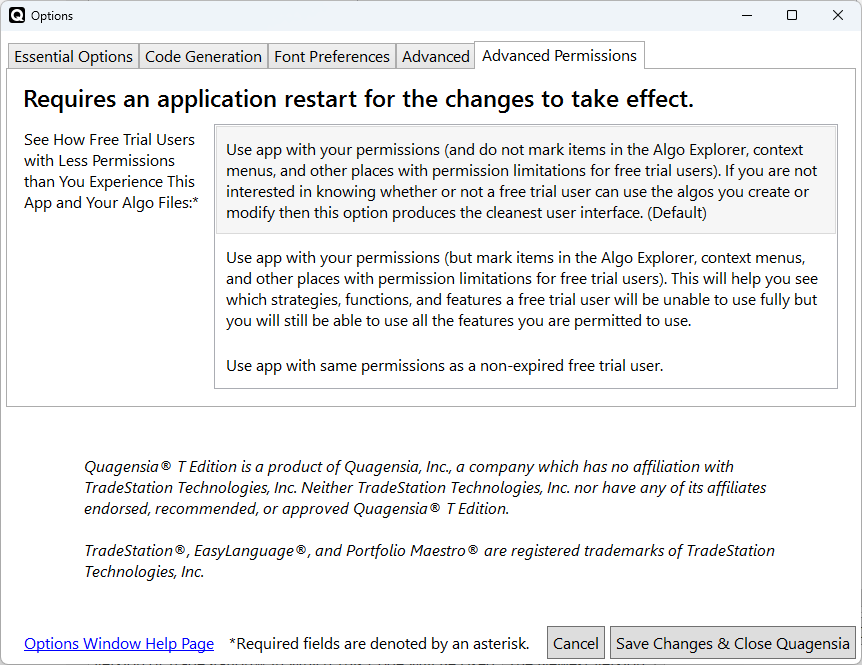
A paid user can change the mode from this tab then click the “Save Changes & Close Quagensia” button, then reopen Quagensia T Edition to experience Quagensia T Edition either as a free trial user with free trial user permissions or using their permissions but seeing markings on items that indicate free trial user limitations.
When a paid user wants to revert back to the default mode where they can use Quagensia T Edition as themselves with their own permissions, they can click a button in the toolbar near the top of Quagensia T Edition’s main window that is labelled “Switch Back to Using App with Your Permissions”. Doing this closes Quagensia T Edition. When the paid user reopens Quagensia T Edition, it will open in the default mode where they can use Quagensia T Edition as themselves with their own permissions.
The Quagensia Desktop Application End-User License Agreement (EULA) and our Terms of Service have changed.
The Quagensia Desktop Application End-User License Agreement (EULA) and our Terms of Service have changed.
The new Terms of Service are effective immediately for new users and effective 30 days from April 25, 2024 for current users. The new Quagensia Desktop Application End-User License Agreement (EULA) is included in one of the required steps of the installer of this version of Quagensia T Edition.
Here’s our official announcement of these changes: Our Terms of Service and EULA have changed.
Quagensia T Edition now has three more built-in strategies for new users.
These newly built-in strategies can be found in the Algo Explorer on the left side of the application’s main window in the following folder: “Algos from Quagensia > Strategies > Strategies for New Users”.
- Indicator X-Axis Offsets – Bollinger Bands® Long Entry on Breakout Above Upper Band (With X-Axis Offset)
- Buy If Entry Signal Close Price Is Less Than Previous Entry Signal Close Price
- Reversible Volatility-Based Entry Filters: Standard Deviation Must be Above (or Below) a Threshold
Quagensia T Edition now has one more built-in strategy for intermediate users.
This newly built-in strategy can be found in the Algo Explorer on the left side of the application’s main window in the following folder: “Algos from Quagensia > Strategies > Strategies for Intermediate Users” and is titled Custom VWAP with Resets at Three Times of Day and New Session Highs.
Quagensia T Edition has a new built-in indicator-based function.
Quagensia T Edition has a new indicator-based function called “Directional Movement Index Oscillator (DMIOsc) (TS 10.0 Update 73+)”. It is in the context menu subfolder “Indicators >> Miscellaneous Indicators >> ADX, DM, DMI+/-“. The TradeStation Desktop 10.0 Update 73 release notes mentioned that this strategy was new in Update 73, so Quagensia T Edition Strategies that use this function will likely only compile in TradeStation Desktop 10.0 Update 73 and above.
Miscellaneous Changes
Fixed Bug: An error would occur if a Quagensia T Edition Strategy with an extremely long “Strategy Name” or a Quagensia T Edition Function with an extremely long “Function Name” was exported as an image and the user did not shorten the name in the “Save As” dialog box because the file name of the image used the “Strategy Name” or “Function Name” field as part of the file name.
Fixed Visual Imperfection: A rarely used text box in the Quagensia T Edition Function’s Algo’s Algo Workspace did not auto-expand if the text was wider than the text box so the some of the text may not have been visible without actually putting the cursor in the text box and pressing the right arrow key multiple times. Now, all text boxes in a Quagensia T Edition Function’s Algo Workspace auto-expand.
The Code Generation Tab’s “Version of TradeStation® In Which This Code Will Be Used” drop-down list now has options for TradeStation® 10.0 Update 74, 75, and 76. Most users should not change the default value of this drop-down list from “The Newest Version”, but users that use an older version of TradeStation® 10.0, or any version of TradeStation® 9.5, should change this drop-down list’s value to the version of TradeStation® that they are using.
Some of the text in the user interface was updated.
Version 24.2.10.0 – February 1, 2024
Quagensia T Edition now has two more built-in strategies.
The first of these newly built-in strategies is appropriate for new users and is found in the Algo Explorer on the left side of the application’s main window in the following folder: “Algos from Quagensia > Strategies > Strategies for New Users”. You can read about this newly built-in strategy on its official strategy home page here: Turn Indicator Entry Filters On and Off and Don’t Plot Off Indicators (Using Boolean Variables to Simplify the Entry Condition Set)
The second of these newly built-in strategies is more appropriate for intermediate-level users and is found in the Algo Explorer on the left side of the application’s main window in the following folder: “Algos from Quagensia > Strategies > Strategies for Intermediate Users”. You can read about this newly built-in strategy on its official strategy home page here: Enter On Cross Above a Century Figure (A Number Evenly Divisible By 100) (Or 10, 50, 1000, Etc.).
Miscellaneous Changes
The Code Generation Tab’s “Version of TradeStation® In Which This Code Will Be Used” drop-down list now has an option for TradeStation® 10.0 Update 73. Most users should not change the default value of this drop-down list from “The Newest Version”, but users that use an older version of TradeStation® 10.0, or any version of TradeStation® 9.5, should change this drop-down list’s value to the version of TradeStation® that they are using.
Version 24.1.181.0 – January 18, 2024
You can now choose to plot an indicator, editable time series, or horizontal line only if a condition or set of conditions is true.
In prior versions of Quagensia T Edition, if you checked the “Plot This” checkbox of an internal variable of type “Read-Only Time Series” (which is the type for indicators), “Editable Time Series”, or “Horizontal Line (Fixed Decimal Number)”, the indicator, editable time series, or horizontal line would be plotted unconditionally.
In this version it is now possible to create a condition or set of conditions that if true will cause an internal variable of type “Read-Only Time Series”, “Editable Time Series”, or “Horizontal Line (Fixed Decimal Number)” to be plotted, but if false will cause the internal variable to not be plotted.
To create an indicator, editable time series, or horizontal line that is plotted if and only if a condition or set of conditions is true follow these steps:
- Check the “Plot This” checkbox as you would normally do to plot an internal variable of one of these three types.
- In the “Plot Details” section of the internal variable, click the link that reads “Set Condition That If False Will Cause Plot to Not Be Plotted”.
- A field will appear that is labelled “Condition That If False Will Cause Plot to Not Be Plotted” with a condition that reads “(Not Set) Is Equal To (Not Set)”. Change this condition as you normally would. You could make it do something like check if a “Boolean (True or False)” input parameter is True or False. Just like with conditions in “Conditional Trading Logic” components in the “When Bar Updates” section you can add conditions to this one using ANDs, ORs, and parentheses. This is the condition or set of conditions that will cause the indicator, editable time series, or horizontal line to be plotted or not plotted.
See the next section for information about the new built-in strategy that demonstrates this new feature.
Quagensia T Edition now has a new built-in strategy that demonstrates how to add “toggleable” indicator-based entry filters to your trading strategy’s entry criteria and demonstrates how to toggle indicator visibility based on your strategy’s input parameters as well.
This new built-in strategy is called Turn Indicator Entry Filters On and Off and Don’t Plot Off Indicators and is located in the Algo Explorer on the left side of the application’s main window in the following folder: “Algos from Quagensia > Strategies > Strategies for New Users”.
Version 24.1.60.0 – January 6, 2024
You can now create partially or fully transparent colors in your Quagensia T Edition Strategies, and you can create partially or fully transparent colors and opaque colors fully programmatically.
This allows you to do things like draw small partially transparent shapes on top of price bars on a TradeStation® chart and still be able to see the price bars beneath the partially transparent shapes, and optionally even do so using calculated values for the red, green, blue, and “alpha value” (in TradeStation® 10.0) or “transparency value” (in TradeStation® 9.5) of the color.
The following four built-in functions were added to this release to enable you to create partially transparent colors and optionally create opaque colors and partially or fully transparent colors programmatically:
- Create a Partially or Fully Transparent Color (TradeStation® 10.0 Only)
- Create a Partially or Fully Transparent Color (TradeStation® 9.5 Only)
- Create Color From Alpha, Red, Green, and Blue (ARGB) Values (TradeStation® 10.0 Only)
- Create Color From Transparency, Red, Green, and Blue (Transparency and RGB) Values (TradeStation® 9.5 Only)
To use one of these functions, click on a location where a color is allowed and select one of the functions above from the “More Expressions > Drawing > Colors” context menu subfolder.
Note that of the four functions above, two are only for TradeStation® 9.5 and two are only for TradeStation® 10.0. We created separate functions for TradeStation® 9.5 and TradeStation® 10.0 because these functions use the “Reserved Word” built into TradeStation® called ARGB() to create a color with transparency. The meaning of the first parameter of ARGB was changed between TradeStation® 9.5 and TradeStation® 10.0. In TradeStation® 9.5, the first parameter of ARGB represents the “Transparency”, where a higher number means more transparent and less opaque. In TradeStation® 10.0, the first parameter of ARGB represents the “Alpha”, where a higher number means more opaque and less transparent.
If you want to use the TradeStation® 10.0 variants of these functions the value of the drop-down list named “Version of TradeStation® In Which This Code Will Be Used” in the Code Generation Tab directly below the Algo Workspace must be set to either “The Newest Version” or to one of the TradeStation® 10.0 “Updates” (versions). Note that if you set this drop-down list to either “The Newest Version” or set it to one of the TradeStation® 10.0 “Updates” (versions), you will still see the TradeStation® 9.5 function variants as options in the context menus that appear when you click on locations where a color can go, but adding a TradeStation® 9.5 variant to that location will cause a validation error to occur when you attempt to save the algo or generate its code.
If you want to use the TradeStation® 9.5 variants of these functions the value of the drop-down list named “Version of TradeStation® In Which This Code Will Be Used” in the Code Generation Tab directly below the Algo Workspace must be set to one of the TradeStation® 9.5 “Updates” (versions). Note that if you set this drop-down list to one of the TradeStation® 9.5 “Updates” (versions), you will still see the TradeStation® 10.0 function variants as options in the context menus that appear when you click on locations where a color can go, but adding a TradeStation® 10.0 variant to that location will cause a validation error to occur when you attempt to save the algo or generate its code.
The two functions “Create a Partially or Fully Transparent Color (TradeStation® 10.0 Only)” and “Create a Partially or Fully Transparent Color (TradeStation® 9.5 Only)” allow you to create a partially or fully transparent color from a color and a Whole Number that either represents an “alpha value” in the TradeStation® 10.0 function variant or a “transparency value” in the TradeStation® 9.5 function variant.
The limitation of these two functions is that the color input parameter of this function has to be manually selected from a color picker or set to an expression that returns a color with red, green, and blue values already set so it is not possible to calculate values from 0 to 255 for the red, green, and blue components of the color. To get around this limitation, you can use either the “Create Color From Alpha, Red, Green, and Blue (ARGB) Values (TradeStation® 10.0 Only)” function or the “Create Color From Transparency, Red, Green, and Blue (Transparency and RGB) Values (TradeStation® 9.5 Only)” function. These two functions accept a Whole Number from 0 to 255 for the red, green, and blue components where 0 means “none of that color”, 255 means “the maximum amount of that color”, and a number in between 0 and 255 means “some of that color”. Like the functions described in the previous paragraph, these two functions also have an input parameter for the “alpha value” in the TradeStation® 10.0 function variant or the “transparency value” in the TradeStation® 9.5 function variant. Since the alpha (or transparency), red, green, and blue (ARGB) input parameters are all Whole Numbers, you can calculate each of the three red, green, and blue color components’ values from 0 to 255 and calculate either the “alpha value” from 1 to 255 (for the TradeStation® 10.0 function variant where 1 is 100% transparent and 255 is 100% opaque) or the “transparency value” from 0 to 254 (for the TradeStation® 9.5 function variant where 0 is 100% opaque and 254 is 100% transparent) and pass the calculated color component values into this function to create a color fully programmatically.
Changes to Quagensia T Edition’s Built-In Strategies
The built-in strategies in the Algo Explorer’s “Algos from Quagensia > Strategies” folder have been reorganized:
- The “Examples for New Users” folder has been renamed “Strategies for New Users”.
- The “Real-Life Applications of Advanced Features” folder has been renamed “Strategies for Advanced Users”.
- A new folder called “Strategies for Intermediate Users” was added between these two folders. The most complex strategies from the old “Examples for New Users” folder as well as the simplest strategy in the old “Real-Life Applications of Advanced Features” folder were moved to this folder.
Quagensia T Edition has a new rather complex built-in strategy in the “Strategies for Advanced Users” folder mentioned above called Start or Stop Trading After X Consecutive Paper Trading Winners or Losers (With Counter Reset Condition) (Uses Parallel Lists).
Miscellaneous Changes
Some of the text in the user interface was updated.
Version 23.12.280.0 – December 27, 2023
Changes to the Quagensia Desktop Application End-User License Agreement (EULA)
The Quagensia Desktop Application End-User License Agreement (EULA) that is built into the Quagensia T Edition installer was changed to include the changes described in our blog entry on December 11, 2023 titled Our Terms of Service, EULA, and Forums Code of Conduct have changed.
The changes to the EULA were as follows:
- Provisions were made to allow for cost-free edition switching for subscription plans that support it.
- Provisions were made to allow for free trial extensions.
- Provisions were made for communities like Discord servers and Facebook groups that we moderate but that are not hosted on the quagensia.com domain or any subdomain of it.
Miscellaneous Changes
The advanced “Raw Code Output Expression” logic component no longer displays an erroneous validation error when it is used in certain highly advanced ways such as returning an entire List of items. This bug had no negative effect on code that it generated but did stop users from generating certain advanced code that was valid due to its erroneous validation error message. Users can now return entire Lists of items from a “Raw Code Output Expression” logic component without any validation error message. Also, when returning an entire List of items, the drop-down list that displays options for the data type of the individual items now includes choices for all eight Date and Time data types, including the three highly advanced ones that return Date/Time Object References.
Added links to the new Quagensia Discord community and the new Quagensia T Edition Facebook group to the Start Page and Main Menu’s Help menu.
The buttons in the Validation Errors Tab at the bottom of the main window now wrap to avoid being cut off on displays with small resolutions.
Made some changes to the built-in licensing system for content creators.
The Code Generation Tab’s “Version of TradeStation® In Which This Code Will Be Used” drop-down list now has an option for TradeStation® 10.0 Update 72. Most users should not change the default value of this drop-down list from “The Newest Version”, but users that use an older version of TradeStation® 10.0, or any version of TradeStation® 9.5, should change this drop-down list’s value to the version of TradeStation® that they are using.
The text of the “Enter a Hard-Coded Value” context menu item was changed to indicate that it also contains “List of Choices” options, not just “True”, “False”, text boxes that can hold numbers, dates, and text, etc.
A new onboarding card was added to the bottom of the Algo Workspace that explains how to close a context menu without opening a new one.
Some of the text in the user interface was updated.
Version 23.11.110.0 – November 10, 2023
Some of the text in the user interface was updated.
Version 23.10.252.0 – October 25, 2023
Three new strategies that are examples for new users have been built into Quagensia T Edition. You can find them in the upper left corner of Quagensia T Edition’s main window by expanding the Algo Explorer’s “Algos from Quagensia > Strategies > Examples for New Users” folder. The new strategies are:
- Bollinger Bands® Short Entry on Breakout Below Lower Band
- Short Entry on Moving Average Cross Below with Percentage-Based Stop Loss
- Long Entry on Moving Average Cross Above with Percentage-Based Trailing Stop
There is a new yellow onboarding card above the “When Bar Updates” section whose title starts with “Stop building strategies from scratch.” It teaches new users how to build Quagensia T Edition Strategies faster by copying an existing strategy from the Algo Explorer pane on the left of Quagensia T Edition’s main window then copying-and-pasting logic from other strategies into their new strategy. You can read these instructions on the new Stop building Quagensia T Edition Strategies from scratch web page as well.
The default order quantity used by most built-in strategies was changed from 100 to 1 to be more convenient for futures traders and other traders who prefer a default order quantity of 1 instead of 100.
The line widths of some of the plotted indicators in some of the built-in Quagensia T Edition strategies were increased from a value of 1 to 2.
Some of the text in the user interface was updated. This includes minor changes to the text in some of the built-in strategies.
Version 23.10.40.0 – October 4, 2023
Outputted EasyLanguage drawing code is slightly simplified, with no net effect from the perspective of the user. I.e. the code is a little bit easier to read, but will do exactly the same things as it was doing before these changes were made. The code for plotting as well as for 15 drawing functions in Quagensia T Edition were simplified, with no net change from the user’s perspective. Instead of drawing only occurring if “QS_IsOptimizing = false and QS_ShowCustomDrawnObjectsVar = true”, drawing now occurs only if “QS_ShowCustomDrawnObjectsVar = true”, and this variable is set to false if the same logic used to set the QS_IsOptimizing variable is false, namely if GetAppInfo(aiOptimizing) <> 1. The 15 functions with slightly simplified code and no functional changes were:
- Draw Rectangle
- Draw Ellipse
- Draw Vertical Line
- Draw Line
- Draw Horizontal Line
- Draw Floating Text Object (Drawn Fixed Percentages From Chart Edges)
- Draw Text
- Delete Vertical Line
- Delete Text Objects With Specified Text
- Delete Rectangle
- Delete Non-Floating Text Object or Tiny Shape
- Delete Line
- Delete Horizontal Line
- Delete Ellipse
- Delete Drawing Object
Improved copying and pasting functionality.
The Code Generation Tab’s “Version of TradeStation® In Which This Code Will Be Used” drop-down list now has an option for TradeStation® 10.0 Update 71. Most users should not change the default value of this drop-down list from “The Newest Version”, but users that use an older version of TradeStation® 10.0, or any version of TradeStation® 9.5, should change this drop-down list’s value to the version of TradeStation® that they are using.
Some of the text in the user interface was updated.
Version 23.9.110.0 – September 11, 2023
- Two new strategies that are examples for new users have been built into Quagensia T Edition. You can find them in the upper left corner of Quagensia T Edition’s main window by expanding the Algo Explorer’s “Algos from Quagensia > Strategies > Examples for New Users” folder. The new strategies are:
Version 23.8.310.0 – August 31, 2023
- The Moving Average Crossover Long-Short Reversal with Profit Target (TradeStation® Strategy) strategy published on our website on August 23, 2023 is now built into Quagensia T Edition. You can find it in the upper left corner of Quagensia T Edition’s main window by expanding the Algo Explorer’s “Algos from Quagensia > Strategies > Examples for New Users” folder.
- If you have Quagensia T Edition Strategies that use one of the “Print to Print Log” functions built into Quagensia T Edition, you can now turn off these functions from within the TradeStation® user interface either entirely or only when you run optimizations of the strategy with multiple parameter sets. This allows you to choose to use the “Print to Print Log” functions only for debugging and troubleshooting and to not print to the EasyLanguage® Print Log in situations such as when you are optimizing your strategy over a very large number of parameter sets which may otherwise cause many thousands of lines of text to print out to the EasyLanguage® Print Log. To turn off a strategy’s “Print to Print Log” functions entirely, set the strategy’s input parameter named “QS_PrintToPrintLog” to False in the TradeStation® user interface. For your protection, by default TradeStation® strategies generated in Quagensia T Edition version 23.8.310.0 or above do not print to the EasyLanguage® Print Log using the “Print to Print Log” functions built into Quagensia when your strategy is being optimized on multiple parameter sets. To turn on a strategy’s “Print to Print Log” functions during optimizations of multiple parameter sets, set the input parameter named “QS_PrintToPrintLog_InOptimizations” and the input parameter named “QS_PrintToPrintLog” to True in the TradeStation® user interface. Note that it is important to turn off printing to the EasyLanguage® Print Log before using your strategy in ways that may cause an extremely high number of “Print to Print Log” actions to occur such as may happen in the optimizer because not only will this decrease the time it takes to run optimizations, but if your strategy doesn’t have this feature turned off before using your strategy in ways that may cause an extremely high number of “Print to Print Log” actions to occur, your strategy may even cause an “Out Of Memory” error to occur in TradeStation®.
- The Code Generation Tab’s “Version of TradeStation® In Which This Code Will Be Used” drop-down list now has an option for TradeStation® 10.0 Update 70. Most users should not change the default value of this drop-down list from “The Newest Version”, but users that use an older version of TradeStation® 10.0, or any version of TradeStation® 9.5, should change this drop-down list’s value to the version of TradeStation® that they are using.
- The “Export Algo as Image…” and “Delete This Algo’s Change History” menu items were moved from the main menu’s “Quagensia Portal” menu to the main menu’s “Algo Actions” menu.
- The “Export Algo as Image…” menu item appears when the selected tab is an algo’s tab rather than the Start Page tab. Select the “Export Algo as Image…” option to export the algo as an image which you can copy to the clipboard or save to an image file on disk. The “Export Algo as Image…” feature makes an attractive image of an entire Quagensia Strategy or Quagensia Function, even if the algo’s workspace is thousands of pixels tall or wide and requires vertical or horizontal scrolling on a given monitor. This is how we created the screenshot of the Quagensia Strategy mentioned above in this release announcement and which you can view by clicking on its link above.
- The “Delete This Algo’s Change History” menu item appears when the selected tab is an algo’s tab that you are allowed to edit rather than a read-only algo or the Start Page tab. The “Delete This Algo’s Change History” feature is meant for those who want to share their algos with others. It deletes all of the work that you did on an algo that didn’t end up making it into the final version of the algo that you wish to share. In other words, this feature deletes an algo file’s “memory” of all your past changes made to the algo that are not visible on the algo’s workspace after expanding all contracted items. If you want to share an algo as it appears on the screen, and you want it to contain no other information about the steps you took to create the algo, then select this menu item to clear out all of your algo’s data except that which would be visible on the screen after expanding all contracted items. More information about why Quagensia Algo files maintain some of their past states:
- In order to save you time while you build an algo, a Quagensia Algo file retains some of the past changes you made to the algo file so that when you do some work, then change your mind, then change your mind back again, your algo file will attempt to show you your initial work instead of forcing you to enter all the data again.
- For instance, if you created a condition such as “Value A is Between Value B and Value C”, then changed your mind and changed the condition to become “Value A is Equal to Value B”, the work you did for “Value C” is hidden, but isn’t deleted. That way, if you later change your mind again and choose the “Is Between” comparison operator once again, then all of the work you did for “Value C” will be placed into “Value C” again.
- This feature of Quagensia saves algo creators time, but if you want to share your algo with others but want to make sure that they can’t see any of the work that you did on your algo that ended up not being part of the algo you want other people to see, selecting the “Delete This Algo’s Change History” menu item will clear out all data that is not visible on the algo’s workspace after expanding all contracted items.
- Some of the text in the user interface was updated.
Version 23.8.70.0 – August 7, 2023
- A new folder was created in the Algo Explorer’s “Algos from Quagensia” folder called “Examples for New Users” and the two simplest strategies that come with Quagensia T Edition were moved from the “Real-Life Applications of Advanced Features” folder to this folder. This was done to help new users know which built-in strategies are the easiest to understand and use and which built-in strategies are more difficult. We recommend that new users start with the built-in strategies in the “Examples for New Users” folder before they attempt to understand and use the built-in strategies in the “Real-Life Applications of Advanced Features” folder.
- Fixed bug: Tab items with algos in them should display an asterisk next the algo name only if the algo has actual unsaved changes. Sometimes an “unsaved changes” asterisk would erroneously appear on an algo tab whose algo did not have unsaved changes when the algo was first selected and loaded into a tab if the algo tab was selected and loaded due to the user closing another algo’s tab. This has been fixed. This bug did not occur when an algo tab was selected and loaded when Quagensia is first opened, if it was selected and loaded by the user opening the algo from the Algo Explorer, or if it was selected and loaded when the user clicked on the algo’s tab. The bug fix in this version stops the asterisk from appearing on an algo tab when it is first selected and loaded due to the user closing another algo’s tab.
- Some of the text in the user interface was improved for readability.
Version 23.7.216.0 – July 21, 2023
Improvements for Users of TradeStation®’s Portfolio Maestro®
A runtime error is far less likely to occur when the TradeStation® strategies generated from Quagensia T Edition are used in Portfolio Maestro® in TradeStation 10.0 Update 69 and higher.
- Plotting of Read-Only Time Series such as indicators and Editable Time Series work properly when backtested or run live on a chart but are “turned off” automatically in Portfolio Maestro® so that they won’t cause a runtime error. You no longer need to remember to manually change the “QS_ShowPlots” input parameter of your strategy to “false” before you use it in Portfolio Maestro®.
- Drawing of text, shapes, and lines work properly when backtested or run live on a chart but are “turned off” automatically in Portfolio Maestro® so that they won’t cause a runtime error. You no longer need to remember to manually change the “QS_ShowCustomDrawnObjects” input parameter of your strategy to “false” before you use it in Portfolio Maestro®.
- The following two more rarely used Quagensia T Edition Functions work correctly in a strategy when it is backtested or run live on a chart but are “turned off” automatically in Portfolio Maestro® so that they won’t cause a runtime error:
- “Display Message In Popup Window (Do Not Use in Portfolio Maestro® in TradeStation® 10.0 Update 68 and Below)”, which is located in the Actions context menu at “Output (Alerts and Logging) >> Alerts and Internet >> Display Message In Popup Window (Do Not Use in Portfolio Maestro® in TradeStation® 10.0 Update 68 and Below)”.
- “Clear Debug Window (Do Not Use in Portfolio Maestro® in TradeStation® 10.0 Update 68 and Below)”, which is located in the Actions context menu at “Output (Alerts and Logging) >> Print to Log / Output Window >> Clear Debug Window (Do Not Use in Portfolio Maestro® in TradeStation® 10.0 Update 68 and Below)”.
- We added a Quagensia T Edition Function named “This Strategy Is Running in Portfolio Maestro® (Always Returns False in TradeStation® 10.0 Update 68 and Below)”, which is located in the Expressions context menu at “More Expressions >> Strategy Info >> Boolean (True or False) Properties >> This Strategy Is Running in Portfolio Maestro® (Always Returns False in TradeStation® 10.0 Update 68 and Below)”. To see this function in use, open either of the two functions mentioned in point number 3 above, namely “Display Message In Popup Window” or “Clear Debug Window”. Note that the use of this Quagensia T Edition function inside of the two other Quagensia T Edition functions just mentioned is an example of using a Quagensia T Edition Function inside of another Quagensia T Edition Function.
- The Code Generation Tab’s “Version of TradeStation® In Which This Code Will Be Used” drop-down list now has an option for TradeStation® 10.0 Update 69. Most users should not change the default value of this drop-down list from “The Newest Version”, but users that use an older version of TradeStation® 10.0, or any version of TradeStation® 9.5, should change this drop-down list’s value to the version of TradeStation® that they are using.
- Some of the text in the user interface was improved for readability.
Version 23.5.161.0 – May 16, 2023
- A link was added to Quagensia’s LinkedIn profile.
- Some of the text in the user interface was improved for readability.
Version 23.5.111.0 – May 11, 2023
- Some of the text in the user interface was improved for readability.
Version 23.5.92.0 – May 10, 2023
- This is the initial version of Quagensia T Edition.