
Enter On Cross Above a Century Figure (A Number Evenly Divisible By 100) (Or 10, 50, 1000, Etc.) (Point-and-Click NinjaTrader® Strategy)

Original Trading Strategy
Peer Reviews, Modifications & Responses
Thanks for Sharing!
Trading Strategy Summary
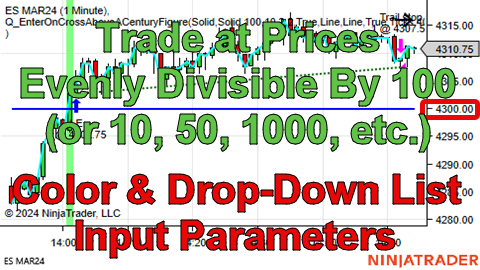
This strategy enters a long trade if the close price crosses above the nearest “Century Mark” (Whole Number prices ending in 00) or the nearest other kind of Whole Number “Mark”, like 5, 10, 42, 1000, etc., to which the input parameter named “Distance Between Levels (100 For Century Marks, 1000 For Every 1000, 5 For Every 5, Etc.)” is set in the NinjaTrader® user interface.
Set the input parameter named “Don’t Trade If Cross Below Happened In Last X Bars (Use 0 To Not Use This Entry Filter)” to a number of bars that will allow you to avoid entering a long trade on a cross above that occurred too few bars after a cross below. Without the filter that uses this input parameter’s value a long trade could be entered after the close price was going down in a clear down trend, then crossed below a century mark, then on the next bar close, price change, or tick crossed above a century mark. This logic was included since most traders probably wouldn’t think of price crashing through a century mark then having a single up bar as being “crossing above a century mark”.
Note that to handle the edge case of prices that could be larger than 2.1 billion, instead of using “Whole Number” internal variables, which are 32-bit integers and only go up to about 2.1 billion, to calculate the nearest century marks or other evenly divisible whole number marks, the whole number variables’ data types are set to “Whole Number (Huge)”, which are 64-bit integers and go up much, much higher.
This strategy also demonstrates how to have “Color” and “List of Choices” input parameters so that you can pass the styling information for any line (Color, Plot Style, Dash Style, and Line Width) and the “Trailing Stop Calculation Mode” (such as Percent or Ticks) from the NinjaTrader® user interface.
The calculations for the century marks were created based on the logic on the “C#” tab on the following web page:
https://www.geeksforgeeks.org/find-number-closest-n-divisible-m/
Copyright © 2024 Quagensia, Inc. All rights reserved.
How to Get the Quagensia Strategies
This point-and-click trading strategy is built into Quagensia N Edition (for NinjaTrader®).
Customize Quagensia Strategies with Your Own Ideas
Tweaking Quagensia Trading Strategies using point-and-click with the Quagensia Desktop Application is easy for non-programmers. If you get stuck you can usually find the answer you need in our online help documentation or you can ask a question in our friendly Discord community.
If you don’t want to tweak a Quagensia Trading Strategy with point-and-click to add your own proprietary trading logic, you can still download a Quagensia Trading Strategy file, open it up in the Quagensia Desktop Application, and generate its code, then backtest and optimize the trading strategy on different instruments, different bar periods (weekly bars, daily bars, hourly bars, 15-minute bars, etc.), or different bar types (time-based bars, volume-based bars, tick-based bars, etc.), and use different start and end dates.
Some tweaks you can make to the Quagensia Trading Strategies you download include:
Modify the entry & exit logic.
- Add more conditions, remove conditions, or change them by choosing from among a very large number of components, including many exotic indicators.
- Add or modify stop losses, trailing stops, and profit targets. Make them tighter, less tight, or based on an entirely different calculation.
- Add or modify time stops. For example, exit after a certain number of bars either unconditionally or only if the post-entry price action did or did not exhibit certain characteristics.
Enhance the output of the strategy to go beyond simply placing orders.
- Draw lines, shapes, and text on the chart. For instance, you can mark times or prices where each entry or exit condition of a multi-condition entry or exit was true, even if all the necessary entry or exit conditions were not true at the same time so an entry or exit did not occur.
- Write information to NinjaTrader®’s NinjaScript® Output window or TradeStation®’s EasyLanguage® Print Log window.
- Write information to a file. You can even output a report that can be opened in Microsoft Excel or consumed by another application that reads comma-delimited, semicolon-delimited, or otherwise character-delimited tabular data files.
Thanks for Sharing!









