
A user asked a question about the money management capabilities of Quagensia® N Edition. This question can be viewed in the screenshot below:
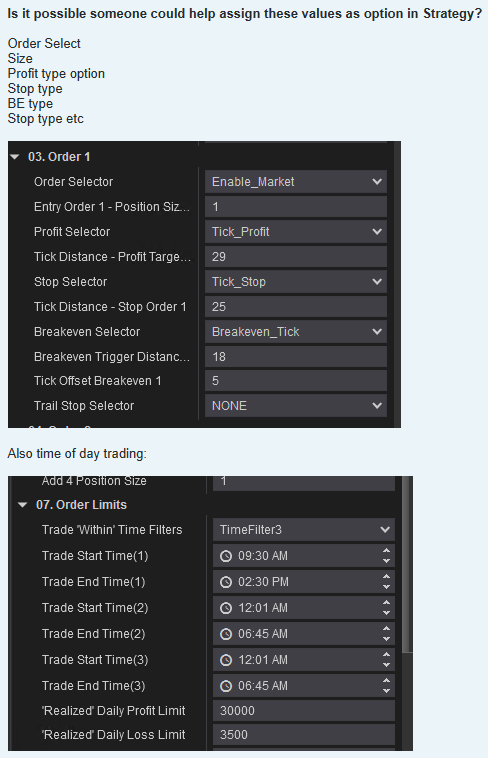
What follows is our comprehensive answer where we describe the powerful money management logic you can add to your Quagensia N Edition Strategies without code and we show how to add this money management logic to your strategies.
Short Answer: Yes, you can add all of this money management logic to your strategy in Quagensia N Edition, and much more.
Yes, it is easy to do 100% of the things you are asking about and 100% of the things in the user interface in the images you posted without code in Quagensia N Edition (for NinjaTrader®) and Quagensia T Edition (for TradeStation) and you can do much more than what you are asking about. This rest of this answer will focus on Quagensia N Edition since you are interested in doing these things in a NinjaTrader® strategy.
Looks can be deceiving, and we could be wrong, but from your screenshots it looks as if the user interface in the images you posted has a severe limitation. It looks like you can only set money management properties for an entry order one time, perhaps when you place an entry order, or even worse, when the strategy is initialized, before it has access to all of the market data up to and including the entry order’s tick or bar close event. In Quagensia N Edition, you can do all of this at the time you place an entry order and/or on every tick event or bar close event thereafter. This allows you to change your money management rules as the market moves after your entry order is placed so you don’t need to commit to any one money management strategy at the time your entry order is placed, or even worse, at the time your strategy is initialized.
How to use different money management rules for different entry orders
You can use different money management rules for as many unique entry orders as you want as long as you ensure that the “Signal Name” of the multiple entry orders are unique. When you add an entry order by clicking on any location in your strategy’s “When Bar Updates” section where an action is allowed and you navigate to “Submit an Order > Enter Long (or Enter Short)” in the context menu that appears and you add an entry order action to your strategy that places a market order, stop order, stop limit order, limit order, or market-if-touched order on either the data series of the current tick or bar close event or that places one of these kinds of orders on a different time series such as a secondary instrument or a data series for the same instrument as the primary data series but that uses a different bar period (15-minute bars, 30-minute bars, etc.), and fill in its “Signal Name” field with a unique value like “LE Initial” or “LE1”, then scale into a position with additional entry orders based on different criteria, just name these additional entry orders something different, like “LE Scale-In 1” or “LE Pyramid 2”.
How to do the simplest things using the basic NinjaTrader® money management features in Quagensia N Edition’s “Money Management (Protective Stops and Profit Targets)” section
If you don’t need too much power and flexibility, you just want to use the basic NinjaTrader® money management features, and you know what your stop loss, trailing stop, and profit target will be ahead of time and don’t need to consider the market action up to and including the tick or bar close event on which your entry order is placed, you can do much of what you are asking about in the “Money Management (Protective Stops and Profit Targets)” section at the bottom of your strategy’s workspace. Just click on the “Add Trading Logic” link that appears when you place your mouse pointer over that section and navigate to the “Money Management” subfolder of the context menu that appears. There you will find money management actions including:
- Stop Losses
- Set Stop Loss (By Entry Signal Name)
- Set Stop Loss (For Entire Position)
- Trailing Stops
- Set Trailing Stop (By Entry Signal Name)
- Set Trailing Stop (For Entire Position)
- Set Parabolic Trailing Stop (By Entry Signal Name)
- Set Parabolic Trailing Stop (For Entire Position)
- Profit Targets
- Set Profit Target (By Entry Signal Name)
- Set Profit Target (For Entire Position)
Configuring money management rules from this section is the least powerful method in Quagensia N Edition and doesn’t allow you to do everything you are asking for (see other sections below this one for how to do 100% of what you are asking for), but is easy to use and has some other powerful features:
- You can use all the powerful features of Quagensia N Edition that do not require access to market data from within this section. You can read about Quagensia N Edition’s features here: https://www.quagensia.com/#FeaturesList. Just note that features that require access to market data won’t appear in context menus in this section because they are not valid in this section, and Quagensia N Edition filters out these invalid features when you click in this section in the same way it filters out invalid features everywhere else you click.
- You can add input parameters to your strategy in its “Input Parameters” section that can control every aspect of the money management actions used in this section, including:
- “Boolean (True or False)” input parameters that allow you to decide to turn certain money management features on or off from within NinjaTrader®’s user interface. This is possible because you can also add “Conditional Trading Logic (If… Else If… Else)” blocks to this section and create a simple condition that checks if a “Boolean (True or False)” input parameter is true or false and add the money management actions inside of the “Conditional Trading Logic (If… Else If… Else)” block. You can group money management actions together inside of a single “Conditional Trading Logic (If… Else If… Else)” block if you want one set of money management actions to be taken if a single Boolean input parameter is true of false or you can create lots of separate “Conditional Trading Logic (If… Else If… Else)” blocks, one for each money management feature.
- “Decimal Number” input parameters that allow you to change the numeric values of these actions. For instance, instead of hard-coding a “Set Stop Loss” action’s “Calculation Value” to the number 0.08 (which can represent 8% or other units of measurement), you could add a “Decimal Number” input parameter to your strategy that lets you set your percentage stop loss to whatever you want from NinjaTrader®’s user interface. A huge benefit of creating numeric input parameters and using them instead of typing “0.08” in the field in the money management action is you can then run an optimization in NinjaTrader® that could for example run one backtest for each value of this input parameter from 4% to 20%, using increments of 0.5%, then use NinjaTrader®’s optimization reports, charts, and graphs to gain insight on which stop loss, trailing stop, or profit target percentages worked best in the past.
- “Lists of Choices” input parameters that show up as drop-down lists in NinjaTrader®’s user interface. There are 57 “Lists of Choices” data types currently, and the most relevant ones for this section are:
- Money Management Calculation Mode (All Options): For profit targets and stop losses. Choices include “Percent”, “Currency”, “Ticks”, “Pips”, and “Price”. Passing this as an input parameter lets you change how your profit targets and stop losses are calculated from within the NinjaTrader® user interface.
- Money Management Calculation Mode (Options for Parabolic Trailing Stops): Choices include “Percent”, “Currency”, “Ticks”, and “Pips”. Passing this as an input parameter lets you change how your parabolic trailing stops are calculated from within the NinjaTrader® user interface.
- Money Management Calculation Mode (Options for Trailing Stops): Choices include “Percent”, “Ticks”, and “Pips”. Passing this as an input parameter lets you change how your trailing stops are calculated from within the NinjaTrader® user interface.
- Advanced users can even use no-code loops (including loops inside of loops), no-code lists, no-code single-dimensional arrays, no-code multi-dimensional arrays, and no-code tables of data loaded from tabular data files inside of the money management section. For instance, if you had a tabular data file with one row for each symbol you trade and columns containing Boolean, decimal, and “lists of choices” columns representing all the money management features just described above in the discussion about passing input parameters, you can then query this table in the money management section and get just the values for the symbol for which the strategy is being initialized, so each symbol you trade can use different money management actions (using Booleans in the tabular data file to turn them on and off), different units of calculation (“Percent”, “Currency”, “Ticks”, “Pips”, or “Price”), and different numeric values (8% stop loss vs. 12% stop loss).
How to do the simplest things using the basic NinjaTrader® money management features on each tick or bar close event
If you do not know what your stop loss, trailing stop, and profit target will be ahead of time and you need to consider the market action up to and including the tick or bar close event on which your entry order is placed, and if you need to change your stop loss, trailing stop, and profit target on each tick or bar close event after you’ve entered one or more positions with unique “Entry Signal” names, you can do everything just described in the above discussion about the “Money Management (Protective Stops and Profit Targets)” section, but you can do it on each bar close or tick event from within the “When Bar Updates” section in your strategy’s workspace. To do this, either 1) click on the “Add Trading Logic” link that appears when you place your mouse pointer over the “When Bar Updates” section or 2) click on the gear icon on the upper right of any action in the “When Bar Updates” section and open the “Replace Item”, “Add Item After Me”, or “Add Item Before Me” subfolder of the context menu that opens, and navigate to the “Money Management” subfolder of the context menu that appears. Then follow the instructions in the “Money Management (Protective Stops and Profit Targets)” section’s discussion above.
The nice thing about adding money management actions to this section is that you have access to all market data and indicator values up to and including the tick or bar close event upon which you are adding the money management action, which allows you do include price action and indicator values in calculations that determine if a certain money management technique should be used and what its input parameters should be.
How to do more advanced things on each tick or bar close event
To do everything else you asked about and to do the rest of the things in the user interface in the images you posted, do these two things:
- If you want your stop losses and profit targets to recalculate more frequently than once per bar, scroll up to the “Strategy Details” section of your strategy’s algo workspace and at the top of this section change the “Calculate” drop-down list’s value from “On Bar Close” to either “On Each Tick” or “On Price Change”.
- Scroll down to the “When Bar Updates” section of your strategy and add the appropriate trading logic without code by clicking on the relevant places in this section and adding it to your strategy’s workspace.
To learn the basics about adding trading logic to a strategy in Quagensia N Edition, please watch our full introduction to Quagensia N Edition here:
Create NinjaTrader® Strategies Using Point-&-Click with Quagensia N Edition – Full Tutorial
Once you’ve watched this video, you will be much closer to being able to add the specific trading logic you are asking about to your strategy, and much more. Here are a few tips that are specific to doing the things you asked about in your initial post:
- All of the time-based trading logic displayed in your second user interface screenshot can be easily built using one or more “Conditional Trading Logic (If… Else If… Else)” blocks that check the time component of the current tick or the end time of the current bar and compare this value to a hard-coded value like “02:30 PM” as was done in the screenshot you posted.
- To get the time component of the current tick or the end time of the current bar into a condition, take the following steps:
- Add a new “Conditional Trading Logic (If… Else If… Else)” block to the “When Bar Updates” section.
- By default, the comparison operator is “Is Equal To”. You can change this to one of the following choices:
- Is Not Equal To
- Is Greater Than
- Is Greater Than Or Equal To
- Is Less Than
- Is Less Than Or Equal To
- Is Between (Including The Two Values Entered)
- Is Between (Excluding The Two Values Entered)
- Is Not “Between (Including The Two Values Entered)”
- Is Not “Between (Excluding The Two Values Entered)”
- Click on the label that says “(Not Set)” to the left of the comparison operator and navigate to “Set Item > Price Data” and either select “Bar End Time of Day” for the time of day of the end time of the current bar or tick that just occurred, or select “Bar End Time of Day (Multi-Instrument/Time Frame)” for the time of day of the last bar of a different time series such as a secondary instrument or a data series for the same instrument as the primary data series but that uses a different bar period (15-minute bars, 30-minute bars, etc.).
- Click on the label that says “(Not Set)” to the right of the comparison operator and navigate to “Set Item > Enter a Hard-Coded Value (False, True, 300, 3.14, ‘Hello’)” and select “A Time of Day Entered into a Text Box” if you want to enter a hard-coded time of day like “02:30 PM” directly in the logic of your strategy. To be able to change this time of day from the NinjaTrader® user interface, create an input parameter of type “Time of Day” and add it to this location by clicking on the label that says “(Not Set)” to the right of the comparison operator and navigating to “Set Item > Input Parameters and Internal Variables > Input Parameters” and selecting the input parameter.
- If you want to calculate the time of day on either side of the comparison operator instead of hard-coding it in code or passing it from an input parameter, check out the very large number of date and time manipulation functions in Quagensia N Edition by clicking on the left or right side of the comparison operator and navigating to “Set Item (or Replace Item) > More Expressions > Dates and Times” and selecting one of the date and time manipulation functions. This is beyond the scope of this post, but just be aware that you can do things like add or subtract hours, minutes, seconds, or milliseconds to any date and time value, and even convert a date and time value between time zones such as the time zone of your machine, the time zone of the running instance of NinjaTrader®, the exchange time of the instrument upon which the strategy is running, and UTC time.
- To get the time component of the current tick or the end time of the current bar into a condition, take the following steps:
- The last two fields in the last screenshot you posted were “’Realized’ Daily Profit Limit” and “’Realized’ Daily Loss Limit”. Quagensia N Edition has lots of metrics you can use in the comparison of a “Conditional Trading Logic (If… Else If… Else)” block to determine if you should place a market order to exit your position because some money management threshold was reached. These metrics are in two subfolders of the context menu that appears when you click on a location in your strategy’s logic where an “expression” (e.g. a calculation) is allowed, such as on the left or right side of one of the comparison operators listed above (such as “Is Equal To”, “Is Greater Than”, etc.). These are filtered to only display metrics whose data type (Whole Number, Decimal Number, Boolean (True or False), etc.) is allowed at the location you clicked. Since the left side of an “Is Equal To” operator allows expressions of every data type, to see all possible options click on the left side of the comparison operator in the condition of your “Conditional Trading Logic (If… Else If… Else)” block with the comparison operator set to “Is Equal To”, navigate to the following subfolders, and select the trade metrics that you want to trigger your exit order.
- Subfolder #1: Navigate to “(Set Item) or (Replace Item) > More Expressions > Orders, Fills, and Positions > Position Info > Trade Metrics” and choose from one of 35 trade metrics in that subfolder, or navigate to this subfolder’s “Time-Based Metrics” subfolder and choose from an additional 18 time-based trade metrics.
- Subfolder #2: Navigate to “(Set Item) or (Replace Item) > More Expressions > Account Info > Decimal Number Properties” and select one of the numeric values that are specific to your account as it is configured in NinjaTrader®. Examples include “Account ‘Daily Loss Limit’”, “Account Cash Value (In Account Currency)”, and many more.









