
Introduction
The Quagensia® Desktop Application allows you to plot various kinds of numeric time series data and numeric constants on the charts to which you apply your strategies.
Not only can you plot the indicators used in your strategy’s logic, but you can plot your own custom “Editable Time Series” internal variables used in your strategy’s logic as well.
You can also plot numeric input parameters that were passed into your strategy as well as numeric internal variables of type “Horizontal Line (Fixed Decimal Number)” as horizontal lines on the chart.
To plot an input parameter or internal variable, check the check box in the “Plot” column of the main grid in the Input Parameters section or Internal Variables section, then customize how the variable will be plotted in the “Plot Details” fields that appear.
Be aware that while this is the simplest way to draw on your strategy’s chart, you can draw much more interesting things on your strategy’s chart on a bar-by-bar basis using the “Draw Something” actions in the “When Bar Updates” section.
To learn more about using this feature, either place your mouse pointer over the plotting control and press the F1 key to view its help topic in the Context-Sensitive Help panel, or place your mouse pointer over the icon in the right or upper right of any item in the plotting control or place your mouse pointer over the label next to any editable field in the plotting control and a tooltip will appear.
You can choose to plot an indicator, editable time series, or horizontal line internal variable only if a condition or set of conditions is true.
When you check the “Plot This” checkbox of an internal variable of type “Indicator Time Series” (for indicators in Quagensia N Edition), “Read-Only Time Series” (for indicators in Quagensia T Edition), “Editable Time Series”, or “Horizontal Line (Fixed Decimal Number)”, the indicator, editable time series, or horizontal line can either be plotted unconditionally or you can create a condition or set of conditions that if true will cause the internal variable of one of these types to be plotted, but if false will cause the internal variable to not be plotted.
To create an indicator, editable time series, or horizontal line that is plotted if and only if a condition or set of conditions is true follow these steps:
- Check the “Plot This” checkbox as you would normally do to plot an internal variable of one of these types.
- In the “Plot Details” section of the internal variable, click the link that reads “Set Condition That If False Will Cause Plot to Not Be Plotted” (or “Set Conditions That If False Will Cause Plots to Not Be Plotted” in Quagensia N Edition if the internal variable is a multi-plot indicator).
- A field will appear that is labelled “Condition That If False Will Cause Plot to Not Be Plotted” (or “Condition That If False Will Cause Plots to Not Be Plotted” in Quagensia N Edition if the internal variable is a multi-plot indicator) with a condition that reads “(Not Set) Is Equal To (Not Set)”. Change this condition as you normally would. You could make it do something like check if a “Boolean (True or False)” input parameter is True or False. Just like with conditions in “Conditional Trading Logic” components in the “When Bar Updates” section you can add conditions to this one using ANDs, ORs, and parentheses. This is the condition or set of conditions that will cause the indicator, editable time series, or horizontal line to be plotted or not plotted.
Both Quagensia N & T Edition have a built-in strategy that demonstrates how to add “toggleable” indicator-based entry filters to your trading strategy’s entry criteria and demonstrates how to toggle indicator visibility based on your strategy’s input parameters using the conditional plotting feature just described. This built-in strategy is called “Turn Indicator Entry Filters On and Off and Don’t Plot Off Indicators” and is located in the Algo Explorer on the left side of the application’s main window in the following folder: “Algos from Quagensia > Strategies > Strategies for New Users”. See Quagensia N Edition’s “Turn Indicator Entry Filters On and Off and Don’t Plot Off Indicators” built-in strategy’s home page or Quagensia T Edition’s “Turn Indicator Entry Filters On and Off and Don’t Plot Off Indicators” built-in strategy’s home page for more information on these example strategies that use the conditional plotting feature.
You can choose to plot a Quagensia N Edition indicator but use default plotting options for its plot or plots for one or more of the following: 1) plot color, 2) opacity, 3) plot style and dash style, and 4) line width. (Quagensia N Edition Only)
If you choose to plot a Quagensia N Edition indicator by checking the “Plot This” checkbox of an internal variable and then uncheck the “Use Default Plotting Options” checkbox, you don’t have to choose non-default values for all the plotting options including 1) plot color, 2) opacity, 3) plot style (and dash style if plot style was set to “Solid Line”), and 4) line width. Instead you can choose to set one or more of these four options to non-default values but choose to use default values for the other options. For instance, you can choose to set the color of a plot to a custom color but not change the opacity, plot style, dash style, and line width of the plot, or you can set the line width to be wider than the default line width of the plot without changing its default color, opacity, plot style, or dash style.
Warning #1 About NinjaTrader® Plotting Issues: A NinjaScript® strategy cannot to force a secondary price bar data series to appear on a NinjaTrader® chart.
There is no way (that we know of) for a NinjaScript® strategy to force a secondary price bar data series to appear on a NinjaTrader® chart. You can create a “Secondary Price Bars” data series in Quagensia N Edition, use the Open, High, Low, Close, and Volume values for the current bar and previous bars of the Secondary Price Bars, and create indicators based on the Secondary Price Bars, but you will not see the Secondary Price Bars on the NinjaTrader® chart whether the chart is being displayed in the NinjaTrader® Strategy Analyzer or if the chart is a live chart with the strategy attached.
To learn more about this issue, please read these forum threads from the official NinjaTrader forums:
- “Use Ninjascript to create multiple dataseries that are displayed on chart”: https://forum.ninjatrader.com/forum/ninjatrader-8/strategy-development/1095811-use-ninjascript-to-create-multiple-dataseries-that-are-displayed-on-chart
- “Adding multiple data series in one strategy”: https://forum.ninjatrader.com/forum/ninjatrader-8/strategy-development/1074755-adding-multiple-data-series-in-one-strategy
- “Two Data Series in One Strategy?”: https://forum.ninjatrader.com/forum/ninjatrader-8/strategy-development/107204-two-data-series-in-one-strategy
To learn more about using Secondary Price Bars in Quagensia N Edition to create powerful point-and-click strategies for NinjaTrader® that use the power of secondary price bar data series, such as a 5-minute bar secondary data series on a strategy running on a 1-minute bar chart, please read the Using Secondary Price Bars help topic.
Warning #2 About NinjaTrader® Plotting Issues: It is not straightforward to plot a standard, unmodified indicator such as those that come with NinjaTrader®, on a secondary price bar data series using the standard indicator plotting technique in NinjaScript®.
There is no way (that we know of) to automatically plot a standard, unmodified indicator such as the ones that are built into NinjaTrader®, on a secondary price bar data series using the standard indicator plotting techniques in NinjaScript®.
That said, we are aware of two workarounds for this problem.
Here’s a downloadable Quagensia N Edition point-and-click strategy for NinjaTrader® that demonstrates one of the workarounds.
The Quagensia N Edition Strategy linked to above demonstrates a point-and-click solution for plotting indicators based on secondary price bar data series by plotting them indirectly by plotting Quagensia N Edition Editable Time Series internal variables whose values are set to the same values as the indicators that are based on a secondary price bar data series rather than plotting the indicators directly.
It plots two moving averages of an invisible secondary price bar data series of 5-minute bars in a strategy run on 1-minute bars. These two plots will look jagged, or like “stair steps”, because these two moving averages are plotted on the visible chart of the 1-minute price bars, but the value of a moving average based on the close prices of the 5-minute price bar data series can only change at most once every five consecutive 1-minute bars for all price bars in a backtest and all bars on a live chart (with the exception being the last bar on the live chart if “Calculate” is set to a value other than “On Bar Close” and the last bar is partially complete), resulting in a horizontal line that is five 1-minute bars wide, followed by a diagonal line to the new value of the moving average based on the close prices of the 5-minute price bar data series on the next 1-minute bar, followed by another horizontal line that is five 1-minute bars wide, and so on.
The other workaround is more complicated and is outside the scope of what Quagensia N Edition can help you do, because it requires a custom indicator to be programmed that literally has to have a hard-coded secondary price bar data series inside of it. Quagensia N Edition enables you to create point-and-click strategies for NinjaTrader®, not indicators, so you cannot create such indicators from within Quagensia N Edition. However, if you do have an indicator with a hard-coded secondary price bar data series inside of it, you can probably import it from NinjaTrader® into Quagensia N Edition quickly and easily, and at all once in a batch process that imports all of your NinjaTrader® indicators at once, and then use it in Quagensia N Edition, including plotting it and using its values on the current bar and previous bars.
You can quickly import your third-party NinjaTrader® indicators, custom NinjaTrader® indicators, and enhanced versions of the NinjaTrader® indicators built into Quagensia® N Edition, as long as they are currently supported by Quagensia N Edition, by following the quick and easy steps in the tutorial video below:

For more information about automatically importing indicators from NinjaTrader® into Quagensia N Edition, see this help page: How to Import (or Re-Import) Your Third-Party NinjaTrader® Indicators Into Quagensia N Edition By Applying a No-Code Strategy to a Chart in NinjaTrader®.
To use such custom indicators in Quagensia N Edition, you also have to add the same secondary price bar data series to your NinjaTrader® strategy, which you can do in Quagensia N Edition by creating a Secondary Price Bars internal variable with point-and-click.
To learn more about this issue and its workarounds, please read these official NinjaTrader® help pages and forum threads from the official NinjaTrader® forums:
- Plotting an indicator from a secondary data series: https://forum.ninjatrader.com/forum/ninjatrader-7/strategy-development-aa/88013-plotting-an-indicator-from-a-secondary-data-series
- Plotting secondary data series indicator on primary data series chart: https://forum.ninjatrader.com/forum/ninjatrader-8/strategy-development/1069692-plotting-secondary-data-series-indicator-on-primary-data-series-chart
- Adding multiple data series in one strategy: https://forum.ninjatrader.com/forum/ninjatrader-8/strategy-development/1074755-adding-multiple-data-series-in-one-strategy
- Two Data Series in One Strategy?: https://forum.ninjatrader.com/forum/ninjatrader-8/strategy-development/107204-two-data-series-in-one-strategy
- AddChartIndicator() help topic: https://ninjatrader.com/support/helpGuides/nt8/?addchartindicator.htm
Warning #3 About NinjaTrader® Plotting Issues: You cannot plot multiple indicators that are identical in every way.
You cannot plot multiple indicators that are identical in every way, including the resolved values of their input parameters, from a NinjaTrader® NinjaScript® strategy. If you try, only one of the indicators will be plotted, and this can cause other undesirable plotting anomalies as well.
If you really do need to plot multiple indicators that are the same in every way, including the resolved values of their input parameters, you can use the following easy workaround by using nested 1-Period “Moving Average – Simple (SMA)” indicators from within Quagensia N Edition:
Make the resolved values of the input parameters a little different in each of the indicators in a way that doesn’t change the indicator calculations in any significant way. One easy and reliable way to do this is to wrap the time series input parameter of one of the otherwise identical indicators in a 1-Period “Moving Average – Simple (SMA)” indicator, which you can find in the “Indicators >> Moving Averages” folder of the context menu that opens when you click on the value of the time series input parameter of one of the indicators that is marked as invalid.
Replace the value of the time series input parameter with a “Moving Average – Simple (SMA)” indicator, change the “Period” input parameter’s value to the number “1”, and change the time series input parameter of this nested “Moving Average – Simple (SMA)” indicator to the value it replaced. For instance, if it replaced “The Close”, click on the “Input” parameter of the nested “Moving Average – Simple (SMA)” indicator and choose “The Close”, which you can find in the “Price Data” folder of the context menu that opens.
You can repeat this process, but with an additional nested 1-Period “Moving Average – Simple (SMA)” indicator, i.e. one indicator could be the 14-Period “Moving Average – Exponential (EMA)” of “The Close”, another indicator could be the 14-Period “Moving Average – Exponential (EMA)” of the 1-Period “Moving Average – Simple (SMA)” of “The Close”, and the third indicator could be the 14-Period “Moving Average – Exponential (EMA)” of the 1-Period “Moving Average – Simple (SMA)” of the 1-Period “Moving Average – Simple (SMA)” of “The Close”.
Note that the above workaround only works because the resolved values of the input parameters of the otherwise identical indicators are actually different inside of the NinjaTrader® platform. It is not enough to make the indicator appear different in Quagensia N Edition, say by making the “Period” input parameter of one indicator “14” and the “Period” input parameter of another otherwise identical indicator an addition expression like “7 + 7” or an internal variable whose value is “14”, because the value “14”, an addition expression like “7 + 7”, and an internal variable whose value is “14” will all resolve to the value “14” inside of the NinjaTrader® platform, causing only one of the identical indicators to be plotted.
Add TradeStation® indicators to charts manually from within TradeStation® for best results.
Adding TradeStation® indicators to charts manually from within TradeStation® rather than plotting them automatically from your Quagensia T Edition Strategy is usually the best approach to get great looking indicators on your TradeStation® charts.
To learn more about this topic, click the link below to watch the part of the “Create TradeStation® Strategies Using Point-&-Click with Quagensia T Edition – Full Tutorial” video that covers this topic in more depth. In the current version of this video, this discussion starts at the 49:38 mark and lasts 6 minutes 20 seconds, ending at the 55:58 mark. Note that the video will not stop automatically at the 55:58 mark.

Plotting a time series or thousands of other custom drawing objects from within a TradeStation® EasyLanguage® strategy is a highly resource-intensive operation and can greatly slow down a chart to which your strategy is applied and can even cause TradeStation® to freeze.
Due to this issue, the plots you configure in Quagensia T Edition will only be drawn on the last 100 bars of the chart by default. If you want to draw the plots on the bars that are further back in history, you can increase the value of the “QS_ShowPlots_NumberOfBarsBack” input parameter that is present in property grids that display your strategy’s properties. Note that the further back in history you choose to draw your plots, the more your charts will slow down and the greater the danger that TradeStation® freezes. Despite the performance impact that plotting time series has on TradeStation® charts, they are still very valuable for a few reasons. First, plotting your time series on the last 100 or so bars is a great help while you are creating a strategy since it is a great way to help you visualize the time series on which your strategy’s logic depends so you can ensure that your times series values appear to be correct. Second, these plots are particularly useful when you trade your strategy in live markets since when you are trading live you are likely to only be interested in the last few hundred bars anyway. Third, even if you need to plot your time series on thousands of bars at once because you are backtesting on a large amount of data and need to check the values of your time series thousands of bars ago, you should still be able to do this on a reasonably powerful computer but the chart will slow down greatly. Once you are done visually checking your time series values on thousands of bars of data, you can then make your charts fast again by either changing the “QS_ShowPlots_NumberOfBarsBack” field to a small number again or you can turn off all plotting by changing the value of the “QS_ShowPlots” input parameter to “false”.
If the time series you are plotting is an indicator built into TradeStation® rather than being an editable time series based on your own logic, once you have checked the values of your time series on the charts you can reduce the numbers of bars back that your times series is plotted and then manually add the same indicator with the same input parameters to the chart from within the TradeStation® user interface. The TradeStation® platform’s indicator plotting doesn’t slow the charts down like custom plotting does. Another benefit of adding an indicator to the chart from within the TradeStation® user interface to replace or augment the plot drawn by the Quagensia plotting code is that plots drawn by the Quagensia plotting code can only plot through the last bar if “Intra-Bar Order Generation” is set to “true” for your strategy, either from the Quagensia user interface or from the TradeStation® user interface, whereas indicators added to the chart from within the TradeStation® user interface are able to plot through the last bar on the chart regardless of whether Intra-Bar Order Generation is set to “true” or “false”. It still makes sense to plot the last 100 bars of so of your time series separately from the indicator plot, however, because this helps you verify that the values of the time series your strategy’s logic are actually using match those of the indicators you intended to use in your strategy’s logic. This should always be the case if you selected the indicator that you intended from within Quagensia, but this extra check allows you to ensure that you didn’t accidentally select the wrong indicator from within Quagensia. To manually add the same indicators with the same input parameters to the chart from within the TradeStation® user interface, click the “Studies” menu and select “Add Study…” and add the indicators from the window that appears.
If a Quagensia T Edition Strategy with a plot is applied to a chart and then you switch to Look-Inside-Bar Back-testing when TradeStation® has insufficient market data for Look-Inside-Bar Back-testing, this can cause the plot to be drawn incorrectly.
If you have applied a Quagensia T Edition Strategy with a plot to a chart in TradeStation® and then switch to Look-Inside-Bar Back-testing when TradeStation® has insufficient market data for Look-Inside-Bar Back-testing for the instrument over the chart’s date range, TradeStation® will display an error message in a separate dialog box that opens up in front of the chart. It will look something like this:
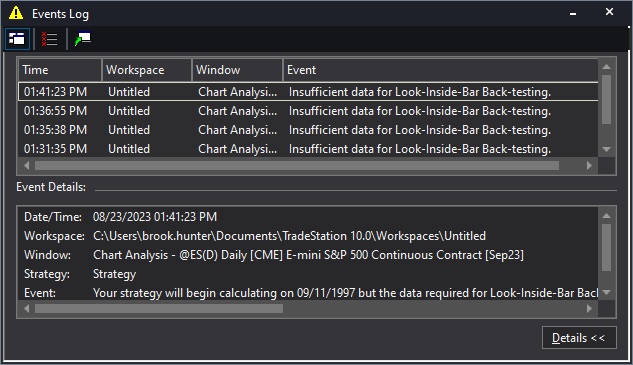
If you see a dialog box with an error message similar to the one in the screenshot above, any plot that you created in your Quagensia T Edition Strategy and that is displayed on the chart will most likely be displayed incorrectly, for instance appearing as though it was “scrunched up” against the right edge of the chart such as this screenshot demonstrates:
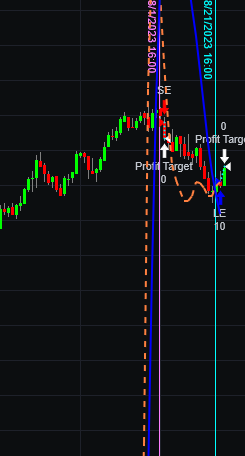
If TradeStation® displays an error message like the one in the dialog box shown above and your Quagensia T Edition Strategy plots appear incorrectly due to switching to Look-Inside-Bar Back-testing when TradeStation® has insufficient market data for Look-Inside-Bar Back-testing for the instrument over the chart’s date range, we recommend either turning off Look-Inside-Bar Back-testing or switching to an instrument and date range for which TradeStation® does not display this error message when Look-Inside-Bar Back-testing is turned on. When you do this, the Quagensia T Edition Strategy plots should be redrawn and should appear correctly.








