
Once you’ve located these two strategies in Quagensia N Edition, click on one of them in the Algo Explorer and select “Create New Strategy From Copy of This Strategy” from the context menu that appears.
Then, change its “Strategy Name” and “Strategy Name Inside of NinjaTrader®” to make it your own.
Then, save it to your “My Algos” folder. When you first attempt to save or generate the code for your Quagensia N Edition Strategy, the default folder to which the “Save As” dialog box recommends you save it is your “My Algos” folder so you don’t need to look for it.
Required Step #2 of 2: Add your own custom long entry logic and/or short entry logic to the locations in the “When Bar Updates” section that are highlighted by two light yellow “Comment in Code” text boxes (one for short entries and one for long entries).
That’s it! Those are the only two required steps to create a Quagensia N Edition Strategy that uses your pre-existing NinjaTrader® ATM Strategies to manage long and/or short positions that are entered either because your custom long or short entry signal’s criteria evaluated to True or because you entered the position manually by clicking the appropriate button that the strategy places on the NinjaTrader® chart to which it is applied.
You can generate your Quagensia N Edition Strategy’s code and send it to NinjaTrader® and apply the strategy to a NinjaTrader® chart the same way you do for any other Quagensia N Edition Strategy, and your strategy will have all of the features mentioned in this help page’s introduction, with the exception that you will have to add any additional custom buttons, check boxes, and text boxes you want to be added to the charts to which your strategy is applied.
The following are two quick and easy optional steps that you may want to take to customize your Quagensia N Edition Strategy further:
Quick and Easy Optional Step #1 of 2: Customize the default values of the input parameters of your Quagensia N Edition Strategy by scrolling to its “Input Parameters” section and changing the information in the “Initial Value” column of the grid for as many or as few of the input parameters as you would like to customize.
For instance, if you will usually want to only use a strategy for long entries you could set the “Initial Value” of the input parameter named “Allow Automated Short Entries (Allows ATM Revs to Short Even If False)” to False so you won’t have to uncheck this input parameter’s check box in the NinjaTrader® user interface every time you apply it to a chart in NinjaTrader®.
You can also enter default long and short ATM templates in the input parameters named “Long ATM Template (Must Be Local (Not Server-Side) ATM)” and “Short ATM Template (Must Be Local (Not Server-Side) ATM)” so you won’t need to type them in every time in NinjaTrader®. As with all the input parameters of this strategy, you can still change the NinjaTrader® ATM Strategy templates for long and short entries from the NinjaTrader® user interface, but it will save you time in the long run if you enter good default values in Quagensia N Edition.
There are also many input parameters that let you change the colors and styling of the strategy’s buttons, labels, and drawings on the chart and input parameters that allow you to choose if some or most of the control panel that the strategy adds to the NinjaTrader® chart on which it is applied should be shown or hidden by default.
Note that if you have already sent a strategy to NinjaTrader® and applied it to a chart from the NinjaTrader® user interface, NinjaTrader® will likely remember the last values of your strategy’s input parameters, thereby making it seem like changing the default values of your Quagensia N Edition Strategy’s input parameters from within Quagensia N Edition has no effect. One way to ensure that the newest set of default values you’ve chosen for the input parameters in Quagensia N Edition is used by default in the NinjaTrader® user interface is to change the “Strategy Name Inside of NinjaTrader®” field in the “Strategy Summary” section at the top of your Quagensia N Edition Strategy and re-generate its code and send it to NinjaTrader®, then start using the strategy with the new name in the NinjaTrader® user interface.
Quick and Easy Optional Step #2 of 2: Customize the actions that occur (other than submitting an order with a NinjaTrader® ATM Strategy attached) when an automated long or short entry signal occurs.
For instance, perhaps instead of (or in addition to) drawing a vertical stripe of background color on the chart on entry signal bars, you could also draw a little shape on the highs of those bars.
You could also change the message that is printed to the NinjaScript® Output window when an entry signal occurs, additionally write the message to a file on your machine, generate an alert, send an email, write to the NinjaTrader® Log, and more.
The Quagensia N Edition Strategy is yours to customize as you see fit, and you can customize it in many other ways as well, but the quickest and easiest customizations are listed above.
For instance, you can add more buttons, check boxes, and text boxes to the NinjaTrader® charts to which your Quagensia N Edition Strategy is applied and add no-code trading logic that will be executed when the buttons are clicked to create both simple control panels as well as complex rich trading applications that best match your discretionary or semi-automated trading style. To learn how, view the following help page:
How to Add Buttons, Check Boxes, Text Boxes, and Labels to a NinjaTrader® Chart Using Control Panels
You can add more complex logic to the Quagensia N Edition Strategy as well, but be careful not to accidentally change the more advanced logic that makes the strategy function in a way that does the things described at the top of this help page.
Some Tips Regarding Running Your Quagensia N Edition Strategy on a Live Chart
- You should already be adept at using ATM Strategies manually before you apply the Quagensia N Edition Strategy you created by following the steps above to a chart that uses real-time market data or before you use any other technology that automates your entries, regardless of if you are connected to a sim account or a real account.
- You should read this entire help page and understand it before you apply the Quagensia N Edition Strategy you created by following the steps above to a chart that uses real-time market data to become as much of an expert about using your strategy, first and foremost for your own safety, but also to save yourself time in the long run that you would otherwise spend troubleshooting issues that are discussed on this help page.
- Any problems or quirks that NinjaTrader® ATM Strategies normally have when used manually to manage the open positions of orders manually submitted either from the NinjaTrader® Chart Trader, the NinjaTrader® SuperDOM, or from other places in the NinjaTrader® user interface will still be problems and quirks when used from your Quagensia N Edition Strategies. For instance, a protective stop or profit target may be placed on or moved to the wrong side of the market in a fast moving market, potentially causing the NinjaTrader® ATM Strategy to cancel the order that was on the wrong side of the market and its OCO order without actually exiting the position by the amount of the order quantity of the order that was placed on or moved to the wrong side of the market, causing part or all of your remaining open position to be unprotected, and without alerting you to the extra open position quantity. Whether this scenario occurs due to the NinjaTrader® ATM Strategy used by your Quagensia N Edition Strategy or due to you submitting the NinjaTrader® ATM Strategy manually, without using a Quagensia N Edition Strategy to do so, you should see the open position in the NinjaTrader® Positions tab, and you will need to close or reduce the position manually using one of the ways you might normally close or reduce a position, without the help of the Quagensia N Edition Strategy and without the help of the NinjaTrader® ATM Strategy. Please read the section further down on this page titled “Known Limitations of Using NinjaTrader® ATM Strategies In General (Even Manually and Not in a NinjaScript® Strategy)” to learn how to close or reduce such positions in a way that will not disable the strategy.
- The strategy created using the process above will not re-arm and allow new automated or manual entries until there has been either at least one or two ticks, price changes or bar closes (depending on if your NinjaTrader® strategy’s “Calculate” field is set to “On each tick”, “On price change”, or “On bar close” in the NinjaTrader® user interface) after the strategy is able to determine that the NinjaTrader® ATM Strategy technology is reporting that it is no longer managing a position opened by the last ATM Strategy initiated by the strategy. For this reason, and for similar consequences of certain calculations and actions only being done on each tick, price change, or bar close (such as the label that shows the current account and ATM positions being updated), you will likely have a much better experience if you set this strategy’s “Calculate” field to “On each tick” in the NinjaTrader® user interface since this will minimize these delays. Whether the “at least one or two” ticks, price changes or bar closes referred to above is “at least one” or “at least two” is determined as follows: in the special case of an order to enter being filled and the ATM Strategy that manages the open position getting closed out before the next tick, price change or bar close after the opening tick (likely due to fast moving markets and tight protective stops and/or profit targets), this will be “two”, and in all other scenarios this will be “one”. Either way, there will be at least a one tick, price change or bar close delay in the re-arming and allowing of new automated or manual entries by the strategy.
- Similar to how the manual trading buttons are disabled until after the first tick, price change, or bar close whereas automated trading is able to start even on the first tick, the manual trading buttons will also be disabled for a short time (as measured in ticks, price changes, or bar closes) after the strategy re-arms and allows new automated entries.
- You can choose to exit the current long or short position before your NinjaTrader® ATM Strategy’s rules would normally exit the position by clicking a button on the chart. This button to manually close the position will also be disabled for a short time (as measured in ticks, price changes, or bar closes) after the strategy enters a new position.
- Keep the NinjaScript® Output window open to get more details about your strategy while it is running on a live chart. You can open it by selecting the “NinjaScript Output” menu item near the bottom of the NinjaTrader main menu’s “New” menu.
- You can start your strategy with both the “Allow Automated Short Entries (Allows ATM Revs to Short Even If False)” and “Allow Automated Long Entries (Allows ATM Revs to Long Even If False)” check boxes unchecked so that neither automated long nor short entries will be considered, and then after watching the chart for a while either check one or both of the appropriate check boxes that are on the chart and press the “Update” button when you want your strategy to start considering automated long and/or short entries. Even if neither check box is checked, you can still choose to enter a long or short position manually by clicking a button on the chart.
- Once your strategy enters a long or short position and the NinjaTrader® ATM Strategy is activated, you can manually interact with its protective stops and profit targets using their horizontal order level lines on the NinjaTrader® chart the way you normally would do it when you enter a position manually with an attached NinjaTrader® ATM Strategy. Once your customized Quagensia N Edition Strategy enters a long or short position either because your custom entry signal’s criteria evaluated to True or because you clicked a button on the NinjaTrader® chart to enter the position manually, you have full manual control over your NinjaTrader® ATM Strategy because the Quagensia N Edition Strategy passes control from itself to the NinjaTrader® ATM Strategy over which you have full manual control.
- Since NinjaScript® strategies that use NinjaTrader® ATM Strategies can only work on real-time data, or more specifically can only work when a NinjaScript® strategy’s “State” is “Real-Time”, the buttons that this strategy places on the chart that allow you to manually enter and exit positions will be disabled for your protection when you first attach the strategy to a chart until the first new tick, price change or bar close (depending on if your NinjaTrader® strategy’s “Calculate” field is set to “On each tick”, “On price change”, or “On bar close” in the NinjaTrader® user interface). Even though the buttons that allow manual trading are disabled until after the first new tick, price change or bar close, if your automated long or short entry criteria are true on the first new tick, price change or bar close, an order to enter a long or short position should be submitted just like it would if the automated long or short entry criteria were True on a subsequent tick, price change, or bar close. Once the first real-time tick, price change or bar close is received by the strategy, the process that enables the buttons for manual trading will begin in a lower priority “user interface thread” than all the automated calculations, order handling, and similar higher priority processes taken by your strategy or in response to its actions such as order submission, and the buttons that should be enabled will be enabled very shortly after this time, unless something is wrong such as if NinjaTrader® was so overloaded with automated calculations that it forces the button enabling to wait for longer than usual. This is unlikely to be a problem in practice, but since the button enabling must be done asynchronously on the lower priority “user interface thread” (which is how NinjaScript® does it, and which is a very good thing), the button enabling process will wait its turn. From your perspective, you are unlikely to ever notice a delay of button enabling on the first tick, price change, or bar close of the day that would actually hinder your trading.
Known Limitations of Using NinjaTrader® ATM Strategies in a Quagensia N Edition Strategy Created Using the Instructions Above
The built-in Quagensia N Edition Strategies cannot scale into a position, although the NinjaTrader® ATM Strategies they use to manage their positions can scale out of a position the way that NinjaTrader® ATM Strategies normally do. If you have specified that your Quagensia N Edition Strategy should consider automated long (or short) entries and your long (or short) entry criteria evaluates to True, an entry order with the ATM Strategy you specified to be used to manage long (or short) positions will be managed by the NinjaTrader® ATM Strategy technology, with the entry order quantity being dictated by the NinjaTrader® ATM Strategy template you selected to manage long (or short) positions.
The built-in Quagensia N Edition Strategies will not consider submitting a new long or short entry order with a NinjaTrader® ATM Strategy attached if the NinjaTrader® ATM Strategy technology indicates that the last NinjaTrader® ATM Strategy used by the strategy is not Flat. While this is usually what traders want, this means that it is not possible to initiate the short (or long) NinjaTrader® ATM Strategy to go short (or long) while the NinjaTrader® ATM Strategy technology indicates the long (or short) NinjaTrader® ATM Strategy is still in a position. Therefore a Quagensia N Edition Strategy created using the quick and easy instructions above cannot be used as a long-short reversal system that can reverse from long to short or short to long all at once, on the same tick, price change, or bar close, based on the two NinjaTrader® ATM Strategy templates used by the Quagensia N Edition Strategy. If your NinjaTrader® ATM Strategy template has been configured to reverse its position from long to short or short to long, this may work as you intended, but the reversal logic would be managed completely by the NinjaTrader® ATM Strategy template that the Quagensia N Edition Strategy is currently using to manage the long or short position initially entered due to your strategy’s long or short entry criteria evaluating to True, not the NinjaTrader® ATM Strategy template that you specified to be used for the short (or long) trade direction of the position after it was reversed. In other words, if your strategy’s long criteria evaluated to True and a long position was entered and later the NinjaTrader® ATM Strategy’s reversal logic was executed making the NinjaTrader® ATM Strategy’s position short, it would be using the same NinjaTrader® ATM Strategy both when the NinjaTrader® ATM Strategy started off long as well as when the NinjaTrader® ATM Strategy reversed its position to short.
Known Limitations of Using NinjaTrader® ATM Strategies in a NinjaScript® Strategy (Whether it was Created Using Quagensia N Edition or Created in Any Other Way)
The NinjaTrader® ATM Strategy technology is quite separate from the NinjaTrader® NinjaScript® Strategy technology generally, in spite of the fact the Quagensia N Edition Strategy you created using the instructions above is able to integrate enough with the NinjaTrader® ATM Strategy technology to tell the NinjaTrader® ATM Strategy system to submit an entry order and attach an NinjaTrader® ATM Strategy to it to manage its open positions, and then query the NinjaTrader® ATM Strategy technology for certain types of information like if an active NinjaTrader® ATM strategy is flat, short, or long.
The use case for using NinjaTrader® ATM Strategies in NinjaScript® strategies is well-stated at the bottom of the official NinjaScript® help guide’s article titled “Using ATM Strategies” where it states the following:
“There is a clear line between a NinjaScript Strategy and an ATM Strategy. The use model for creating an ATM Strategy within a NinjaScript Strategy is when you want to programmatically monitor and generate an entry signal and then manualy manage the resulting open position via an ATM Strategy in one of NinjaTrader’s order entry windows.“
There are important caveats of which you should be aware when using the built-in ATM-based Quagensia N Edition Strategies or when creating NinjaScript® strategies that use ATM Strategies, whether you create them using Quagensia N Edition or create them in any other way. Please read the official NinjaScript® help guide’s article titled “Using ATM Strategies” for more information.
NinjaScript® strategies that use NinjaTrader® ATM Strategies cannot be back-tested since NinjaTrader® ATM Strategies only work on real-time data, or more specifically only work when a NinjaScript® strategy’s “State” is “Real-Time”. To “back-test” (in a much more limited way) NinjaScript® strategies that use NinjaTrader® ATM Strategies you need to run them in Market Replay using the Playback Connection, but still you will not get all the nice performance reports as you would if you back-tested a typical NinjaScript® strategy that does not hand off the management of its positions to NinjaTrader® ATM Strategies.
NinjaScript® strategies are only able to create client-side (local) NinjaTrader® ATM Strategies, not server-side NinjaTrader® ATM Strategies. If you need your ATM Strategies to be held some place other than on the machine on which your NinjaTrader® installation is running, then the ATM-related Quagensia N Edition no-code functions and built-in strategies that use ATMs are not a good fit for you.
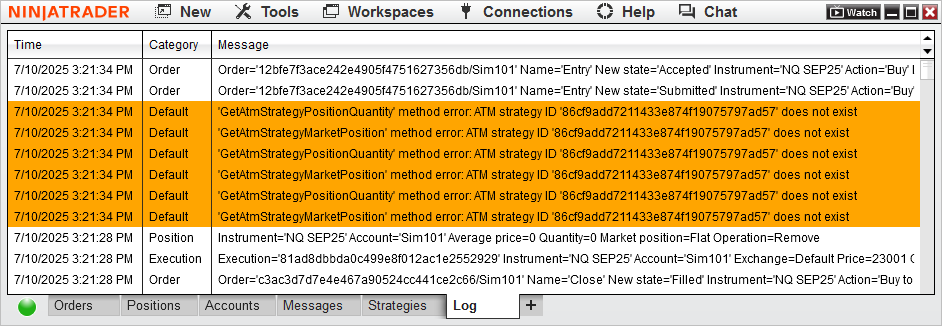
Some of the NinjaScript® “methods” (methods are also called “functions”) that must be used to integrate a NinjaScript® strategy with the NinjaTrader® ATM Strategy technology will write one or more warnings to the NinjaTrader® Log tab in certain conditions, and there is no way to check ahead of time if these methods will write these warnings.
For instance, when the strategies built into Quagensia N Edition call the “GetAtmStrategyMarketPosition()” NinjaScript® method in order to determine if a specific ATM Strategy instance is long, short, or flat, warnings similar to those in the screenshot below will sometimes be written to the NinjaTrader® Log tab. This is unavoidable, as 1) the strategies must call the “GetAtmStrategyMarketPosition()” method to integrate properly with the NinjaTrader® ATM Strategy technology, 2) the act of calling this method causes the warnings to be written, and 3) there is no other method that can be called directly before the necessary call to the “GetAtmStrategyMarketPosition()” method to determine if the “GetAtmStrategyMarketPosition()” method is likely to write a warning to the Log Tab. Be prepared to see quite a few warnings in your NinjaTrader® Log tab when you run your strategies based on the strategies built into Quagensia N Edition. If we at Quagensia become aware of a technique that can be used to reliably stop these warnings from being written to the NinjaTrader® Log tab, we will certainly update the ATM-based strategies built into Quagensia N Edition to stop this non-ideal behavior.
Some commonly used and highly valuable NinjaScript® code does not work properly in NinjaScript® strategies that use NinjaTrader® ATM Strategies, and many Quagensia N Edition no-code functions and features rely on the NinjaScript® code that does not work properly in NinjaScript® strategies that use NinjaTrader® ATM Strategies, making these Quagensia N Edition no-code functions and features also not work properly in Quagensia N Edition Strategies that use NinjaTrader® ATM Strategies. For instance, here are two direct quotes from the official NinjaScript® help guide’s article titled “Using ATM Strategies”:
- “Strategy set up parameters such as EntriesPerDirection, EntryHandling, IsExitOnSessionCloseStrategy do not apply when calling the AtmStrategyCreate() method”
- “Executions from ATM Strategies will not have an impact on the hosting NinjaScript strategy position and PnL – the NinjaScript strategy hands off the execution aspects to the ATM, thus no monitoring via the regular NinjaScript strategy methods will take place (also applies to strategy performance tracking)”
Some consequences, but not necessarily all consequences, of point 1 above is that a Quagensia N Edition Strategy’s “Entries Per Direction”, “Entries Per Direction Applies To”, “Exit on Session Close”, and “Exit on Session Close Seconds” fields, which are located in the “Strategy Details” section near the top of the Quagensia N Edition Strategy when viewed inside of Quagensia N Edition, will not function properly.
Some consequences, but not necessarily all consequences, of point 2 above is that the many Quagensia N Edition no-code functions that rely on NinjaScript® code that returns information about the NinjaScript® strategy’s position will not function properly.
The trade executions that NinjaScript® strategies normally plot on charts are not plotted for NinjaTrader® ATM Strategy executions.
It is not possible, at least in any straightforward, documented way, to submit a specific entry quantity for the buy or sell order submitted by a NinjaScript® strategy. Instead, the quantity is hard-coded and predetermined by the NinjaTrader® ATM Strategy. Therefore if you want to trade a smaller or larger amount of an instrument from an NinjaTrader® ATM Strategy created from inside of a NinjaScript® strategy you will need to create a NinjaTrader® ATM Strategy with the desired position quantity.
Known Limitations of Using NinjaTrader® ATM Strategies In General (Even Manually and Not in a NinjaScript® Strategy)
The main thing to remember is that any problems or quirks that NinjaTrader® ATM Strategies normally have when used manually to manage the open positions of orders manually submitted either from the NinjaTrader® Chart Trader, the NinjaTrader® SuperDOM, or from other places in the NinjaTrader® user interface will still be problems and quirks when used from your Quagensia N Edition Strategies. This is because the Quagensia N Edition Strategy hands off the order submission and management of the entry order and the positions opened when it is filled to the pre-existing NinjaTrader® ATM Strategies whose ATM Strategy Templates you specify that the strategy should use when the strategy’s long or short entry criteria evaluate to True or when you click a button that the strategy adds to the NinjaTrader® chart to enter a long or short position. Once a NinjaTrader® ATM Strategy is activated, it should behave the same as it does when you use it manually.
For instance, a protective stop or profit target may be placed on or moved to the wrong side of the market in a fast moving market, potentially causing the NinjaTrader® ATM Strategy to cancel the order that was on the wrong side of the market and its OCO order without actually exiting the position by the amount of the order quantity of the order that was placed on or moved to the wrong side of the market, causing part or all of your remaining open position to be unprotected, and without alerting you to the extra open position quantity. Whether this scenario occurs due to the NinjaTrader® ATM Strategy used by your Quagensia N Edition Strategy or due to you submitting the NinjaTrader® ATM Strategy manually, without using a Quagensia N Edition Strategy to do so, you should see the open position in the NinjaTrader® Positions tab, and you will need to close or reduce the position manually using one of the ways you might normally close or reduce a position, without the help of the Quagensia N Edition Strategy and without the help of the NinjaTrader® ATM Strategy. Some of the ways that one can close or reduce a position manually may disable the Quagensia N Edition Strategy, but other ways may not disable the Quagensia N Edition Strategy.
A good way to help prepare yourself for the inevitability of one of these types of scenarios occurring during real-time trading, given enough market volatility and price spikes, that will allow you to practice closing or reducing a position that was not properly closed due to the scenario described above is to create a test ATM Strategy template with a 1-tick stop loss and a 1-tick profit target, using this ATM Strategy template as both the long and short strategy template used by your Quagensia N Edition Strategy, then in a simulated environment apply the Quagensia N Edition Strategy to a chart of an instrument that is volatile to force the stop loss and profit target of the ATM Strategy to be placed on the wrong side of the market. Then practice reducing and closing the positions left open by the ATM Strategy closing without exiting the full quantity of the position being managed by the ATM Strategy. Pressing the “Close” button in the Chart Trader panel will likely disable the Quagensia N Edition Strategy, whereas adjusting the order quantity and pressing the “Buy Mkt” or “Sell Mkt” buttons in the Chart Trader panel will likely not disable the Quagensia N Edition Strategy, but this is something that you should test for yourself so that you develop your own protocol that works best for you.
To be even more prepared for these types of scenarios, you can test different types of scenarios where the issue was caused specifically due to each of the following reasons:
- An attempt to place a 1) stop loss or 2) protective stop on the wrong side of the market, where this stop loss (or profit target) and its OCO profit target (or OCO stop loss) are the last orders in a multi-stop loss, multi-protective profit target ATM Strategy.
- Similar to the scenario above, except the stop loss or protective stop that was attempted to be placed on the wrong side of the market was not one of the last two OCO orders of the ATM, creating a scenario where the ATM Strategy is still managing part of the open position but is not managing a part of the open position, which will likely need to be closed manually while the ATM Strategy is still managing the other part of the position.
- Similar to the scenarios above, but where an attempt is made to move a trailing stop or profit target to the wrong side of the market.
More Resources on Expected Behaviors, Limitations, and Troubleshooting of NinjaTrader® ATM Strategies from the NinjaTrader Forums
Below are some very valuable forum threads in the NinjaTrader forums that will help you understand more about NinjaTrader® ATM Strategies. The posts below apply to NinjaTrader® ATM Strategies generally and are not specific to Quagensia N Edition Strategies that use NinjaTrader® ATM Strategies.
Forum Posts on Order Rejections, Possible Unprotected Positions, and General NinjaTrader® ATM Strategy Behaviors
Direct quotes from NinjaTrader Customer Service from the forum thread in the NinjaTrader forums titled “Suffering over RealtimeErrorHandling Stop below Market”
- “order submission and change rejections can still occur with ATMs, especially if using Price as the mode“
- “The NinjaScript strategy doesn’t see the order and it doesn’t update any of the strategy’s order update methods like OnOrderUpdate() or OnExecutionUpdate() and do not change the strategy’s position.“
Direct quotes from the forum thread in the NinjaTrader forums titled Order rejected
- Quote from NinjaTrader Customer Service: “Using Atm Strategy methods do not effect a NinjaScript’s position or order methods and will not effect the RealtimeErrorHandling. Think of these orders as having been manually submitted outside of the strategy.”
- Quote from NinjaTrader Customer Service: “Order methods like OnOrderUpdate() and OnExecutionUpdate() are not going to run. So you wouldn’t put any code in those methods. But specifically your inquiry was about the RealtimeErrorHandling which is not going to have any effect because the NinjaScript Strategy does not have any positions or orders that would have an error that would cause cause the strategy to be disabled. So the NinjaScript Strategy is always going to keep running even if the Atm Strategy has rejections. The Atm Strategy methods do not effect the NinjaScript Strategy that is calling those methods and orders will not update the order methods because the NinjaScript strategy does not have any orders. If you are wanting to use OnOrderUpdate(), OnExecutionUpdate(), RealtimeErrorHandling, and the NinjaScript Strategy’s position, you will need to stop using Atm Strategy methods and use native NinjaScript Strategy order methods like EnterLong() or SubmitOrderUnmanaged.“
- Quote from User (Not NinjaTrader Custom Service): “When the stop gets rejected because the market has moved past it, the position is left open but without OCO orders. That is all that is happening. For what it’s worth, this also happens when running ATM orders manually, it is not a strategy-related issue.“
- Quote from NinjaTrader Customer Service: “The behavior from using Atm Strategy methods is the same as manual trading. If you have the stop loss set to an invalid price in the template, and place a manual entry order, and the stop loss is rejected, the position on the account will stay open, but the atm strategy is now no longer valid and is closed (which shows flat) and the account position is unprotected. At this point you would need to manually exit the account position with a manual order because the atm is no longer running.“
- Quote from NinjaTrader Customer Service: “You should not be using the Position.AveragePrice unless you have moved to using native strategy order methods. The Position object from the strategy will always be flat. It will not change if you are using Atm Strategy methods or placing orders directly to the account. I recommend that you remove that code from your script.“
Forum thread in the NinjaTrader forums titled Delay in Atm Strategy Entry
Forum Posts on Checking the Market Position of NinjaTrader® ATM Strategies Using the NinjaScript® “GetAtmStrategyMarketPosition()” Method
Direct quote from NinjaTrader Customer Service from the forum thread in the NinjaTrader forums titled Checking ATM Market Position
- “GetAtmStrategyPositionQuantity() is the best way to get the atm position quantity, but only after the atm is created and the entry order has filled.“
Forum thread in the NinjaTrader forums titled GetAtmStrategyMarketPosition returning error
Forum Posts on Getting the Order States, Filled Quantities, and Fill Prices of a NinjaTrader® ATM Strategy’s Stop and Target Orders Using the NinjaScript® “GetAtmStrategyStopTargetOrderStatus()” Method and Changing Stop and Target Prices of a NinjaTrader® ATM Strategy’s Stop and Target Orders Using the NinjaScript® “AtmStrategyChangeStopTarget()” Method
Direct quote from NinjaTrader Customer Service from the forum thread in the NinjaTrader forums titled Can you help avoid an error i get with ‘GetAtmStrategyStopTargetOrderStatus()’
- “The simplest way to prevent this behavior from occurring would be to run your strategy using Calculate.OnPriceChange instead of Calculate.OnEachTick.“
Forum thread in the NinjaTrader forums titled AtmStrategyChangeStopTarget Error Handling
Forum thread in the NinjaTrader forums titled moving SL orders created using an ATM Strategy
Forum thread in the NinjaTrader forums titled ATM problem
How Advanced Users Can Create Their Own Advanced ATM Strategy Logic
Introduction
If you are an advanced user and your needs are not met by following the quick and easy instructions near the top of this help page to add your simple customizations to the long and short entry conditions of copies of Quagensia N Edition’s built-in strategy templates that use NinjaTrader® ATM Strategies you can create an entirely different Quagensia N Edition Strategy that uses fundamentally different logic to interact with NinjaTrader® ATM Strategies.
You can do this in the same way that we at Quagensia did to create the built-in strategy templates. We did this completely without code, by using the no-code functions built into Quagensia N Edition that allow a Quagensia N Edition Strategy to interact with NinjaTrader® ATM Strategies and by entering some no-code logic in the “When NinjaTrader® ATM Strategy Callback Occurs” section, using the no-code logic in the built-in strategies as a guide.
The “When NinjaTrader® ATM Strategy Callback Occurs” Section
The “When NinjaTrader® ATM Strategy Callback Occurs” section is located in the “When Advanced NinjaScript® Events Occur” section of Quagensia® N Edition Strategies and is meant exclusively for advanced NinjaScript® programmers working on behalf of Quagensia N Edition users who need a Quagensia N Edition Strategy that has fundamentally different functionality than the built-in Quagensia N Edition Strategy templates that allow you to enter a position based on automated entry logic you create without code and then manage the open position using one of your pre-existing NinjaTrader® ATM Strategies that you can manually interact with the way you normally interact with ATMs.
Most Quagensia N Edition users will never need to use this section. Instead, most users will likely only customize ATM-based Quagensia N Edition Strategies whose original author added the appropriate advanced logic to this section. To see an example of how this section can be used by a NinjaScript® programmer to set up a Quagensia N Edition Strategy template that other Quagensia N Edition users can make copies of and add their own custom trading logic to the less advanced sections of the copied Quagensia N Edition Strategy template, open one of the two built-in ATM-based Quagensia N Edition Strategy templates from the Algo Explorer on the left side of Quagensia N Edition’s main window, scroll down to the “When Advanced NinjaScript® Events Occur” section of the Quagensia N Edition Strategy, expand it to see the contracted “When NinjaTrader® ATM Strategy Callback Occurs” section, and expand the “When NinjaTrader® ATM Strategy Callback Occurs” section to view the logic in it that makes up part of the necessary structure of these two strategies.
View the help page for the Quagensia N Edition Strategy’s “When NinjaTrader® ATM Strategy Callback Occurs” section to learn more about this advanced section.
The No-Code Functions Built Into Quagensia N Edition that Allow it to Interact with NinjaTrader® ATM Strategies
There are three context menu folders that contain no-code functions for working with NinjaTrader® ATM Strategies in a Quagensia N Edition Strategy:
First, the Action functions are located in the “Submit an Order >> ATM Strategies” folder of the context menu that appears when you click a location where the no-code functions are allowed, such as a location where an Action is allowed in the “When Bar Updates” section. This folder includes the aforementioned “Submit Entry Order with ATM Strategy Attached (Strategy’s ‘State’ Must Be ‘Real-Time’)” function.
Second, the Expression functions that can be used in multiple sections in a Quagensia N Edition Strategy are located in the “ATM Strategies” folder of the context menu that appears when you click a location where the no-code functions are allowed, such as a location where an Expression compatible with the function’s “Function Return Type” is allowed in the “When Bar Updates” section.
Third and finally, the Expression functions that can only be used in a Quagensia N Edition Strategy’s “When NinjaTrader® ATM Strategy Callback Occurs” section are located in the “When NinjaTrader® ATM Strategy Callback Occurs” folder of the context menu that only appears when you click a location in the “When NinjaTrader® ATM Strategy Callback Occurs” section where the no-code functions are allowed, such as a location in the “When NinjaTrader® ATM Strategy Callback Occurs” section where an Expression compatible with the function’s “Function Return Type” is allowed.









