
Quagensia N Edition’s “Control Panels” feature is perfect for discretionary traders and semi-automated traders.
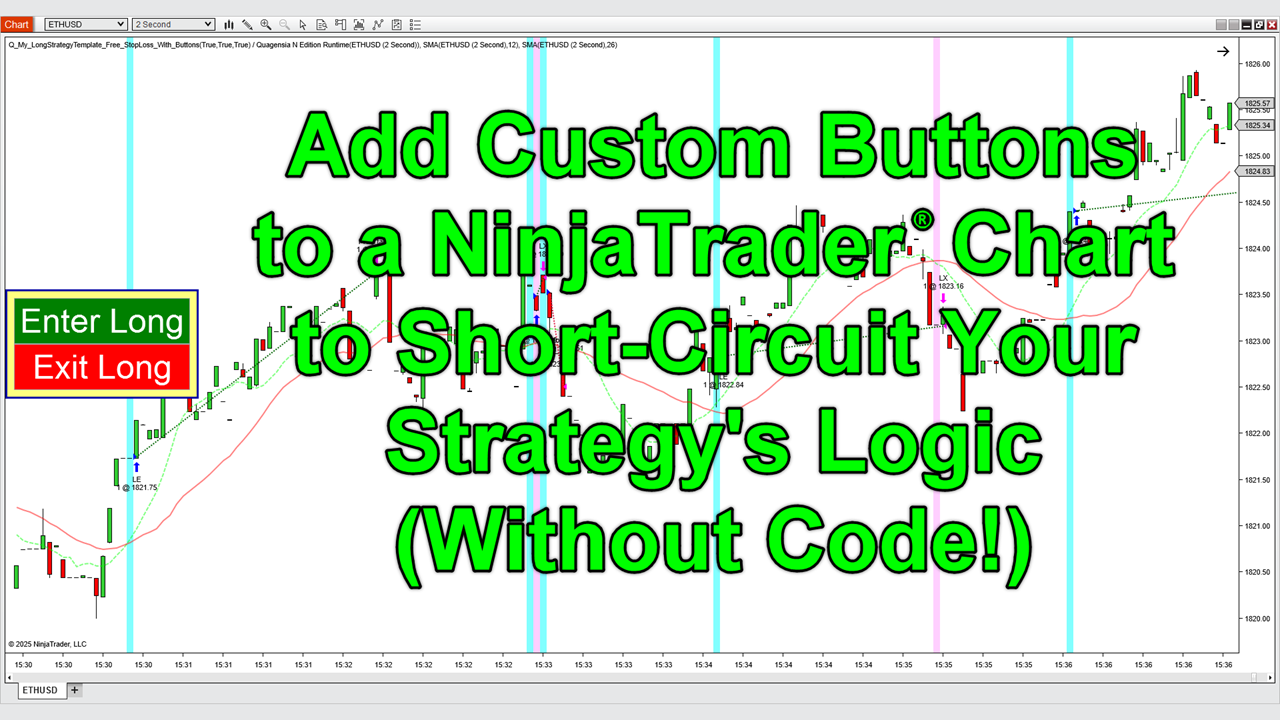
Quagensia® N Edition makes it quick and easy to add buttons, check boxes, text boxes, and labels to the NinjaTrader® charts to which your Quagensia N Edition Strategies are applied and add no-code trading logic that will be executed when the buttons are clicked to create both simple control panels as well as complex rich trading applications that best match your discretionary or semi-automated trading style.

The “Control Panels on the Chart” Section
When you open a Quagensia N Edition Strategy in Quagensia N Edition, you will notice a section named “Control Panels on the Chart” below the “Money Management (Protective Stops and Profit Targets)” section.
If the Quagensia N Edition Strategy doesn’t have any button, check box, text box, or label controls yet, the “Control Panels on the Chart” section will only have one subsection named “Layout Options for the Control Panels”.
The “Layout Options for the Control Panels” Section
The “Layout Options for the Control Panels” section is where Quagensia N Edition users of any skill level can configure the layout options for each of the 13 control panels on which controls can be added and that will appear on or around NinjaTrader® charts upon which a Quagensia N Edition Strategy is applied.
The top subsection of the “Layout Options for the Control Panels” section, titled “The 4 Control Panels Not Directly On the Chart”, represent the four locations around but not on the NinjaTrader chart where controls can be added. Adding controls to these four locations around but not on a NinjaTrader chart, instead of adding them to one of the nine locations on a NinjaTrader chart upon which a Quagensia N Edition Strategy can add controls, has the benefit that the “Control Panel” and the controls added to that location will not obscure price data, indicator data, and other visual objects on the NinjaTrader chart.
The second subsection of the “Layout Options for the Control Panels” section, titled “The 9 Control Panels Directly On the Chart”, represent the nine locations directly on the NinjaTrader chart where controls can be added.
You only need to review the layout options for those control panels in which you want to add controls.
To learn more about any item in the “Layout Options for the Control Panels” section, place your mouse pointer over either of the following things to view information about the item both in a tooltip that appears and in the Context-Sensitive Help panel on the right side of Quagensia N Edition’s main window:
- The icon to the right or upper right of any item
- The label next to any editable field
STEP #1 of 2 to Add a Control to a Chart: Add a Control to the “Internal Variables” Section
How to Add a Control to the “Internal Variables” Section
To add button, check box, text box, and label controls to a Quagensia N Edition Strategy and to the NinjaTrader® charts upon which it is applied, you first need to add them to the “Internal Variables” section.
To do this, scroll to the “Internal Variables” section, then add an internal variable of one of the “control” types, such as “Button Control”, by choosing “Button Control” or one of the other control types from the “Type” drop-down list, naming your control in the text box to the left of the “Type” drop-down list, and pressing the “Add Variable” button.
You can set the initial value of a check box or text box control by setting the “Initial Value” of its internal variable in this section.
You can also set the minimum and maximum values allowed in a numeric text box from the “Advanced Fields” section of its internal variable in this section.
You can add the following types of controls to a Quagensia N Edition Strategy from its “Internal Variables” section:
The Button Control
Add an internal variable of type “Button Control” to your strategy’s “Internal Variables” section to add a button to a NinjaTrader® chart.
When the button is clicked, the custom no-code trading logic added to its “When Button Control is Clicked” section will be executed, as long as there is enough market data on the chart for the strategy to execute custom no-code logic that depends on market data.
See The “When Button Control is Clicked” Subsection of a Control’s “Control” Section topic for more information.
The Check Box Control
Add an internal variable of type “Check Box Control” to your strategy’s “Internal Variables” section to add a check box to a NinjaTrader® chart.
You can set the initial value of the Check Box Control’s “Is Checked” property, i.e. you can make the check box checked or unchecked by default when the strategy is first applied to a NinjaTrader® chart, by setting the “Initial Value” of a Check Box Control’s internal variable to True, False, the value of a Boolean (True or False) input parameter, a condition, or even a set of conditions that are combined with ANDs, ORs, and parentheses.
When you create a Check Box Control internal variable in the “Internal Variables” section, you should also create a Boolean (True or False) internal variable at the same time and with a similar name, because the no-code function that allows you to get the Boolean (True or False) value of a Check Box Control’s “Is Checked” property requires a Boolean (True or False) internal variable as one of its input parameters. For instance, if you name the Check Box Control internal variable “Use Threshold 1?”, you could name the Boolean (True or False) internal variable “Use Threshold 1 Value” to indicate that the Boolean (True or False) internal variable is intended to hold the Boolean (True or False) value of the “Use Threshold 1?” Check Box Control’s “Is Checked” property.
The Label Control
Add an internal variable of type “Label Control” to your strategy’s “Internal Variables” section to add a label to a NinjaTrader® chart.
A Label Control is the least powerful of all the controls of the Quagensia N Edition Control Panels feature as all it does is display read-only text. That said, since a label’s text, which is called its “caption” in Quagensia N Edition, can be updated dynamically both from a Button Control’s “When Button Control is Clicked” section’s trading logic and from the Quagensia N Edition Strategy’s “When Bar Updates” section, it can display dynamic information as text like:
- Indicator values
- Prices
- Your strategy’s or account’s position size
- The result of any complex numerical calculation
- The value of any of your strategy’s input parameters or internal variables
- “True” or “False” based on complex sets of conditions
- Anything else you can think of that can be printed out as text
Plus, since a Label Control’s styling can be updated dynamically both from a Button Control’s “When Button Control is Clicked” section’s trading logic or from the Quagensia N Edition Strategy’s “When Bar Updates” section, it can hold dynamic information in addition to its caption’s text such as:
- The label’s background color, text color, or border color can be dynamically changed to red, green, or a neutral color if a specific factor is currently bullish, bearish or neutral.
- The label’s font can be dynamically made bold, italicized, or larger if the information on the label becomes particularly important and can be reverted back again when the information becomes less important.
The Text Box (Whole Number) Control
Add an internal variable of type “Text Box (Whole Number) Control” to your strategy’s “Internal Variables” section to add a text box that accepts manually entered Whole Numbers between -2,147,483,648 and 2,147,483,647 to a NinjaTrader® chart. The technical term for a “Whole Number” in Quagensia N Edition is a “32-bit integer”.
Use a Text Box (Whole Number) Control when you want to collect a manually entered Whole Number, i.e. a number without a decimal portion, that is guaranteed to never need to be larger than 2 billion or more negative than -2 billion.
You can set the initial value of the Text Box (Whole Number) Control’s text by setting the “Initial Value” of a Text Box (Whole Number) Control’s internal variable to a simple number like 10, the value of a Whole Number input parameter, or a calculation that returns a Whole Number.
You can set the minimum and/or maximum values that a user of the strategy is allowed to enter into the Text Box (Whole Number) Control by entering a value in the “Minimum Value” and “Maximum Value” fields in the Text Box (Whole Number) Control’s internal variable’s “Advanced Fields” section, which you can view by clicking on the internal variable’s “Advanced Fields” link.
When you create a Text Box (Whole Number) Control internal variable in the “Internal Variables” section, you should also create a Whole Number internal variable at the same time and with a similar name, because the no-code function that allows you to get the Whole Number value from a Text Box (Whole Number) Control’s text requires a Whole Number internal variable as one of its input parameters. For instance, if you name the Text Box (Whole Number) Control internal variable “Order Quantity”, you could name the Whole Number internal variable “Order Quantity Value” to indicate that the Whole Number internal variable is intended to hold the Whole Number value from the “Order Quantity” Text Box (Whole Number) Control’s text.
The Text Box (Decimal Number) Control
Add an internal variable of type “Text Box (Decimal Number) Control” to your strategy’s “Internal Variables” section to add a text box that accepts manually entered Decimal Numbers to a NinjaTrader® chart. The technical term for a “Decimal Number” in Quagensia N Edition is a “double-precision floating point number”.
Use a Text Box (Decimal Number) Control when you want to collect a manually entered Decimal Number.
You can set the initial value of the Text Box (Decimal Number) Control’s text by setting the “Initial Value” of a Text Box (Decimal Number) Control’s internal variable to a simple number like 10.1, the value of a Decimal Number input parameter, or a calculation that returns a Decimal Number.
You can set the minimum and/or maximum values that a user of the strategy is allowed to enter into the Text Box (Decimal Number) Control by entering a value in the “Minimum Value” and “Maximum Value” fields in the Text Box (Decimal Number) Control’s internal variable’s “Advanced Fields” section, which you can view by clicking on the internal variable’s “Advanced Fields” link.
When you create a Text Box (Decimal Number) Control internal variable in the “Internal Variables” section, you should also create a Decimal Number internal variable at the same time and with a similar name, because the no-code function that allows you to get the Decimal Number value from a Text Box (Decimal Number) Control’s text requires a Decimal Number internal variable as one of its input parameters. For instance, if you name the Text Box (Decimal Number) Control internal variable “Threshold 1”, you could name the Decimal Number internal variable “Threshold 1 Value” to indicate that the Decimal Number internal variable is intended to hold the Decimal Number value from the “Threshold 1” Text Box (Decimal Number) Control’s text.
The Text Box (Whole Number (Huge)) Control
Add an internal variable of type “Text Box (Whole Number (Huge)) Control” to your strategy’s “Internal Variables” section to add a text box that accepts manually entered Whole Number (Huge) values that, unlike “Whole Number” values, can be far more negative than -2,147,483,648 and far larger than 2,147,483,647 to a NinjaTrader® chart. The technical term for a “Whole Number (Huge)” in Quagensia N Edition is a “64-bit integer”.
Use a Text Box (Whole Number (Huge)) Control when you want to collect a manually entered Whole Number (Huge), i.e. a number without a decimal portion, that could possibly be either larger than 2 billion or more negative than -2 billion.
You can set the initial value of the Text Box (Whole Number (Huge)) Control’s text, by setting the “Initial Value” of a Text Box (Whole Number (Huge)) Control’s internal variable to a simple number like 10, the value of a Whole Number (Huge) input parameter, or a calculation that returns a Whole Number (Huge) or Whole Number.
You can set the minimum and/or maximum values that a user of the strategy is allowed to enter into the Text Box (Whole Number (Huge)) Control by entering a value in the “Minimum Value” and “Maximum Value” fields in the Text Box (Whole Number (Huge)) Control’s internal variable’s “Advanced Fields” section, which you can view by clicking on the internal variable’s “Advanced Fields” link.
When you create a Text Box (Whole Number (Huge)) Control internal variable in the “Internal Variables” section, you should also create a Whole Number (Huge) internal variable at the same time and with a similar name, because the no-code function that allows you to get the Whole Number (Huge) value from a Text Box (Whole Number (Huge)) Control’s text requires a Whole Number (Huge) internal variable as one of its input parameters. For instance, if you name the Text Box (Whole Number (Huge)) Control internal variable “Total Volume”, you could name the Whole Number (Huge) internal variable “Total Volume Value” to indicate that the Whole Number (Huge) internal variable is intended to hold the Whole Number (Huge) value from the “Total Volume” Text Box (Whole Number (Huge)) Control’s text.
The Text Box (Time of Day) Control
Add an internal variable of type “Text Box (Time of Day) Control” to your strategy’s “Internal Variables” section to add a text box that accepts a manually entered Time of Day value to a NinjaTrader® chart.
Use a Text Box (Time of Day) Control when you want to collect manually entered Time of Day values like “14:30”, “14:30:15”, or “14:30:15.1234567”, which are 2:30 PM, 2:30 PM and 15 seconds, and 2:30 PM and 15.1234567 seconds, respectively.
You can set the initial value of the Text Box (Time of Day) Control’s text by setting the “Initial Value” of a Text Box (Time of Day) Control’s internal variable to a simple Time of Day value like “14:30”, the value of a Time of Day input parameter, or a calculation that returns a Time of Day.
When you create a Text Box (Time of Day) Control internal variable in the “Internal Variables” section, you should also create a Time of Day internal variable at the same time and with a similar name, because the no-code function that allows you to get the Time of Day value from a Text Box (Time of Day) Control’s text requires a Time of Day internal variable as one of its input parameters. For instance, if you name the Text Box (Time of Day) Control internal variable “Time of Day to Stop Trading”, you could name the Time of Day internal variable “Time of Day to Stop Trading Value” to indicate that the Time of Day internal variable is intended to hold the Time of Day value from the “Time of Day to Stop Trading” Text Box (Time of Day) Control’s text.
The Text Box (Date (Without Time of Day)) Control
Add an internal variable of type “Text Box (Date (Without Time of Day)) Control” to your strategy’s “Internal Variables” section to add a text box that accepts a manually entered Date (Without Time of Day) value to a NinjaTrader® chart.
Use a Text Box (Date (Without Time of Day)) Control when you want to collect manually entered Date (Without Time of Day) values like “2025-03-21”, which is “March 21, 2025”.
You can set the initial value of the Text Box (Date (Without Time of Day)) Control’s text by setting the “Initial Value” of a Text Box (Date (Without Time of Day)) Control’s internal variable to a simple Date (Without Time of Day) value like “2025-03-21”, the value of a Date (Without Time of Day) input parameter, or a calculation that returns a Date (Without Time of Day).
When you create a Text Box (Date (Without Time of Day)) Control internal variable in the “Internal Variables” section, you should also create a Date (Without Time of Day) internal variable at the same time and with a similar name, because the no-code function that allows you to get the Date (Without Time of Day) value from a Text Box (Date (Without Time of Day)) Control’s text requires a Date (Without Time of Day) internal variable as one of its input parameters. For instance, if you name the Text Box (Date (Without Time of Day)) Control internal variable “Last Date”, you could name the Date (Without Time of Day) internal variable “Date (Without Time of Day) to “Last Date Value” to indicate that the Date (Without Time of Day) internal variable is intended to hold the Date (Without Time of Day) value from the “Last Date” Text Box (Date (Without Time of Day)) Control’s text.
The Text Box (Date and Time) Control
Add an internal variable of type “Text Box (Date and Time) Control” to your strategy’s “Internal Variables” section to add a text box that accepts a manually entered Date and Time value to a NinjaTrader® chart.
Use a Text Box (Date and Time) Control when you want to collect manually entered Date and Time values like “2025-03-21 14:30”, “2025-03-21 14:30:15”, or “2025-03-21 14:30:15.1234567”, which are March 21, 2025 at 2:30 PM, 2:30 PM and 15 seconds, and 2:30 PM and 15.1234567 seconds, respectively.
You can set the initial value of the Text Box (Date and Time) Control’s text by setting the “Initial Value” of a Text Box (Date and Time) Control’s internal variable to a simple Date and Time value like “2025-03-21 14:30”, the value of a Date and Time input parameter, or a calculation that returns a Date and Time.
When you create a Text Box (Date and Time) Control internal variable in the “Internal Variables” section, you should also create a Date and Time internal variable at the same time and with a similar name, because the no-code function that allows you to get the Date and Time value from a Text Box (Date and Time) Control’s text requires a Date and Time internal variable as one of its input parameters. For instance, if you name the Text Box (Date and Time) Control internal variable “Date and Time to Stop Trading”, you could name the Date and Time internal variable “Date and Time to Stop Trading Value” to indicate that the Date and Time internal variable is intended to hold the Date and Time value from the “Date and Time to Stop Trading” Text Box (Date and Time) Control’s text.
The Text Box (Text) Control
Add an internal variable of type “Text Box (Text) Control” to your strategy’s “Internal Variables” section to add a text box that accepts a manually entered Text value to a NinjaTrader® chart.
Use a Text Box (Text) Control when you want to collect manually entered Text values like “MES” or “Entering long trade near resistance”.
You can set the initial value of the Text Box (Text) Control’s text by setting the “Initial Value” of a Text Box (Text) Control’s internal variable to a simple Text value like “MES”, the value of a Text input parameter, or a calculation that returns a Text value.
When you create a Text Box (Text) Control internal variable in the “Internal Variables” section, you should also create a Text internal variable at the same time and with a similar name, because the no-code function that allows you to get the Text value from a Text Box (Text) Control’s text requires a Text internal variable as one of its input parameters. For instance, if you name the Text Box (Text) Control internal variable “Rationale for Trade”, you could name the Text internal variable “Rationale for Trade Value” to indicate that the Text internal variable is intended to hold the Text value from the “Rationale for Trade” Text Box (Text) Control’s text.
STEP #2 of 2 to Add a Control to a Chart: Configure the Control in its Newly Created “Control” Section
The “Control” Section
When you add an internal variable for a control like a “Button Control” to the “Internal Variables” section of your Quagensia N Edition Strategy, a new “Control” section will be created for the control in the “Control Panels on the Chart” section, below the “Layout Options for the Control Panels” section. The newly created Control section’s name and header text are based on the Type of the control’s internal variable, like “Button Control”, and the Name of the control’s internal variable. For instance, if you added a “Button Control” internal variable with a Name of “Flatten Position” to the “Internal Variables” section, the name and header text of the newly created Control section would be “Button Control ‘Flatten Position'”.
After you add an internal variable for a control like a “Button Control” to the “Internal Variables” section of your Quagensia N Edition Strategy, you can scroll down to the control’s newly created Control section in the “Control Panels on the Chart” section by clicking on the gear icon on the right side of the control’s internal variable row in the “Internal Variables” section.
Once you scroll down to the control’s newly created Control section in the “Control Panels on the Chart” section, you can configure the control’s location on a NinjaTrader® chart upon which the Quagensia N Edition Strategy is applied in its “Location of Control” subsection, you can style the control it in its “Visual Appearance” subsection, and if the control is a “Button Control” you can add no-code trading logic that will be executed when the button is clicked on a the NinjaTrader® chart in the “When Button Control is Clicked” subsection.
The “Location of Control” Subsection of a Control’s “Control” Section
The “Location of Control” subsection of a control’s “Control” section is where a control’s location and related properties can be configured.
This subsection’s “Control Panel” drop-down list allows you to select the control panel on which the control should be located. It has 13 choices, one for each of the nine locations on the chart and four locations around the chart where controls can be added. You can select the location of the control panel to which the control should be added from this drop-down list, which has the following 13 choices, one for each of the 13 control panels that can be configured in the “Layout Options for the Control Panels” section:
- Bottom of Chart Trader Panel
- To the Right of the Chart
- To the Left of the Chart
- Above the Chart
- Top Left
- Top Center
- Top Right
- Center Left
- Center
- Center Right
- Bottom Left
- Bottom Center
- Bottom Right
This subsection’s “Start New Row (or Column) After This Control” field allows you to specify whether or not a new row should be started after the control (or if a new column should be started after the control, if the control’s selected control panel’s “Control Panel Layout Type” is set to “Columns of Controls (No Rows)”).
Furthermore, if the control’s selected control panel’s “Control Panel Layout Type” is set to “Grid of Controls (Rows and Columns)”, then you can select a number of columns that should be skipped, i.e. empty, before adding the control via the “Number of Columns to Skip Before Adding this Control” field, and you can select how many columns the control should occupy in order to make a control wider than it would be otherwise via the “Number of Columns This Control Should Occupy” field.
To learn more about any item in the “Location of Control” subsection of a control’s “Control” section, place your mouse pointer over either of the following things to view information about the item both in a tooltip that appears and in the Context-Sensitive Help panel on the right side of Quagensia N Edition’s main window:
- The icon to the right or upper right of any item
- The label next to any editable field
The “Visual Appearance of Control” Subsection of a Control’s “Control” Section
The “Visual Appearance of Control” subsection of a control’s “Control” section is where a control’s visual appearance, such as its background color, can be configured.
The options in this section are slightly different based on the type of control it contains, but most settings are common to all types of controls.
To learn more about any item in the “Visual Appearance of Control” subsection of a control’s “Control” section, place your mouse pointer over either of the following things to view information about the item both in a tooltip that appears and in the Context-Sensitive Help panel on the right side of Quagensia N Edition’s main window:
- The icon to the right or upper right of any item
- The label next to any editable field
The “When Button Control is Clicked” Subsection of a Control’s “Control” Section
The “When Button Control is Clicked” subsection of a Button Control’s “Control” section is where you can create the no-code trading logic that will be executed when a Button Control is clicked.
When the Button Control is clicked, the custom no-code trading logic added to its “When Button Control is Clicked” section will be executed, as long as there is enough market data on the chart for the strategy to execute custom no-code logic that depends on market data.
If the strategy’s primary data series or any of the secondary data series (called “Secondary Price Bars” in Quagensia N Edition) do not have enough market data on the chart when a Button Control is clicked, an alert window will open with specific instructions that will instruct you to either 1) load more bars of data on the chart or 2) reduce the strategy’s “Bars required to trade” in the NinjaTrader® user interface. Note that you can optionally reduce the value of the “Bars Required to Trade” field in the Strategy Details section of a strategy in Quagensia N Edition and regenerate its code to reduce the default value of the “Bars required to trade” setting in the NinjaTrader® user interface in the future. Note that the amount of market data required for a Button Control’s no-code logic to be executed is the same amount of market data that is required for the logic in the Quagensia N Edition Strategy’s “When Bar Updates” section to be executed.
To learn more about any item in the “When Button Control is Clicked” subsection of a Button Control’s “Control” section, place your mouse pointer over either of the following things to view information about the item both in a tooltip that appears and in the Context-Sensitive Help panel on the right side of Quagensia N Edition’s main window:
- The icon to the right or upper right of any item
- The label next to any editable field
Adding Trading Logic to the “When Button Control is Clicked” Subsection of a Control’s “Control” Section
You can add all kind of trading logic to the “When Button Control is Clicked” Subsection of a Control’s “Control” section in the same way you would normally add trading logic to the “When Bar Updates” section of a strategy without needing to do anything special with one notable exception that really only applies to Quagensia N Edition’s most advanced users that will be described at the end of this subsection.
Specifically, all of the features used in the built-in strategies in the “Strategies for New Users” folder on Quagensia N Edition’s Algo Explorer on the left side of Quagensia N Edition’s main window, like submitting orders, printing to the NinjaScript® Output window, and drawing shapes on the chart, work the same way they do in the “When Bar Updates” section of a basic Quagensia N Edition Strategy.
Also, the “When Button Control is Clicked” subsection of a Control’s “Control” section is the easiest place for newer users to use the no-code functions that are part of the Quagensia N Edition Control Panels feature and can do things like:
- Set a control’s properties, like changing the caption, text color, background color, border width, and/or border color of a Button, Check Box, Text Box, or Label Control.
- Set a control panel’s properties, like changing the background color, border width, and/or border color of a control panel to highlight it.
- Show a custom popup window with a message to inform the user of the strategy something important.
- Set an internal variable to the value of a Text Box Control or to the “Is Checked” property of a Check Box Control.
- Set a Text Box Control’s text or set a Check Box Control’s “Is Checked” property to True or False (“Checked” or “Unchecked”).
The no-code functions that are part of the Quagensia N Edition Control Panels feature are located in two context menu folders:
- Almost all of the no-code functions that are part of the Quagensia N Edition Control Panels feature are “Action Functions” that execute an action and can be added to a Quagensia N Edition Strategy’s trading logic by clicking on a location where an Action can go and navigating to the various subfolders of the “Control Panels on the Chart” context menu folder.
- One important no-code function that is part of the Quagensia N Edition Control Panels feature is an “Expression Function” called “Controls Are Ready for Use in When Bar Updates and Elsewhere Outside of Button Controls’ Click Events”. It can be added to a Quagensia N Edition Strategy’s trading logic by clicking on a location where a Boolean (True or False) Expression can go and navigating to the “Control Panels on the Chart” context menu folder of the context menu that opens. The “Controls Are Ready for Use in When Bar Updates and Elsewhere Outside of Button Controls’ Click Events” is only useful for more advanced users that want to use the many Action Functions mentioned in the previous numbered item above in a location other than the “When Button Control is Clicked” subsection of a Control’s “Control” section to determine if the control panels and controls of a strategy are ready for use outside of the “When Button Control is Clicked” subsection of a Control’s “Control” section.
You may need to use a “Lock Critical Block of Code (lock(object){…})” Action block in the “When Button Control is Clicked” subsection of a Control’s “Control” section and other sections to ensure that certain blocks of trading logic are never executed at the same time on two different threads, but instead “take turns” executing.
The NinjaTrader® Desktop platform is a multi-threaded application that is able to run the NinjaScript® strategies you create using Quagensia N Edition on multiple threads at once. For instance, while the trading logic in one of your Quagensia N Edition Strategy’s “When Button Control is Clicked” sections is running, NinjaTrader® can process information about your NinjaScript® strategy’s market data, orders, fills, positions, account, and much more on multiple separate threads at the same time.
If you have multiple blocks of no-code trading logic in a Quagensia N Edition Strategy that absolutely must not be executed at the exact same time as each other on two different threads, you can accomplish this by putting each of the multiple blocks of code inside of their own Lock Critical Block of Code (lock(object){…}) Action blocks, similar to how you can put trading logic into an “If Block”.
Sorting and Arranging Multiple Controls on the Same “Control Panel” on a NinjaTrader® Chart
How to Add Multiple Controls to the Same Control Panel
You can add multiple controls to same control panel on a NinjaTrader® chart, such as the control panel in one of the four corners or four edges of the chart or the control panel in the center of the chart, from the controls’ “Location of Control” subsections of the controls’ “Control” sections in the “Control Panels on the Chart” section by setting the multiple controls’ “Control Panel” drop-down list fields’ values to the same value, such as “Top Left”.
The Three Options for Arranging Controls on a Control Panel
The controls will be arranged on a control panel in one of the following three arrangements, based on the value of the “Control Panel Layout Type” drop-down list of the control panel in the “Layout Options for the Control Panels” section.
- Grid of Controls (Rows and Columns): The controls will be arranged in rigid X-Y grid, like a Microsoft Excel spreadsheet.
- Rows of Controls (No Columns): The controls will be arranged in rows without rigid columns, like a brick wall.
- Columns of Controls (No Rows): The controls will be arranged in columns without rigid rows, like a brick wall rotated 90 degrees clockwise.
If the “Start New Row (or Column) After This Control” check box in a control’s “Location of Control” subsection is checked, the next control will start on a new row or column, depending on the control panel’s “Control Panel Layout Type” drop-down list’s value.
If a control panel’s “Control Panel Layout Type” drop-down list’s value is set to “Grid of Controls (Rows and Columns)” or “Rows of Controls (No Columns)”, this will cause the controls in the control panel to be laid out horizontally, until the first control is encountered whose “Start New Row (or Column) After This Control” check box is checked, after which a new row of controls will start, and will end only after the next control is encountered whose “Start New Row (or Column) After This Control” check box is checked.
If a control panel’s “Control Panel Layout Type” drop-down list’s value is set to “Columns of Controls (No Rows)”, this will cause the controls in the control panel to be laid out vertically, until the first control is encountered whose “Start New Row (or Column) After This Control” check box is checked, after which a new column of controls will start, and will end only after the next control is encountered whose “Start New Row (or Column) After This Control” check box is checked.
Sorting Controls on a Control Panel
The sort order in which the controls will appear on the control panel at a given location on the chart will be the same as they appear in the “Internal Variables” section.
If the value of a control panel’s “Control Panel Layout Type” drop-down list in the “Layout Options for the Control Panels” section is set to “Grid of Controls (Rows and Columns)” or “Rows of Controls (No Columns)” where each row has only one control (like a brick wall only one brick wide), the sort order starts from the top and goes down, whereas if each row has multiple controls, the sort order starts from the top left, goes to the right, then breaks to a new row of controls per your specifications of when a new row of controls should begin, and goes from the left to the right of the row again; i.e. the sort order “snakes” from top left to right, then down one row, etc.
If the value of a control panel’s “Control Panel Layout Type” drop-down list in the “Layout Options for the Control Panels” section is set to “Columns of Controls (No Rows)”, the sort order of the controls is the same as described above, but rotated clockwise 90 degrees and starting from the column on the left and going down instead of starting from the row at the top and going right; i.e. the sort order starts at the top left, and then either goes right if each column only has one control, or snakes from the top down in the first column of the row, then snakes up and to the top of the second column, etc.
To change the sort order in which the controls appear on the control panel at a given location on the chart, click the “Move Up” and “Move Down” buttons to the right of the controls’ rows in the “Internal Variables” section.
The Quagensia N Edition Runtime Setup Assistant will open the first time you attempt to use the Control Panels feature to guide you through the two steps that are required to use the Control Panels feature from within NinjaTrader®.
The first time you attempt to generate the code for a Quagensia N Edition Strategy that uses button, check box, text box, or label controls, any of the no-code functions used by the “Control Panels” feature of which the button, check box, text box, and label controls belong, or the “tables of data” feature, the Quagensia N Edition Runtime Setup Assistant will open to guide you through the quick and easy process that once completed will allow you to use the Control Panels and Tables of Data features from within NinjaTrader®. This process includes:
- Selecting your preference of Quagensia N Edition Runtime license type (either email address-based or NinjaTrader® Machine ID-based licensing).
- Importing a QuagensiaNEditionRuntime.zip NinjaScript® add-on file that comes with Quagensia N Edition into NinjaTrader®.
- (For users whose free trials have expired) Requesting and obtaining a paid Quagensia N Edition Runtime license for either your email address or your one or two NinjaTrader® Machine IDs.
- Doing any other quick and easy setup tasks that may be required to ensure that you are empowered to use the full power of Quagensia N Edition from within your NinjaTrader® strategies.
Check out the Quagensia N Edition Runtime Setup Assistant help page for more information.
Some Important Notes About the Control Panels Feature
A strategy’s control panels and controls will only appear on 1) live NinjaTrader® charts and 2) only so long as they are not being covered up by graphical elements (like controls) that are placed on top of the area of the chart where they have been added.
A strategy’s control panels and controls will only appear on NinjaTrader® charts that are charting a live market data connection or a market data connection that is intended to simulate live data. This means that NinjaTrader® charts of purely historical data, such as charts that can be opened from Strategy Analyzer back-test and optimization results screens that display trades taken during a back-test run over purely historical data, will not have any control panels or controls added to the chart by the Quagensia N Edition Control Panels feature.
A given control panel or control on a live NinjaTrader® chart may not be visible if it is under another control or graphical element added in front of it by the same Quagensia N Edition Strategy with a really wide or really tall control panel that overlaps it, a second Quagensia N Edition Strategy applied to the same chart, or an indicator, strategy, or other NinjaScript® add-on that is applied to the same chart.
A strategy’s control panels and controls will be removed from all NinjaTrader® charts upon which the strategy is applied if the strategy is “disabled”, i.e. no longer enabled, for any reason.
If a strategy that uses the Quagensia N Edition Control Panels feature in NinjaTrader® is disabled, either manually by the user, automatically by NinjaTrader®, or via any other mechanism, the control panels and their controls will be automatically removed from all NinjaTrader® charts upon which the strategy is applied.
This means that a strategy’s control panels and controls may be removed from NinjaTrader® charts in multiple scenarios including, by not limited to, scenarios such as:
- The strategy encounters an “unhandled exception” (i.e. a runtime error) while it is running on a chart. For completeness, it should be mentioned that a strategy may not be disabled if it encounters an unhandled exception if the Quagensia N Edition Strategy’s “Real-Time Error Handling” drop-down list, which is in the “Strategy Details” section of the Quagensia N Edition Strategy in Quagensia N Edition, is set to “Ignore All Errors”, but setting this drop-down list to “Ignore All Errors” is not recommended.
- An order is rejected when the Quagensia N Edition Strategy’s “Real-Time Error Handling” drop-down list, which is in the “Strategy Details” section of the Quagensia N Edition Strategy in Quagensia N Edition, is set to “Ignore All Errors” or “Stop Strategy, Cancel Orders, Close Positions, Ignore Order Rejections”. Note that setting this drop-down list to “Ignore All Errors” is not recommended, and setting this drop-down list to “Stop Strategy, Cancel Orders, Close Positions, Ignore Order Rejections” should only be done by traders with an understanding of the post-order rejection behavior of orders in a NinjaScript® strategy who properly “handle” order rejections (which is beyond the scope of this help page).
You should always add no-code trading logic to your strategy right after it extracts date, time, date and time, or numeric data from its Text Box Controls to ensure that the date, time, date and time, or numeric value is within an acceptable range for use by your strategy’s logic.
While it is true that the Text Box Controls added to a NinjaTrader® chart by the Quagensia N Edition Control Panels feature won’t let the user manually enter invalid text into them, still you should always add no-code logic to your strategy right after it extracts data from any date, time, date and time, or numeric Text Box Control that checks to ensure that the value is within an acceptable range for use by your strategy’s logic.
This is important multiple reasons, including but not limited to the following ones:
- Even if you set the Minimum Value or Maximum Value of a numeric Text Box Control via the “Minimum Value” or “Maximum Value” fields, your strategy’s logic can still set the text of the numeric Text Box Control to a value lower than the number in the “Minimum Value” field or larger than the number in the “Maximum Value” field. For instance, if you create a Text Box (Whole Number) Control called “Order Quantity” and set its Minimum Value to 1 and Maximum Value to 10, while it is true that the user wouldn’t be able to manually enter a value of 0 or 11 into the Text Box (Whole Number) Control, the “Initial Value” of the Text Box (Whole Number) Control’s internal variable can be set to an input parameter or calculation, and the input parameter or calculation could literally be any Whole Number, i.e. any number without a decimal portion between -2,147,483,648 and 2,147,483,647, not just a number between 1 and 10 per the number in the “Minimum Value” field and “Maximum Value” field in this example.
- Also, there are no-code functions that your strategy can use to set the values of all types of Text Box Controls in your strategy’s no-code logic, including the no-code logic in its When Bar Updates section and the “When Button Control is Clicked” sections of its Button Controls, and these no-code functions also can set the values in numeric Text Box Controls to be outside of the range set via the “Minimum Value” field and “Maximum Value” fields of the numeric Text Box Controls.
- There could be other mechanisms whereby an invalid value could somehow make its way into a date, time, date and time, or numeric Text Box Control as well.
- While a Text Box Control with invalid data should have a background color and border color that indicates that the Text Box Control’s text is not a valid value for that Text Box Control, the no-code trading logic in a Button Control’s “When Button Control is Clicked” section will still be executed if the button is clicked, even if the data in one or more of the Text Box Controls on the chart has invalid data, and the logic elsewhere in a strategy that uses the value of a Text Box Control, such as the logic in the When Bar Updates section of a strategy, also will extract the invalid value from the Text Box Control, and use the invalid value it extracted unless the strategy explicitly checks if the value in the Text Box Control is an acceptable value for use by the strategy’s logic before using the value extracted from the Text Box Control.
How to add no-code trading logic to your strategy right after it extracts date, time, date and time, or numeric data from its Text Box Controls to ensure that the date, time, date and time, or numeric value is within an acceptable range for use by your strategy’s logic.
First off, your strategy needs to extract the unvalidated, raw date, time, date and time, or numeric value from the Text Box Control using the appropriate no-code function that you can add to your strategy’s trading logic by clicking on a location where an Action can go and selecting the relevant no-code function from the “Control Panels on the Chart >> Set a Variable to a Text Box or Check Box Control’s Value” subfolder of the context menu that opens. In the case of the Text Box (Whole Number) Control called “Order Quantity” created earlier a little above this paragraph, you would select the following no-code function (shown in its context menu item’s folder path):
“Control Panels on the Chart >> Set a Variable to a Text Box or Check Box Control’s Value >> Set Whole Number Variable to Text Box (Whole Number) Control’s Value (Asynchronously If Not in Button Click)”
For this example, it will be assumed that you are adding this function to a Button Control’s “When Button Control is Clicked” section, because as it mentioned in the name of the no-code function, the function executes asynchronously if it is used in a location other than in a Button Control’s “When Button Control is Clicked” section, such as a strategy’s “When Bar Updates” section, which is a more advanced topic that is outside the scope of the current explanation.
The “Set Whole Number Variable to Text Box (Whole Number) Control’s Value (Asynchronously If Not in Button Click)” function will set a Whole Number Internal Variable to either its value, if it can, or to a Whole Number that your strategy will pass to function via its input parameter named “Set Internal Variable to This Value If Unable to Convert Text Box Control’s Text Into Whole Number” if it is unable to convert the Text Box (Whole Number) Control’s text into a Whole Number.
Second, in the Button Control’s “When Button Control is Clicked” section, directly after the location where this no-code function is used, create a “Conditional Trading Logic (If… Else Block)” by clicking on a location where an action can go and selecting the “Conditional Trading Logic (If… Else Block)” Action from the “Conditional Trading Logic (If-Then-Else)” subfolder of the context menu that appears.
Third, in the “If the following condition is true…” section of the “Conditional Trading Logic (If… Else Block)” Action, change the “Is Equal To” to “Is Between (Including the Two Values Entered)” Comparison Operator if the goal is to limit the Whole Number between a Minimum Value of 1 and a Maximum Value of 10 as will be demonstrated in this example.
Fourth, change the “(Not Set)” label on the left side of the “Is Between (Including the Two Values Entered)” Comparison Operator to the Internal Variable that was used to set the “Whole Number Internal Variable to Set to the Text Box (Whole Number) Control’s Value” input parameter of the “Set Internal Variable to This Value If Unable to Convert Text Box Control’s Text Into Whole Number” in a step above.
Fifth, change the “(Not Set)” label next to the “Lower or Higher Boundary:” label on the right side of the “Is Between (Including the Two Values Entered)” Comparison Operator to the number 1 by clicking on the “(Not Set)” label. Then, in the context menu that opens, navigate to the context menu folder “Set Item >> Hard-Coded Value (True, 42, “Hello”, List of Choices)” and select the context menu item “A Number Entered into a Text Box”. Then enter the number 1 in the text box that replaced the “(Not Set)” label.
Sixth, change the “(Not Set)” label next to the “The Other Boundary:” label on the right side of the “Is Between (Including the Two Values Entered)” Comparison Operator to the number 10 using the same process as in the previous step.
At this point, the Standard Condition checks if the variable is between 1 and 10, and if it is, the no-code logic in the “Then do the following…” section will be executed, but if it is not between 1 and 10, the no-code logic in the “Otherwise, do the following…” section will be executed.
Therefore, step #7 is to add the no-code logic to the “Then do the following…” section that should be executed if the value from the Text Box (Whole Number) Control in this example is between 1 and 10, which for this example is considered the acceptable range of values for use by the strategy’s logic. For instance, you could add an “Enter Long Position Using a Market Order” no-code function in the “Otherwise, do the following…” section that uses the Whole Number value extracted from the Text Box (Whole Number) Control and that is guaranteed to be between 1 and 10.
And Step #8 is to add the no-code logic to the “Otherwise, do the following…” section that should be executed if the value from the Text Box (Whole Number) Control in this example is not between 1 and 10, which for this example is considered not within the acceptable range of values for use by the strategy’s logic. For instance, you could show a custom popup window that alerts the user of the validation error with a message like “The Order Quantity text box must be between 1 and 10” using one of the no-code functions in the “Control Panels on the Chart >> Show a Custom Popup Window” context menu folder that you can navigate to from the context menu that opens when you click on a location where an Action can go. You could also show a Label Control with bright red, bold text that says “The Order Quantity text box must be between 1 and 10” using the appropriate no-code functions that are in the “Control Panels on the Chart >> Set a Control’s Properties” folder that opens when you click on a location inside the “Otherwise, do the following…” section where an action can go, such as the “Add Trading Logic” link. You could also write the validation error message to the NinjaScript® Output window by clicking on a location in the “Otherwise, do the following…” section where an action can go and navigating to the “Output (Alerts and Logging) > Print to Log / Output Window” context menu folder and selecting one of the “Print To Output Window” no-code functions in that folder.
No-Code Action Functions for Working with Control Panels, Buttons, Check Boxes, Text Boxes, and Labels that are Built into Quagensia N Edition (For NinjaTrader®)
No-Code Expression Functions for Working with Control Panels, Buttons, Check Boxes, Text Boxes, and Labels that are Built into Quagensia N Edition (For NinjaTrader®)
This function returns True when a Quagensia N Edition Strategy's control panels and controls are ready for use outside of button controls' click events.
When this function returns True, calling no-code functions that act on these controls won't be ignored when used in locations outside of button controls' click events such as in the When Bar Updates section's trading logic.
You can always use Quagensia N Edition's no-code functions that do things like change the background color or text color of controls, set the text of a text box control, or get the text from a text box control from within a button control's click event, because by the time you can see a button control on a chart in NinjaTrader® and can click it all the control panels and controls have been completely initialized and added to the chart.
However, a Quagensia N Edition Strategy's control panels and controls are unlikely to be initialized and ready for use in locations other than in a button control's click event when a strategy is first applied to a chart in NinjaTrader®. Rather, the control panels and controls are most likely not initialized and ready for use until after the strategy has been executing for some time and after the strategy's When Bar Updates section's logic has been executed some number of times.
If you attempt to use Quagensia N Edition's no-code functions that do things like change the background color or text color of controls, set the text of a text box control, or get the text from a text box control from the When Bar Updates section (or any other location other than in a button control's click event) before this function returns True, the actions that the functions normally take will most likely be ignored.
However, once a Quagensia N Edition Strategy's control panels and controls have been completely initialized and added to a chart in NinjaTrader®, this function will return True, at which point the functions that act on control panels and controls will not be ignored even when used in the Quagensia N Edition Strategy's When Bar Updates section's trading logic.







